
Skills help Workflow AI Agent actions follow reusable instructions only when they are relevant. You can create a skill with AI, write your own instructions, or attach an existing skill from your skills library. Skills provide situational guidance while the action's Instructions define its primary job. This guide covers setup, built-in skills, library management, and how skills work with AI Agent tools.
TABLE OF CONTENTS
- What Are Skills in the AI Agent Action?
- Key Benefits of Skills
- Skill Details
- Built-in Skills
- How to Add a Skill
- Manage Skills
- Example: Lead Follow-up Agent
- How the Agent Uses Skills
- Tips for Writing Good Skills
- Frequently Asked Questions
- Need Help?
What Are Skills in the AI Agent Action?
Skills are reusable procedures that your AI Agent loads only when a situation needs them. Use skills for rules that apply to some runs but not all, such as how to write a cold email, how to write a text message, or what to do when a lead reports an emergency.
The AI Agent Instructions describe the job of one action and go into every run. A skill sits in your skills library, can be attached to any AI Agent action, and stays out of the way until it is relevant.
The agent reads a short description of every attached skill on each run and loads the full instructions of a skill only when the situation matches that description.
Key Benefits of Skills
Reusable skills keep AI Agent actions focused while making common procedures easier to manage across workflows. These benefits explain how skills improve consistency and simplify setup.
- Shorter, focused Instructions: Move situational rules out of the Instructions box so each action only describes its own job.
- Write once, reuse everywhere: A skill lives in your skills library and can be attached to multiple AI Agent actions.
- Less unnecessary context: The agent reads each attached skill's name and usage description, loading full instructions only when relevant.
- Ready to use: Four built-in writing skills are available in your skills library. You can attach, edit, or delete them.
- Easy to set up: Create a skill with the AI Assistant, write it yourself, or attach one from your library.
Skill Details
Every skill has three fields. Clear field descriptions help the AI Agent recognize when to use the skill and follow the appropriate instructions.
| Field | Description | Mandatory |
| Name | A short name for the skill, such as "Emergency service requests". This is how the skill appears in the action and in your library. | Yes |
| When should the agent use this? | One or two sentences that describe when the agent should use the skill. The agent reads this field on every run to decide whether to load the skill, so name concrete situations, keywords, or conditions. | Yes |
| Instructions | The procedure the agent follows when it uses the skill. Write numbered steps, decision rules, and anything the agent must never do. The agent reads this field only when it uses the skill. | Yes |
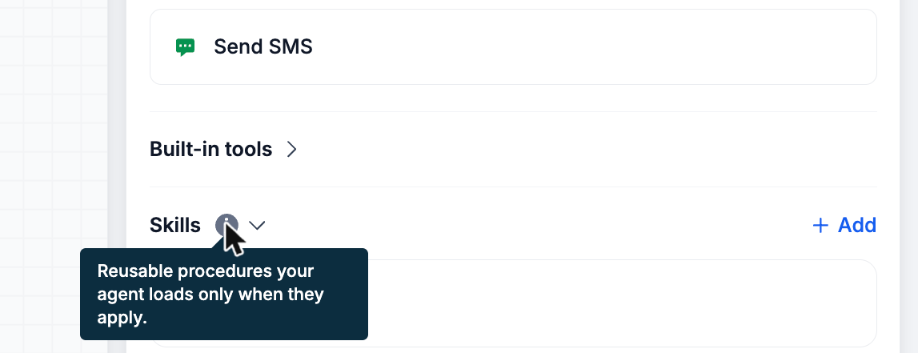
Hover over the info icon next to Skills to see what a skill is.
Built-in Skills
Four built-in skills are available in the skills library, each marked with a Built-in tag. They work like any other skill: you can attach them to AI Agent actions, edit them, or delete them.
| Skill | When the agent uses it |
| Humanizer | When it writes any message or text, on any channel. Removes the known signs of AI-generated writing. |
| Write-well | When it writes any message or text, on any channel. Removes AI writing patterns and keeps the writing clear, simple, and direct. |
| Cold-email | When it sends a first-touch or follow-up email to a lead who has not replied or spoken to you before, such as outreach, prospecting, or re-engagement. |
| Sms-writer | When it sends an SMS to a contact, such as reminders, follow-ups, confirmations, win-backs, or promotional texts. |
How to Add a Skill
Attach a skill to an AI Agent action to make its reusable instructions available when relevant. You can create a new skill or select one from your skills library, then save the action to keep your changes.
- Navigate to Automation > Workflows.
- Open an existing workflow or create a new workflow.
- To add an AI Agent action, click + Add on the workflow canvas and select AI Agent. If the workflow already contains an AI Agent action, select it.
- In the action panel, find Skills below Tools and expand the section.
- Click + Add skill. If skills are already attached, click + Add beside the Skills heading.
- Choose Create with AI, Write skill instructions, or Add existing skill. Follow the matching instructions below.
- After attaching the skill, save the AI Agent action.
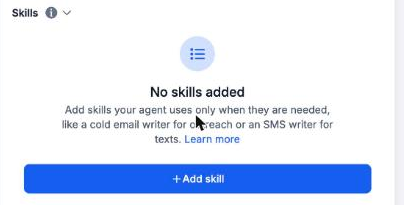
The Skills section before any skill is added.
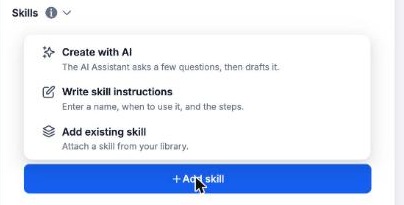
The three ways to add a skill.
Option 1: Create with AI
Select Create with AI to open the AI Assistant on the left. Describe what the skill should do, when it should be used, and what it must never do. The assistant may ask a follow-up question before drafting the skill.
Click Review & attach to open the draft in the skill form.
Review the Name, When should the agent use this?, and Instructions fields.
Make any necessary changes, then click Create & attach to save the skill and attach it to the action.
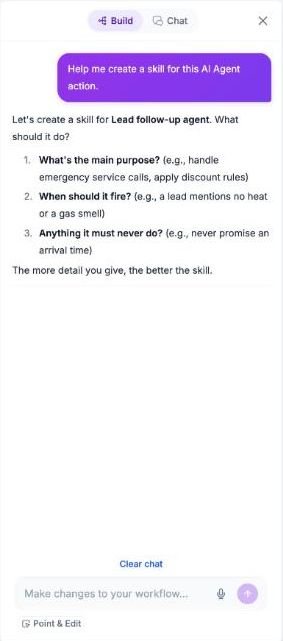
Create with AI starts a short conversation in the AI Assistant.
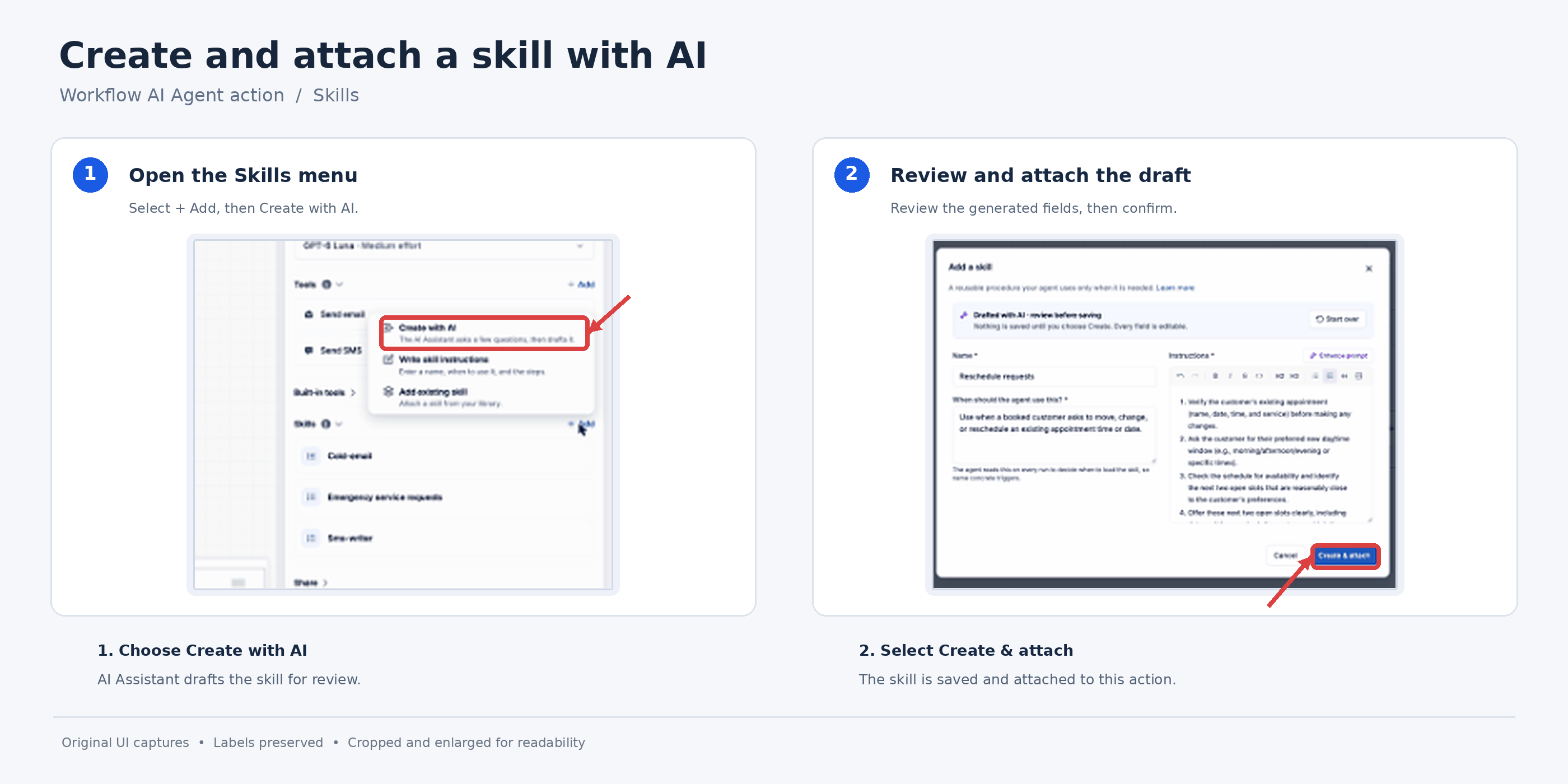
The AI Assistant workflow for creating and attaching a new skill.
Option 2: Write Skill Instructions
Writing a skill manually gives you direct control over the situations that activate it and the steps the agent should follow.
- Enter a Name.
- Fill in When should the agent use this? with the situations that should load the skill.
- Write the Instructions. Use the toolbar to add lists and headings. Click Enhance prompt to let AI improve the wording.
- Click Create & attach. The skill is saved to your library and attached to this action.
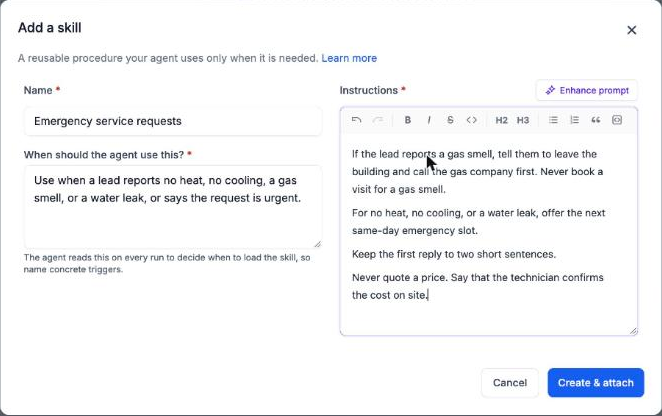
The skill form with all three fields filled in.
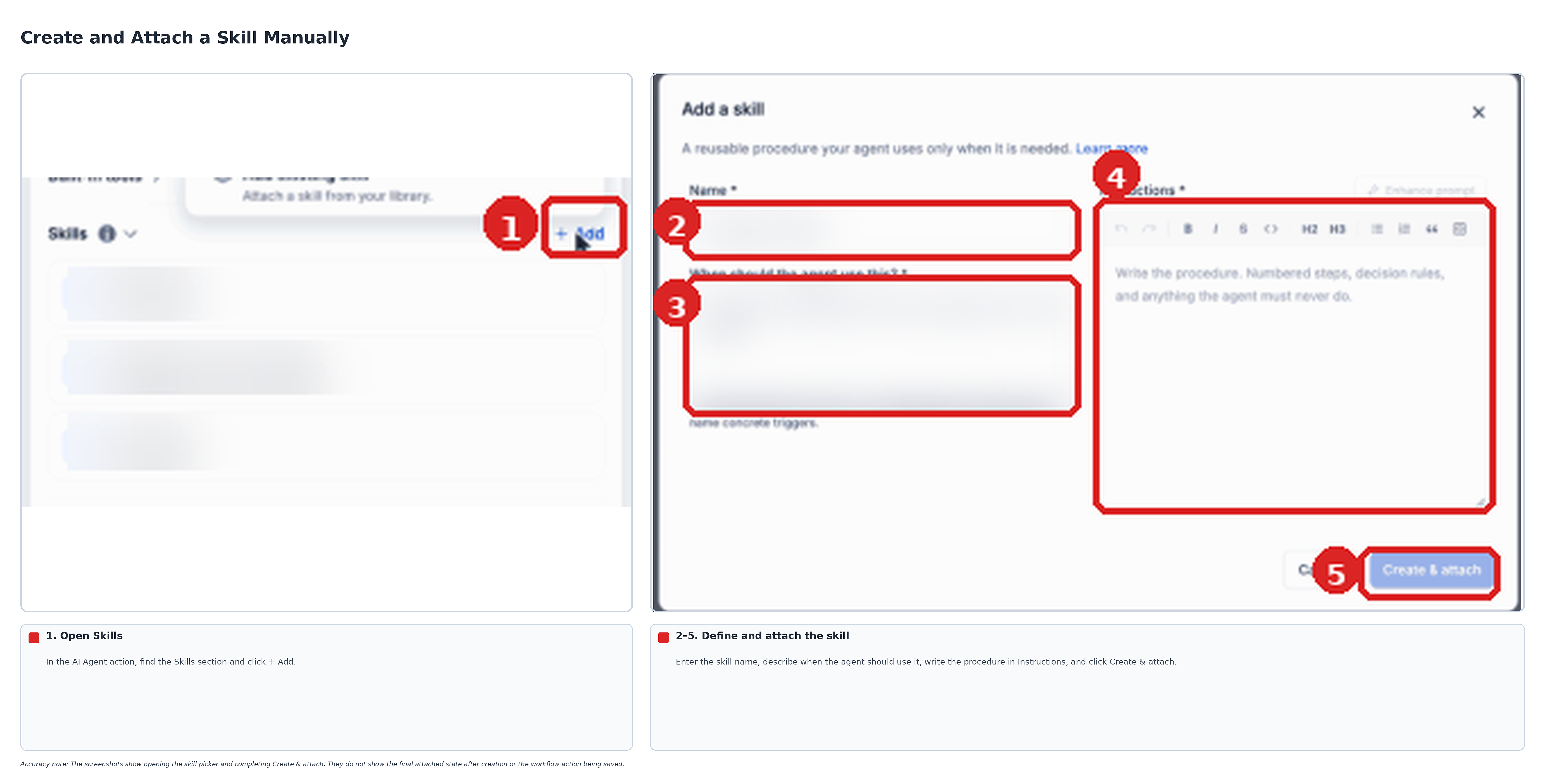
The manual skill creation and attachment process.
Option 3: Add Existing Skill
Reusing a skill from your skills library helps maintain the same guidance across multiple AI Agent actions without creating another copy.
- Search or scroll your library. Built-in skills show a Built-in tag.
- Click a skill row to read its full description and instructions before you attach it.
- Click Attach. Attached skills move to the Attached group at the top of the list.
- Click Done when you finish.
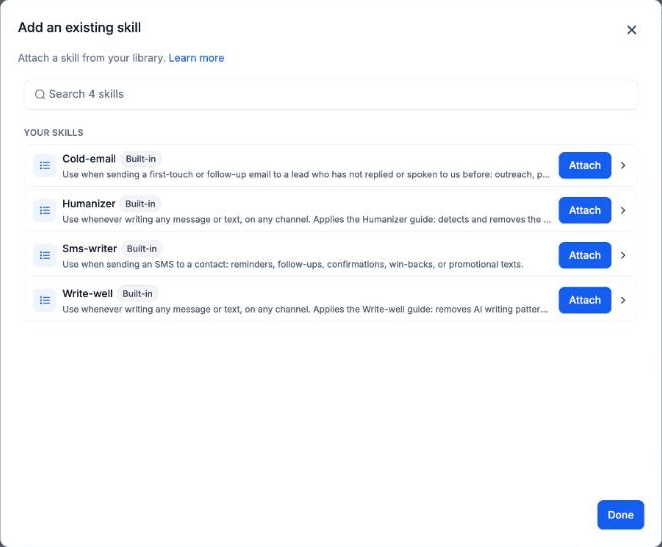
Your skills library, with the four built-in skills.
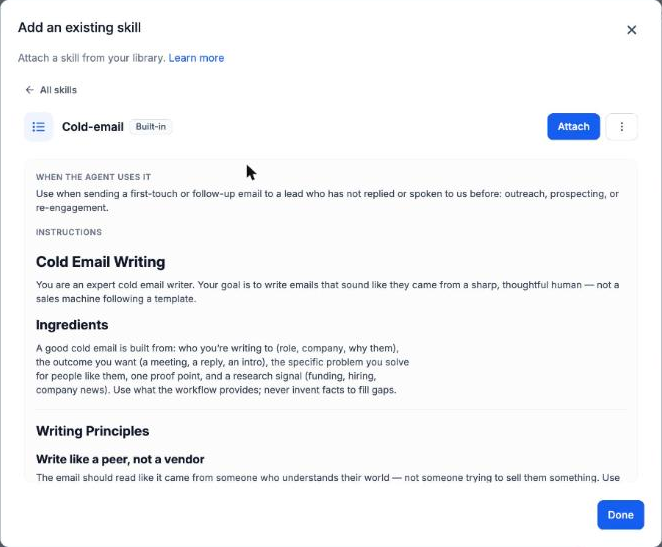
Click a skill to read it before you attach it.
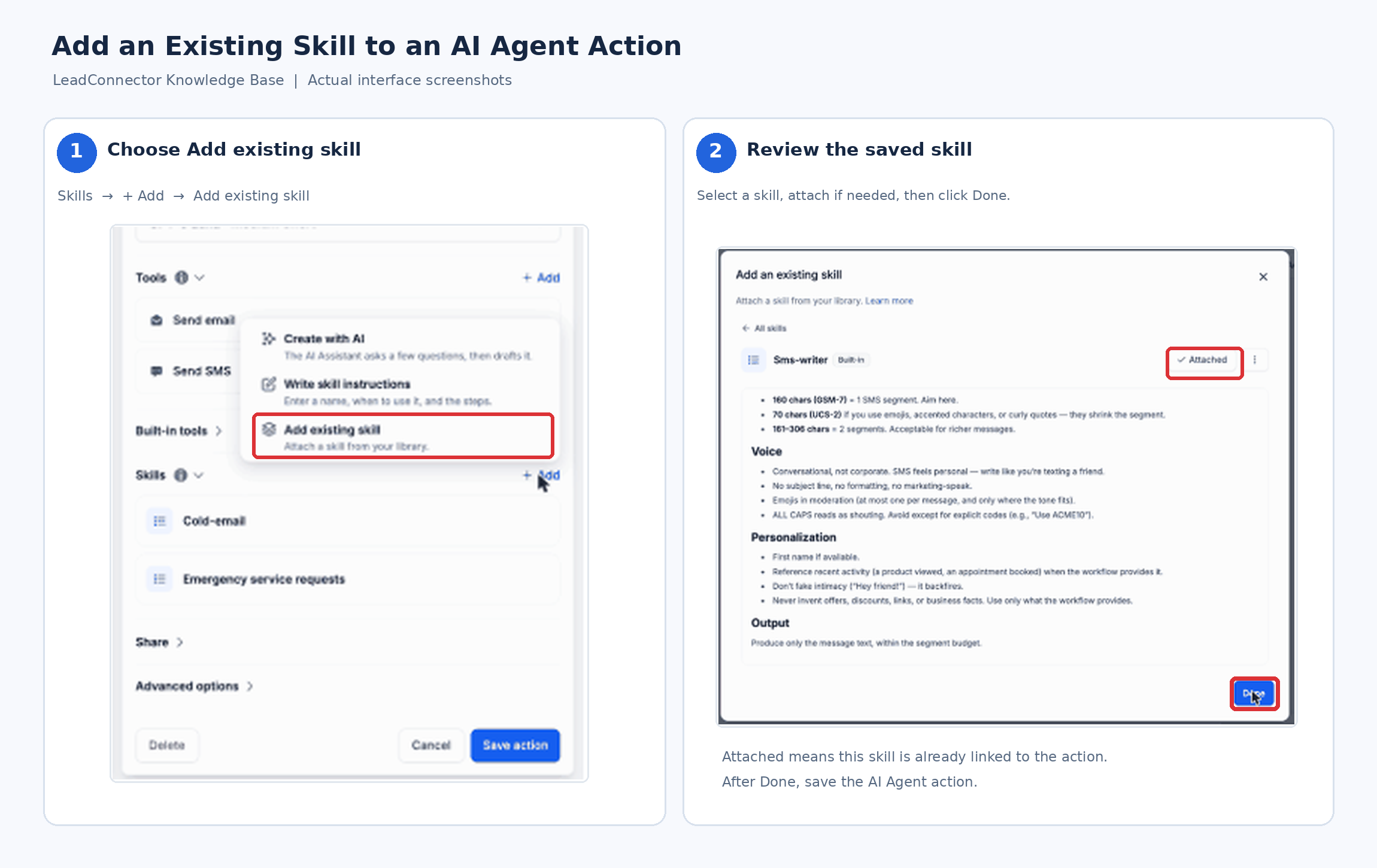
The process of adding an existing skill to an AI Agent action.
Manage Skills
Skills are stored in a reusable library, but their attachment to an action can be managed separately. Choose whether to edit, detach, or delete a skill based on where you want the change to apply.
- Edit a skill: Hover over a skill row in the action and click the pencil icon. You can also open the skill from Add existing skill and choose Edit from the options menu.
- Detach a skill: Hover over a skill row and click the X icon. The skill is removed from this action but stays in your library.
- Delete a skill: Open the skill from Add existing skill and choose Delete from the options menu. Deleting removes the skill from your library and from every action that uses it.
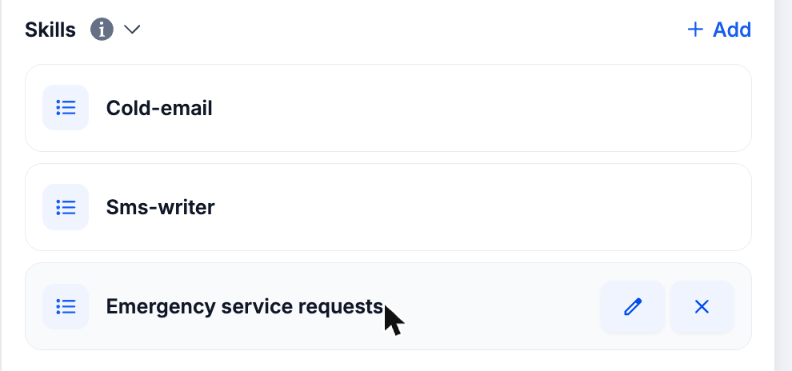
Hover over a skill to edit or detach it.
Example: Lead Follow-up Agent
A heating and cooling company wants to follow up with every lead who submits a quote request. Most leads need a friendly email and text. A few report emergencies, such as a gas smell or no heat, and those need a different response.
Setup
This workflow uses a quote-request trigger, an AI Agent action, and messaging tools to respond to leads. Specialized instructions are stored in a separate skill for urgent requests.
- Trigger: Form Submitted (Request a quote form).
- Action Name: Lead follow-up agent.
- Instructions: "You follow up with new leads for Apex Heating and Cooling. A lead just submitted the Request a quote form. Send the lead one email and one SMS that thank them, restate their request, and offer a time to talk."
- Tools: Send email and Send SMS, with Let AI decide all field values turned on.
- Skills: Cold-email (built-in), Sms-writer (built-in), and a custom skill called Emergency service requests.
The Custom Skill
The emergency-request skill defines when a request needs special handling, keeping routine lead follow-up instructions separate from urgent-response guidance.
| Field | Value |
| Name | Emergency service requests |
| When should the agent use this? | Use when a lead reports no heat, no cooling, a gas smell, or a water leak, or says the request is urgent. |
| Instructions | If the lead reports a gas smell, tell them to leave the building and call the gas company first. Never book a visit for a gas smell. For no heat, no cooling, or a water leak, offer the next same-day emergency slot. Keep the first reply to two short sentences. |
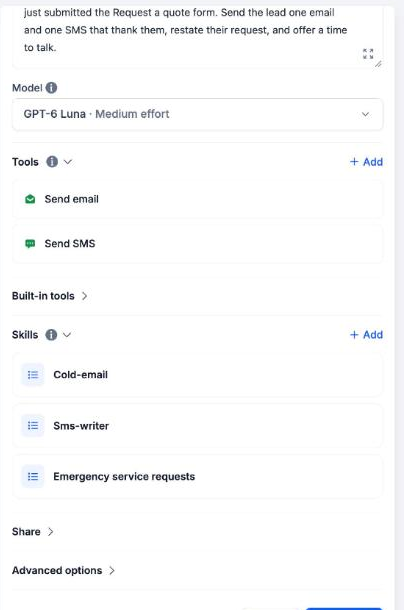
The finished action with two tools and three skills.
What Happens on a Run
Each run loads the skills that match the lead's request. Comparing routine and urgent messages helps illustrate how conditional loading changes the agent's instructions.
- A routine quote request: The agent loads Cold-email to write the email and Sms-writer to write the text. Emergency service requests stays unloaded.
- A lead who writes "no heat since last night": The agent loads Emergency service requests along with Cold-email and Sms-writer, then offers a same-day slot.
- A lead who reports a gas smell: Emergency service requests tells the agent to send safety instructions first and not to book a visit.
How the Agent Uses Skills
An AI Agent can evaluate more than one attached skill during a run. Understanding how instructions interact helps you avoid conflicting rules and choose the right tools for each task.
- More than one skill can apply: When a situation matches several skills, the agent loads all of them and follows them together.
- Action Instructions come first: If a skill and the action Instructions disagree, the agent follows the action Instructions.
- Specific rules win over general rules: A rule such as "keep the subject under five words" wins over a general rule such as "write short".
- "Never" rules win: If one skill says to do something and another skill says never to do it, the agent does not do it.
Tips for Writing Good Skills
Clear usage descriptions and focused procedures help the agent identify relevant skills while making shared instructions easier to maintain.
- Name concrete triggers: Write "Use when a lead reports no heat or a gas smell" instead of "Handles emergencies". The agent decides from this field alone.
- Keep one purpose per skill: Two small skills are easier to manage than one large skill that covers many situations.
- Put prohibitions last: End the instructions with clear "Never" lines.
- Do not repeat the action's job: The job of one action belongs in its Instructions. Rules you reuse across actions, or that apply only sometimes, belong in a skill.
Frequently Asked Questions
Q: What is the difference between Instructions and a skill?
A: Instructions describe the job of one AI Agent action and are sent on every run. A skill is a reusable procedure that lives in your library, can be attached to many actions, and is loaded only when its description matches the situation.
Q: Does a skill run every time the action runs?
A: No. The agent reads the name and description of every attached skill on each run, and loads a skill's instructions only when the situation matches its description.
Q: What happens if two skills apply at the same time?
A: The agent loads both and follows them together. If they disagree, the action Instructions win first, then the more specific rule, and a "Never" rule wins over a rule that says to do something.
Q: Can I use the same skill in more than one workflow?
A: Yes. Skills are saved in your skills library. Attach the same skill to AI Agent actions in multiple workflows.
Q: If I edit a skill, does it change everywhere?
A: Yes. A skill is shared by every action it is attached to, so an edit applies to all of them.
Q: What is the difference between detaching and deleting a skill?
A: Detaching removes the skill from one action only. Deleting removes it from your library and from every action that uses it.
Q: Can I edit or delete the built-in skills?
A: Yes. Built-in skills work like any other skill in your library.
Q: Can a skill use a knowledge base?
A: Yes. Name the knowledge base in the skill instructions. In the AI Agent action, click + Add Tool, select Search Knowledge Base, and choose the knowledge base the agent should use. The skill provides instructions, while the tool gives the agent access to the information.
Q: Can a skill send messages or update contacts by itself?
A: No. A skill tells the agent how to do something. The agent still needs the right tools on the action, such as Send email or Send SMS, to act.
Q: Do I need skills to use the AI Agent action?
A: No. Skills are optional. Many users start with Instructions and tools, then add skills later as patterns repeat.
Need Help?
If you have questions or need assistance with a feature, contact support for further guidance. To help resolve your issue efficiently, include a brief description of what you're trying to accomplish, the steps you've already taken, and any relevant screenshots or error messages.