
Social Planner email notifications help users stay informed about connected social account expirations, post approvals, rejections, and publishing failures. This article explains how to enable notifications, select email templates, configure recipients, and set reminder frequencies for different notification types.
TABLE OF CONTENTS
- Table of Contents
- What are Social Planner Notifications?
- Social Planner Notification Types and Settings
- How to Set Up Social Planner Notifications
- Configure Account Pre-Expiry Notifications
- Configure Account Expired Notifications
- Configure Post Approval Notifications
- Configure Post Failed Notifications
- Frequently Asked Questions
- Related Articles
What are Social Planner Notifications?
Social Planner notifications are automated email alerts that inform users about important events related to connected social accounts and scheduled posts.
These notifications help users monitor social account connections, manage post approvals, and identify publishing failures. Depending on the notification type, emails are sent to automatically assigned recipients or selected users.
Social Planner supports six types of email notifications:
Account Pre-Expiry: Notifies selected users before a connected social account token expires.
Account Expired: Notifies selected users when a connected social account token has expired.
Request for Post Approval: Notifies the assigned approver when a scheduled post is submitted for approval.
Approved Post: Notifies the post creator when a scheduled post is approved.
Rejected Post: Notifies the post creator when a scheduled post is rejected and includes the rejection comment.
Post Failed: Notifies selected users when a scheduled post fails to publish and includes the failure reason.
Social Planner Notification Types and Settings
Each Social Planner notification type offers different configuration options. You can enable or disable all six notification types and select an email template for each.
Some notifications also allow you to choose recipients and configure reminder frequencies.
The following table outlines the available settings for each notification type.
| Notification Type | Enable/Disable | Email Template | Users to Notify | Reminder Frequency |
|---|---|---|---|---|
| Account Pre-Expiry | Yes | Yes | Yes | Yes |
| Account Expired | Yes | Yes | Yes | Yes |
| Request for Post Approval | Yes | Yes | No | No |
| Approved Post | Yes | Yes | No | No |
| Rejected Post | Yes | Yes | No | No |
| Post Failed | Yes | Yes | Yes | No |
Note: Post approval notifications automatically determine recipients based on the approval workflow. You cannot manually select recipients or configure reminder frequencies for these notifications.
How to Set Up Social Planner Notifications
You can manage all Social Planner email notifications from the notification settings. These settings allow you to control which alerts are active and customize their available options.
Follow these steps to access and configure Social Planner notifications:
Navigate to Marketing > Social Planner.
Make sure the required social accounts are connected.
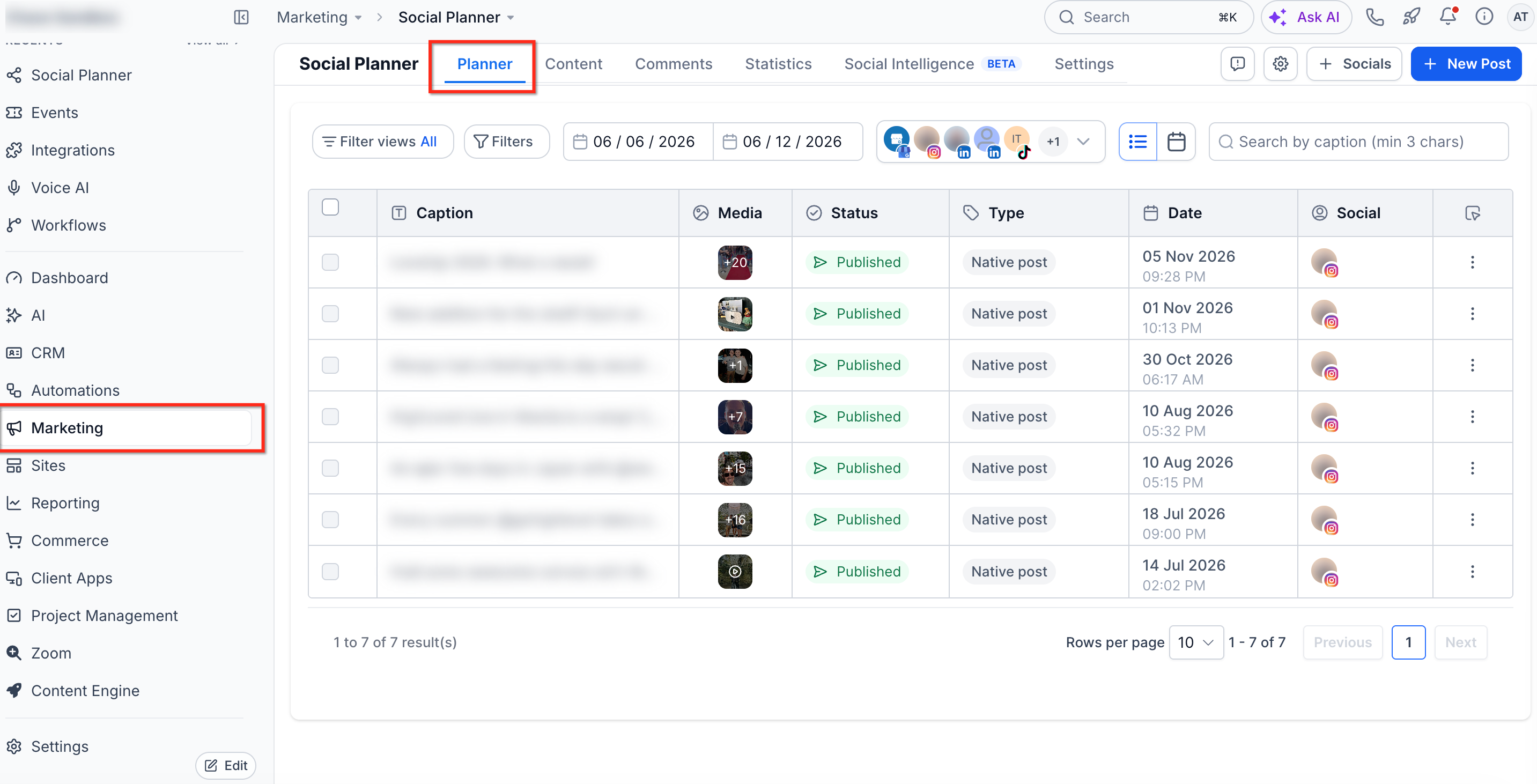
Click Settings.
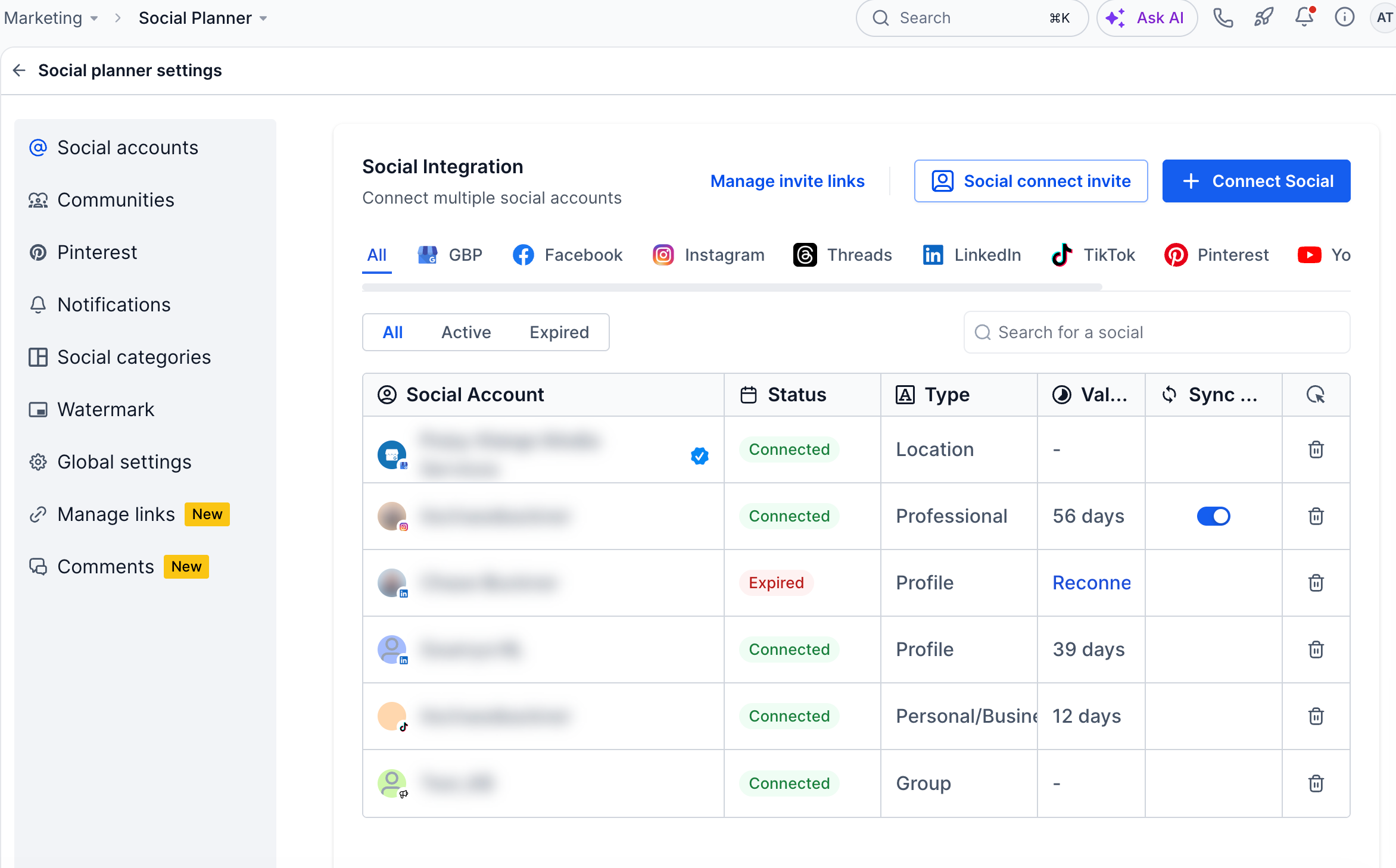
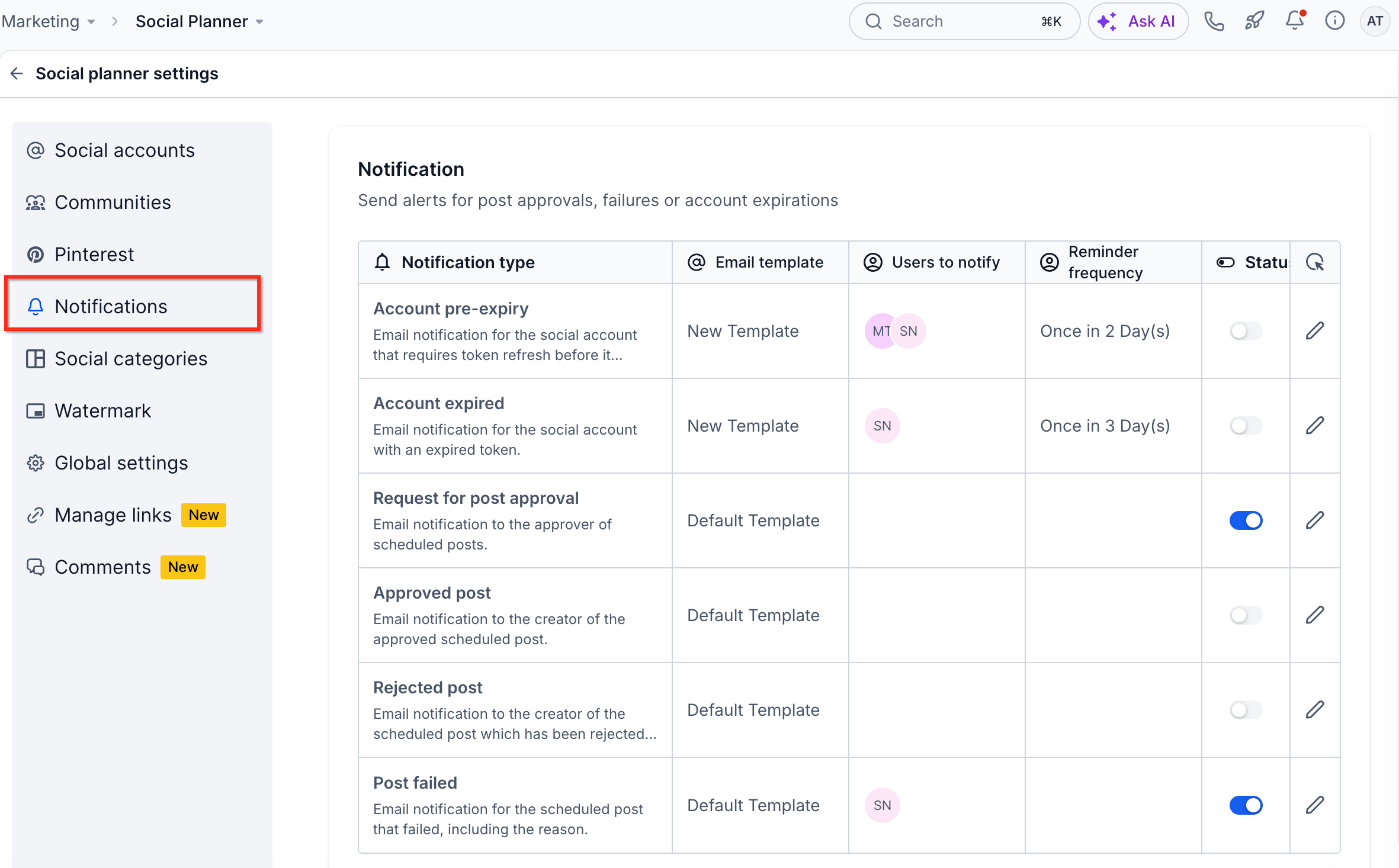
Select Notifications from the left menu.
Locate the notification type you want to configure.
Use the Status toggle to enable or disable the notification.
Click the pencil icon in the Action column to open the notification settings.
Configure the available options, such as email templates, recipients, or reminder frequency.
Click Save Changes to save your configuration.
You can repeat these steps to configure other notification types.
Configure Account Pre-Expiry Notifications
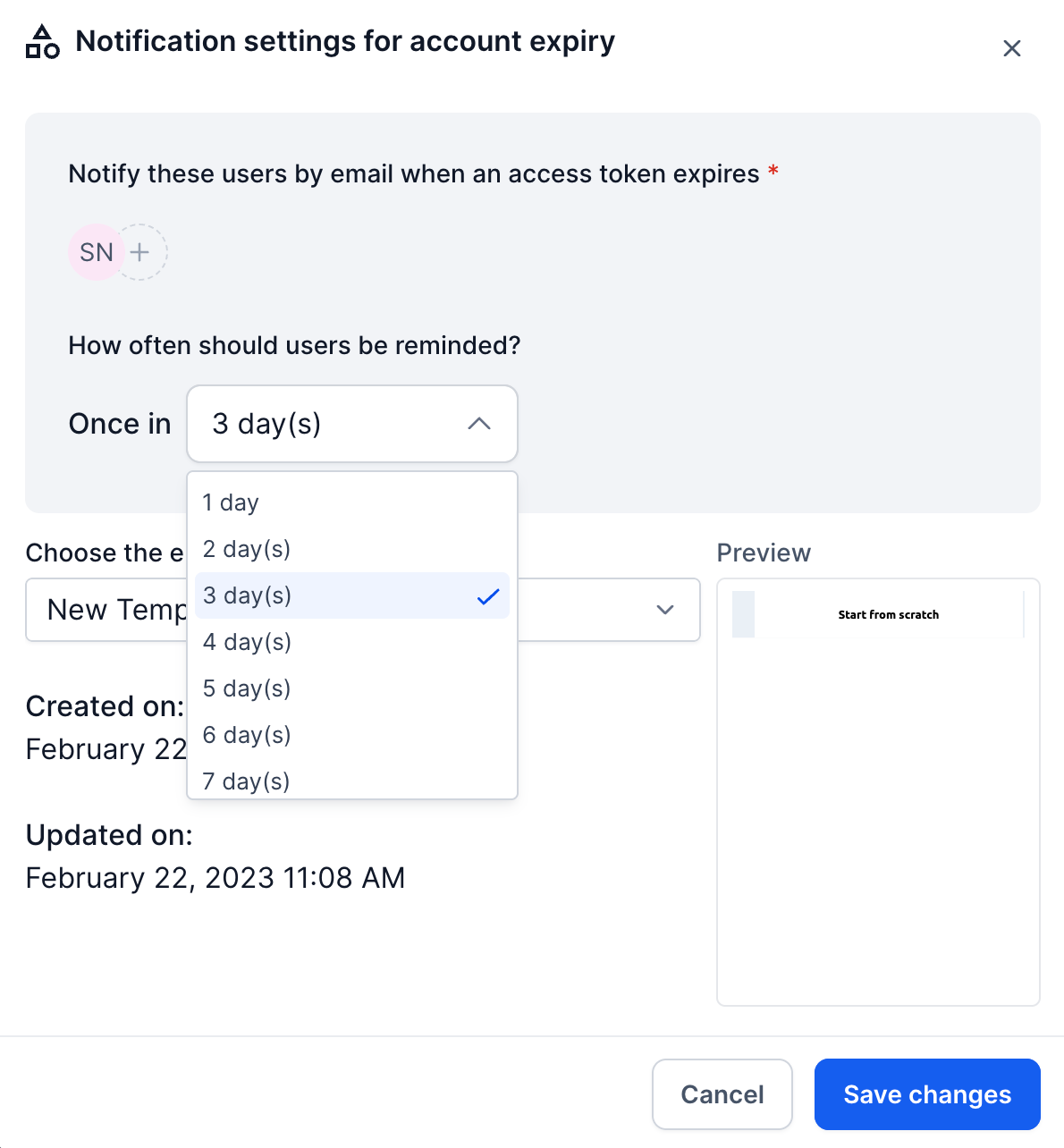
Account Pre-Expiry notifications alert selected users before a connected social account token expires. These notifications help users identify accounts that may require reconnection before publishing is interrupted.
You can customize the recipients, reminder frequency, and email template for these alerts.
To configure Account Pre-Expiry notifications:
Locate Account Pre-Expiry in the notification settings.
Turn on the notification using the Status toggle.
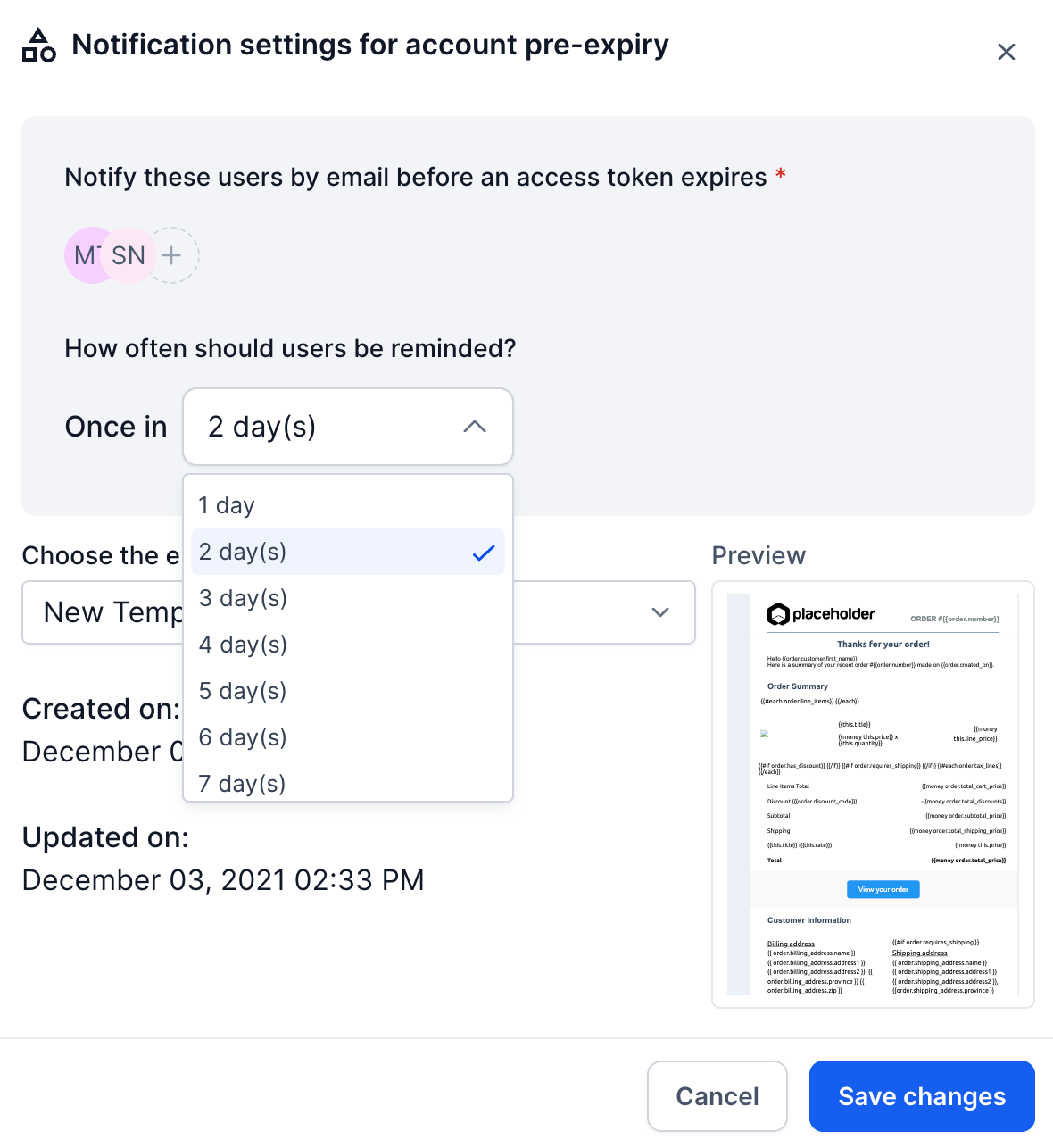
Click the pencil icon to open its configuration.
Under the users to notify option, click the + button.
Select the users who should receive the notification.
Choose the reminder frequency for the selected users.
Select the email template you want to use. The default template is selected automatically, but you can choose an existing custom email template.
Click Save Changes.
Configure Account Expired Notifications
Account Expired notifications inform selected users when a connected social account token has expired.
You can configure recipients and reminder frequencies to help users stay informed about expired connections that require attention.
To configure Account Expired notifications:
Locate Account Expired in the notification settings.
Enable the notification using the Status toggle.
Click the pencil icon to open its configuration.
Select the users who should receive the notification.
Choose the reminder frequency.
Select the email template you want to use.
Click Save Changes.
Configure Post Approval Notifications
Post approval notifications keep users informed throughout the post approval process.
There are three notification types associated with post approvals:
Request for Post Approval: Sends an email to the assigned approver when a post is submitted for approval.
Approved Post: Notifies the post creator when their post is approved.
Rejected Post: Notifies the post creator when their post is rejected and includes the rejection comment.
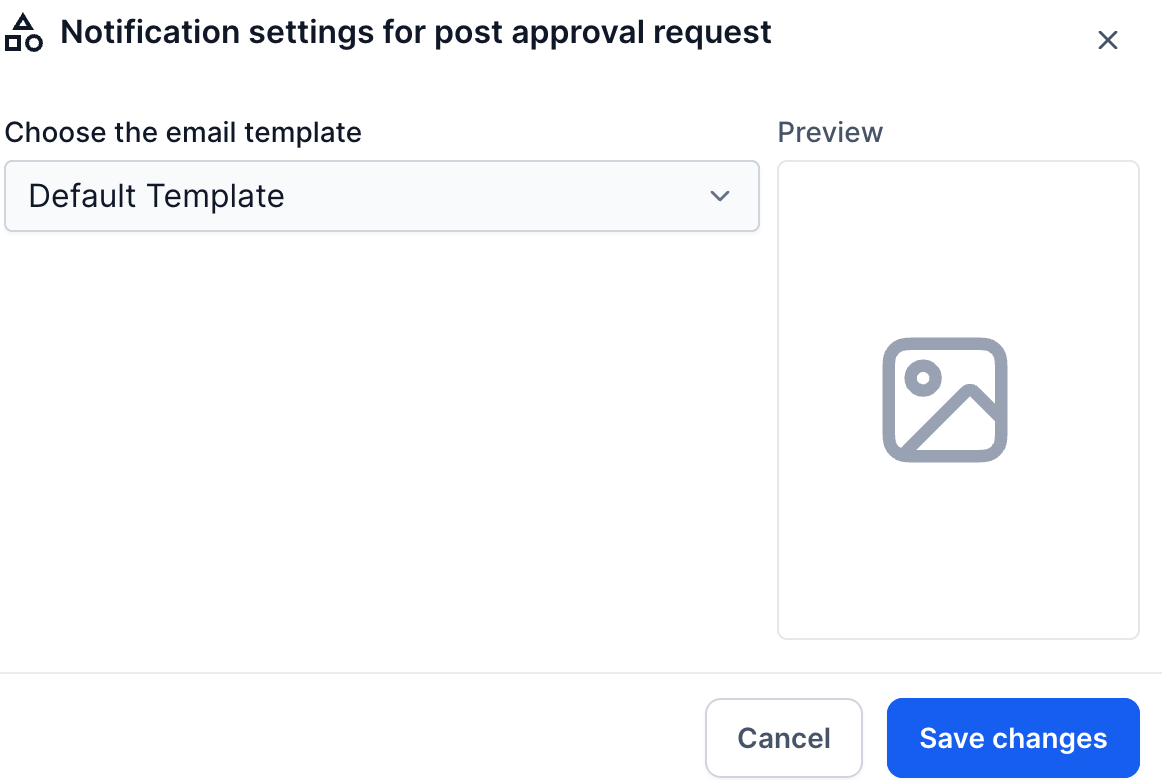
Unlike account expiration notifications, post approval notifications use recipients automatically assigned through the approval workflow. You can enable or disable these notifications and select email templates, but you cannot manually configure recipients or reminder frequencies.
To configure post approval notifications:
Locate the notification you want to configure:
Request for Post Approval
Approved Post
Rejected Post
Enable the notification using the Status toggle.
Click the pencil icon to open the notification settings.
Select the email template you want to use.
Click Save Changes.
Repeat these steps for each post approval notification you want to configure.
Configure Post Failed Notifications
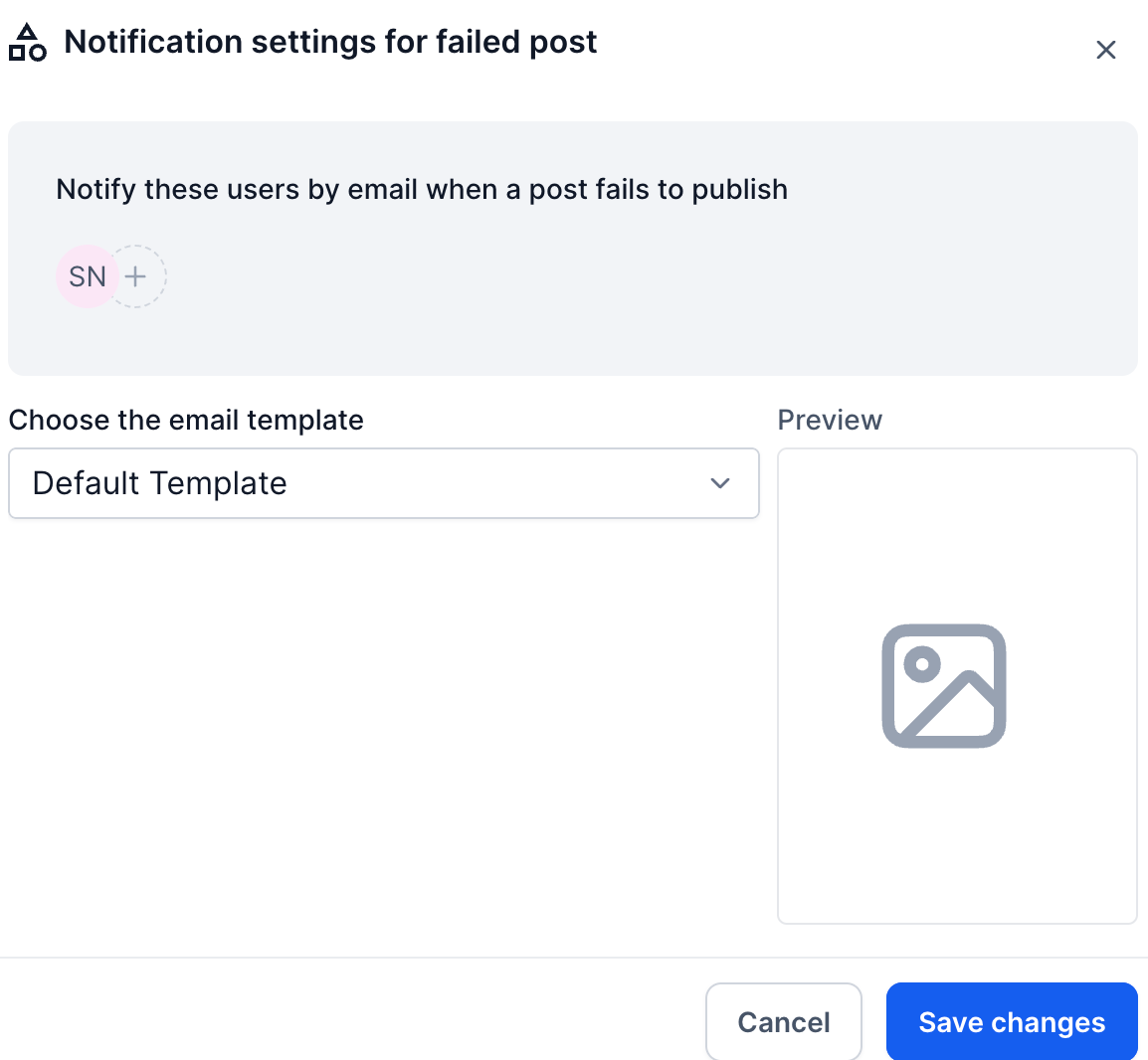
Post Failed notifications alert selected users when a scheduled social media post fails to publish.
These notifications include the failure reason, helping users identify publishing issues and take corrective action.
You can select the users who receive failure notifications and choose an email template.
To configure Post Failed notifications:
Locate Post Failed in the notification settings.
Enable the notification using the Status toggle.
Click the pencil icon to open its configuration.
Select the users who should receive an email when a post fails to publish.
Choose the email template you want to use.
Click Save Changes.
Note: Post Failed notifications do not support configurable reminder frequencies.
Frequently Asked Questions
Q: Why can't I choose recipients for post approval notifications?
Recipients for post approval notifications are automatically determined by the approval workflow. You can enable or disable these notifications and select their email templates, but you cannot manually assign recipients.
Q: Why is the default email template preview blank?
Default notification templates are managed by the system and are not stored in the Email Templates library. A blank preview is expected and does not prevent the default notification from being sent.
Q: Can I change how frequently account expiration reminders are sent?
Yes. Both Account Pre-Expiry and Account Expired notifications support configurable reminder frequencies. Other notification types do not provide this option.
Q: Why didn't an approver receive an email notification?
Verify that Request for Post Approval is enabled under Social Planner > Settings > Notifications. Also, confirm that the correct approver was assigned when the post was submitted for approval.
Q: What should I do after receiving a Post Failed notification?
Open Social Planner and locate the failed post. Review the failure reason provided in the notification or post details.
Check the connected social account, account permissions, and post content to identify the issue before attempting to publish the post again.