
Create and schedule Facebook Reels directly from Social Planner to share short-form video content with your audience. You can upload videos, write captions, add follow-up comments, and choose when your Reels are published.
This guide covers the setup process, video requirements, and publishing options.
TABLE OF CONTENTS
- What are Facebook Reels in Social Planner?
- Facebook Reel Requirements
- How to Create a Facebook Reel
- Frequently Asked Questions
What are Facebook Reels in Social Planner?
Facebook Reels are short-form videos that you can publish to connected Facebook Pages using Social Planner. The post composer allows you to prepare Reel content, preview your video, and publish immediately or schedule it for later.
Facebook Reel Requirements
Preparing your video within the supported limits helps prevent upload errors and publishing failures. Facebook Reels require a connected Facebook Page and one compatible video.
| Requirement | Specification |
|---|---|
| Facebook Account | Connected Facebook Page |
| Video File Size | Maximum 1 GB |
| Video Duration | 3–90 seconds |
| Video Attachments | One video per Reel |
| Recommended Resolution | 1080 × 1920 pixels |
| Minimum Resolution | 540 × 960 pixels |
| Recommended Aspect Ratio | 9:16 |
| Supported Video Formats | MP4, MOV, WebM |
| Custom Thumbnail | Not supported |
Note: Use a compatible video file, such as MP4, MOV, or WebM. For current format requirements, refer to Social Planner Image, Video Content, and API Limitations.
How to Create a Facebook Reel
Connect your Facebook Page. Navigate to Marketing → Social Planner, connect Facebook, and follow the authorization prompts. Select the Facebook Page you want to manage and grant the requested permissions.
Create a new post. Click New Post → Create New Post to open the post composer.
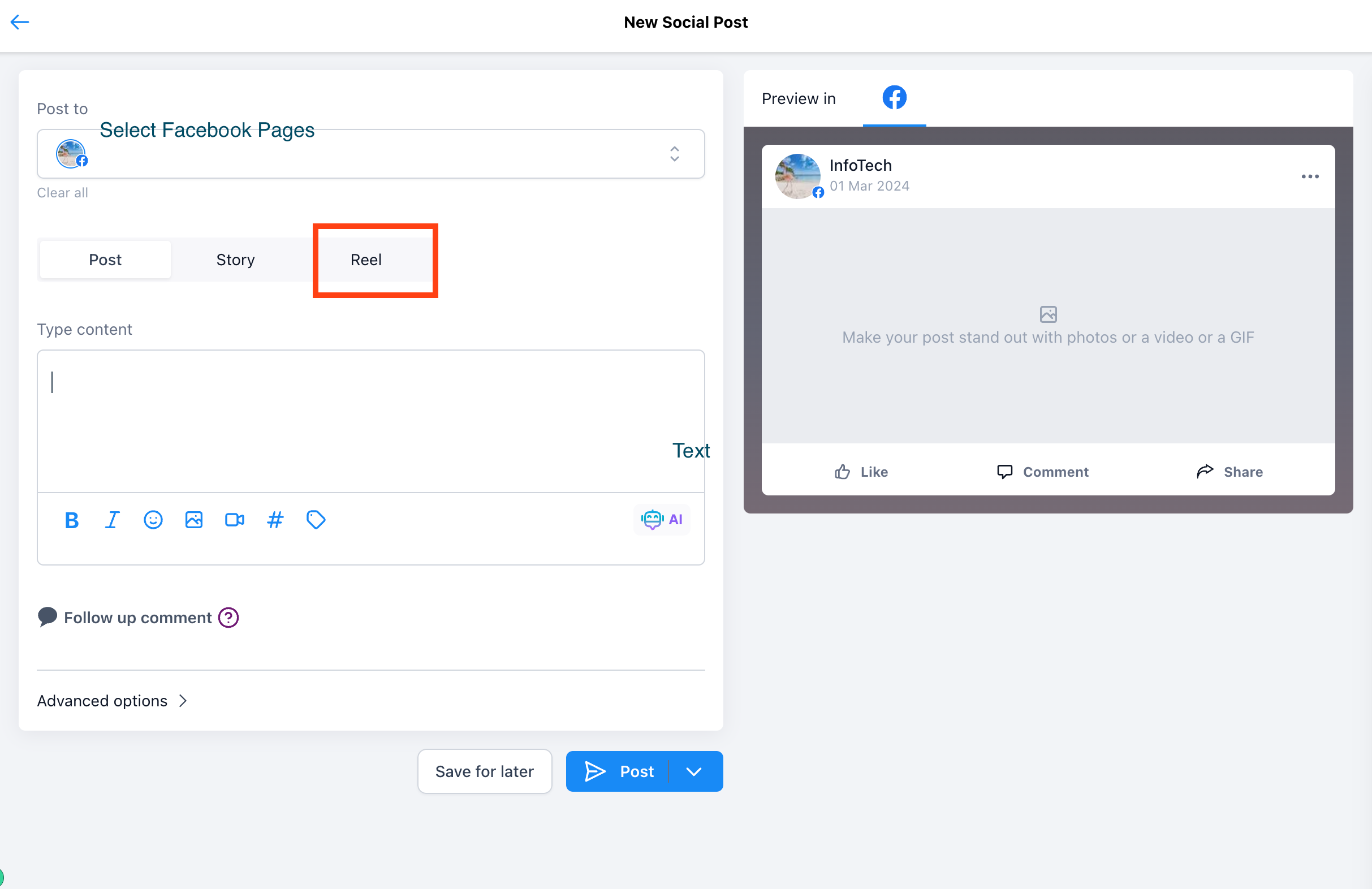
Select your Facebook Page and Reel. Under Post to, select your connected Facebook Page. In Facebook Options, choose Reel instead of Feed or Story.
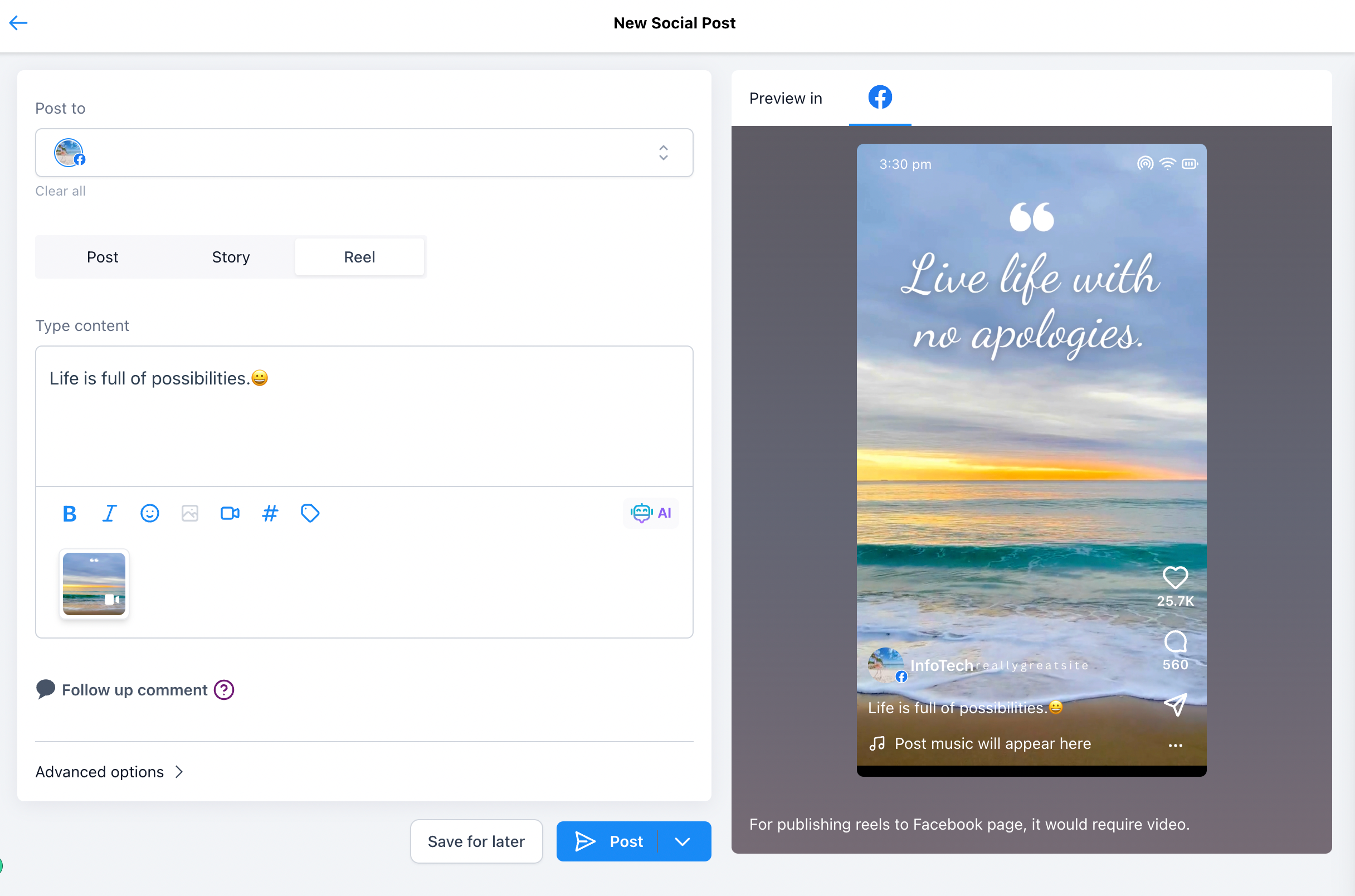
Upload your video and add a caption. Click the video icon to select or upload your video. Add a caption, hashtags, or emojis as needed. Check the Reel preview.
Add a follow-up comment (optional). Click Follow up comment and enter the text you want to appear as a comment on the published Reel. You can include a website link, offer, or call to action.
Configure advanced options (optional). Expand Advanced options to assign a category or tags to help organize your content.
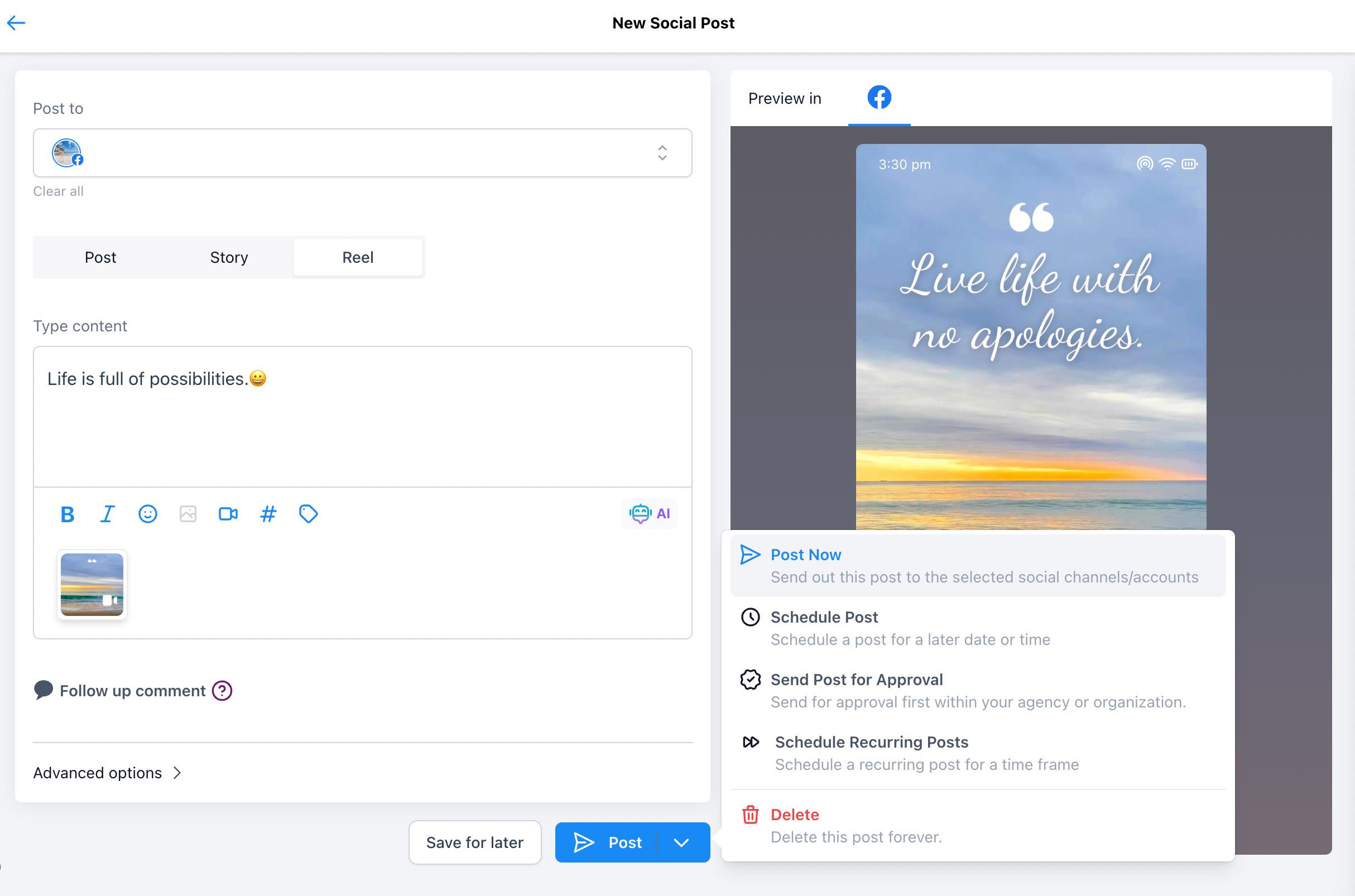
Publish or schedule your Reel. Open the Post dropdown and choose the appropriate action:
Post Now: Publish your Reel immediately.
Schedule Post: Choose a future date and time.
Send Post for Approval: Submit the Reel for review before publishing.
Schedule Recurring Posts: Configure recurring publication where appropriate.
Frequently Asked Questions
Q: Can I publish Facebook Reels to a Facebook Group?
No. Facebook Reel publishing through Social Planner is documented for Facebook Pages. Group posts are handled as regular feed posts.
Q: Can I upload multiple videos to one Facebook Reel?
No. Social Planner supports one video per Facebook Reel.
Q: Can I add a website link to my Facebook Reel?
You can include a relevant link in the caption or use the optional Follow up comment field to add a link in the comments.
Q: Can I add a custom thumbnail to my Facebook Reel?
No. Custom thumbnails are not currently supported for Facebook Reels in Social Planner.
Q: What should I do if my Facebook Reel does not publish?
Check the post status, confirm that the Facebook Page is connected, and make sure the video meets the supported file-size, duration, and resolution requirements.