
Automatically share new content from RSS or Atom feeds to your connected social media accounts using Social Planner. Configure how often feeds are checked, control the number of posts published, and customize the content shared.
This guide explains how to set up and manage RSS-based social media publishing.
IMPORTANT: Posting to X (formerly Twitter) via RSS is not supported due to API restrictions. RSS publishing is available for other supported networks in Social Planner.
TABLE OF CONTENTS
- What is RSS Scheduling in Social Planner?
- Key Benefits of RSS Scheduling
- Prerequisites
- How to Find an RSS Feed
- How to Create Posts Using an RSS Feed
- How RSS Duplicate Protection Works
- Important Considerations
- Frequently Asked Questions
What is RSS Scheduling in Social Planner?
RSS Scheduling allows Social Planner to automatically publish new content from RSS or Atom feeds to connected social media accounts.
This feature helps you share blog posts, podcast episodes, news articles, and other regularly updated content without creating individual social posts.
You can configure how frequently Social Planner checks for new content, specify the maximum number of items processed per check, and customize the information included in each published post.
Key Benefits of RSS Scheduling
RSS (Really Simple Syndication) Scheduling helps maintain a consistent social media presence while reducing manual content publishing.
Content Curation: Gather content from different sources through RSS feeds to discover relevant information to share.
Automated Content Sharing: Automatically publish new feed content to connected social media accounts, saving time and reducing manual work.
Stay Updated with Industry Trends: Follow industry blogs and news sources to share timely and relevant content.
Reduce Information Overload: Consolidate content from multiple sources instead of visiting individual websites.
Share User-Generated Content: Monitor available community and forum feeds to discover relevant contributions worth sharing.
Maintain a Consistent Posting Schedule: Configure automated feed checks to maintain a steady flow of new social media content.
Prerequisites
Before setting up RSS Scheduling, make sure you have:
A valid, publicly accessible RSS or Atom feed URL, such as a feed from a blog, news website, or YouTube channel.
At least one supported social media account connected through Marketing → Social Planner → Settings.
Supported social media accounts may include Facebook Pages, Instagram Business accounts, LinkedIn profiles or pages, Google Business Profiles, and Pinterest accounts.
Note: X (formerly Twitter) does not support RSS publishing through Social Planner.
How to Find an RSS Feed
Many websites provide RSS feeds, although the feed URLs may not be immediately visible.
You can locate an RSS feed by checking common URL patterns or examining the website's source code.
Method 1: Check Common RSS Feed URLs
Different website platforms use different RSS feed URL formats.
WordPress
For many WordPress websites, add /feed to the end of the website URL.
Example: https://example.com/feed
Tumblr
For Tumblr websites, add /rss to the end of the blog URL.
Example: https://example.tumblr.com/rss
Blogger
For Blogger websites, add /feeds/posts/default to the end of the website URL.
Example: https://example.blogspot.com/feeds/posts/default
Medium
For Medium publications, insert /feed/ before the publication name.
Example: https://medium.com/feed/example-site
YouTube
YouTube channels can provide RSS feeds for newly published videos. Locate the channel's RSS feed URL and use it when configuring RSS Scheduling.
Note: RSS feed availability and URL formats depend on the source website. These examples may not work for every website.
Method 2: Find the RSS Feed in the Website's Source Code
If the common URL formats do not work, check the website's HTML source code.
Open the website that contains the content you want to share.
Right-click an empty area of the page.
Select View Page Source or the equivalent option in your browser.
Press Ctrl + F (Windows or Linux) or Command + F (Mac).
Search for
rss.If no results appear, search for
atom.Look for a feed URL within the page's source code.
Copy the RSS or Atom feed URL.
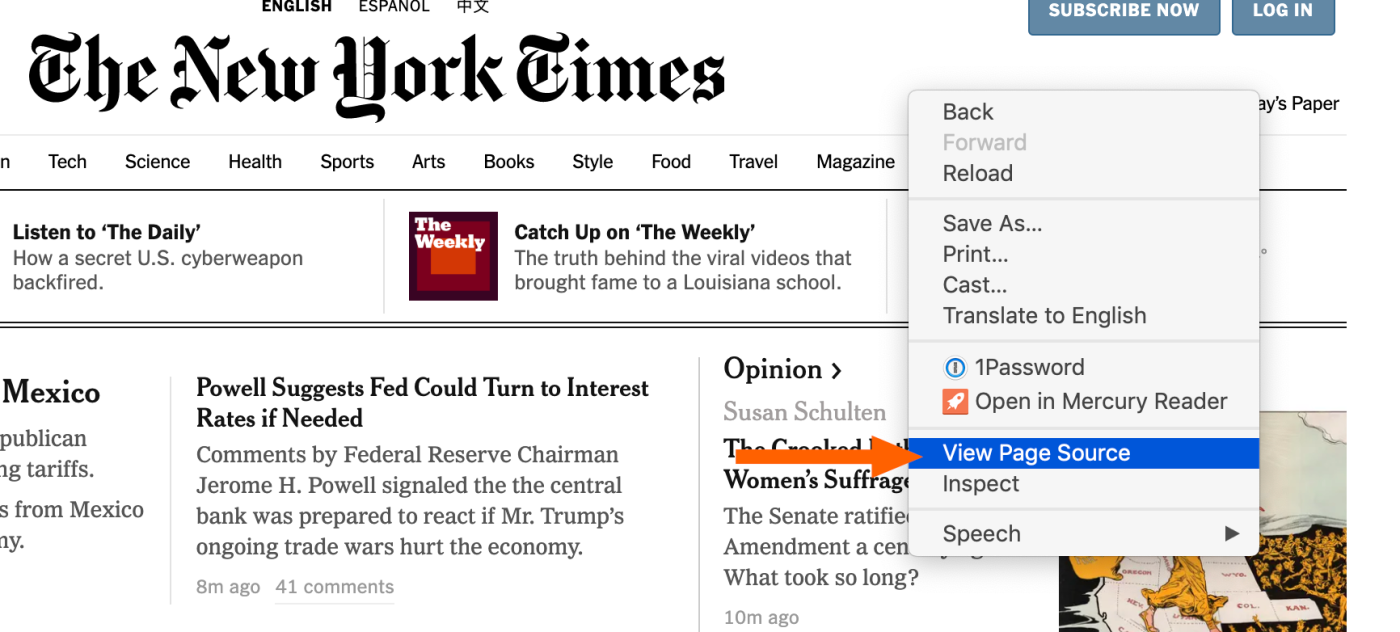

You can then use the URL to configure automatic publishing in Social Planner.
How to Create Posts Using an RSS Feed
Create an RSS publishing configuration in Social Planner to automatically share new feed items with your connected social media accounts.
Step 1: Navigate to RSS Post
Go to Marketing → Social Planner.
Click New Post.
Select RSS Post.
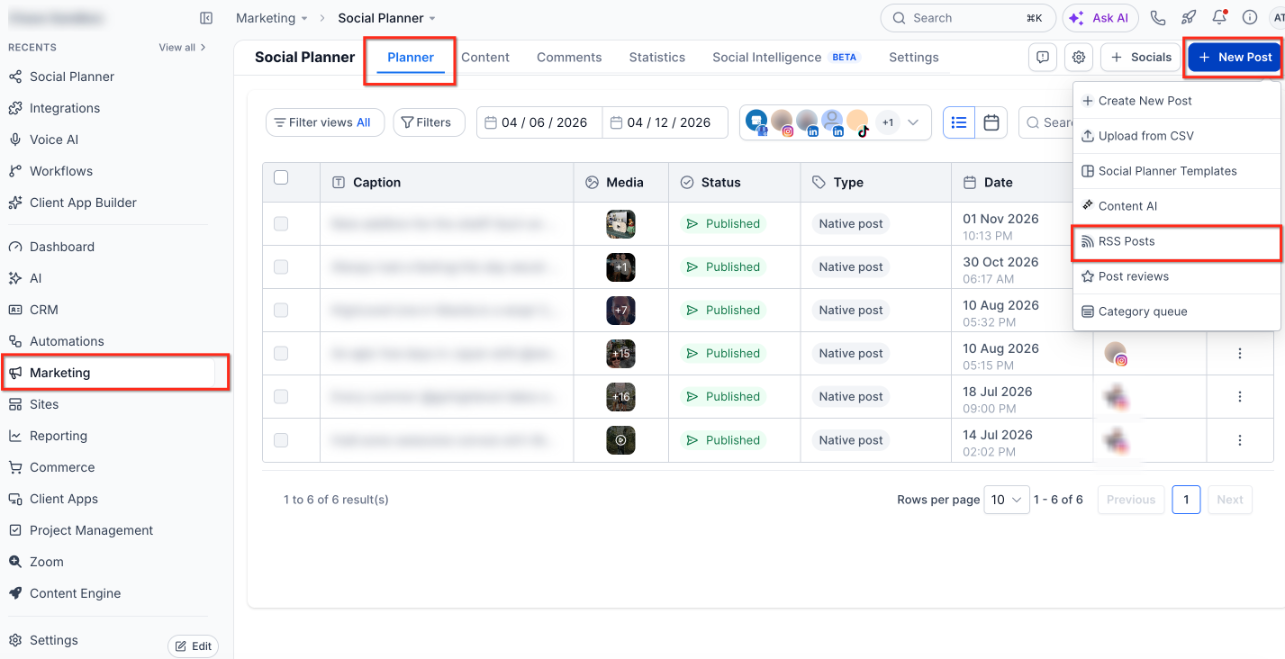
This opens the RSS publishing configuration.
Step 2: Add the RSS Feed URL
Enter the RSS or Atom feed URL for the content you want to publish.
Make sure the feed URL is valid and accessible.
If you do not have a feed URL, refer to the How to Find an RSS Feed section above.
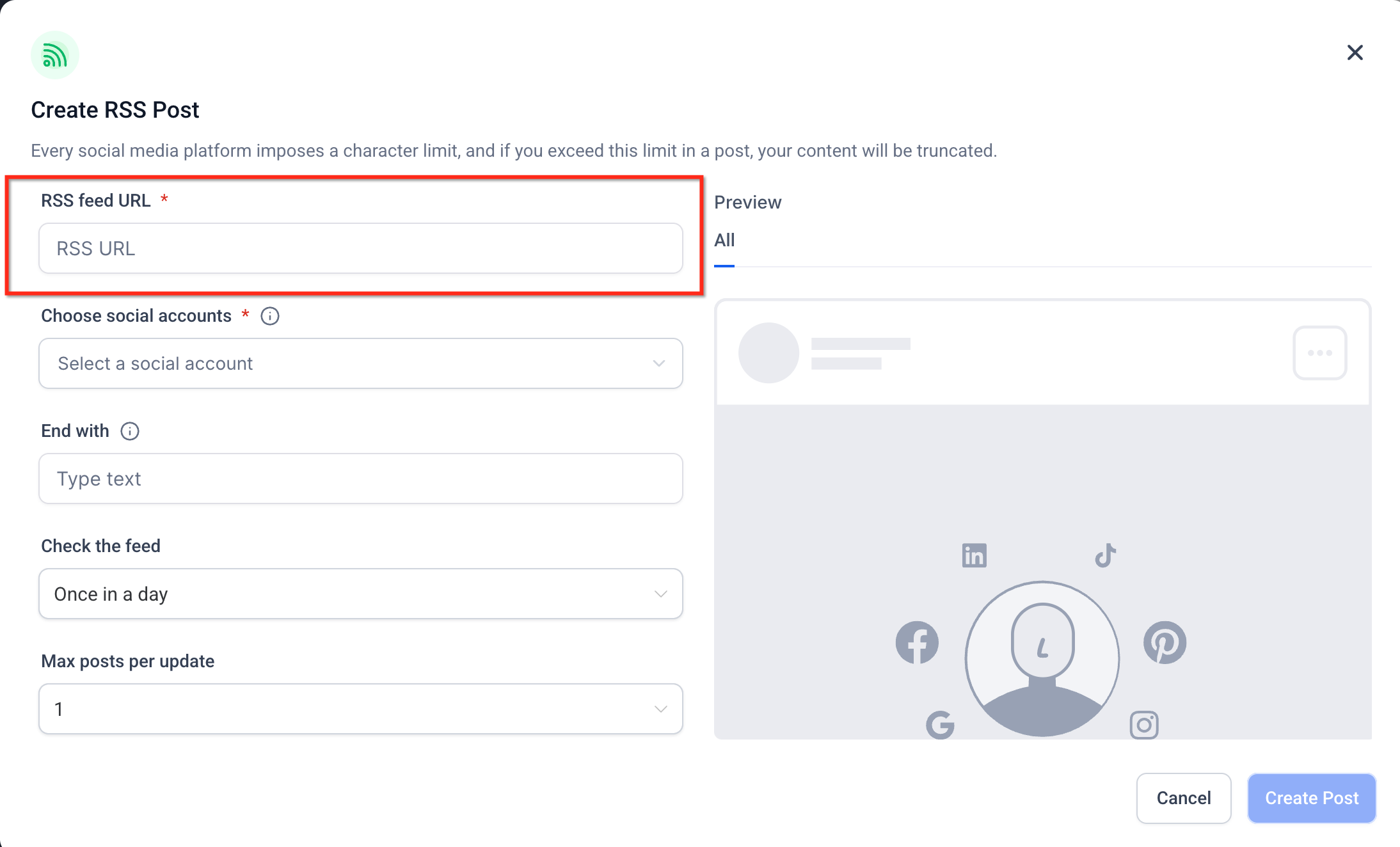
Step 3: Select Social Accounts
Select the connected social media accounts where you want RSS content to be published.
You can select multiple supported accounts.
Note: X (formerly Twitter) is not available for RSS publishing.
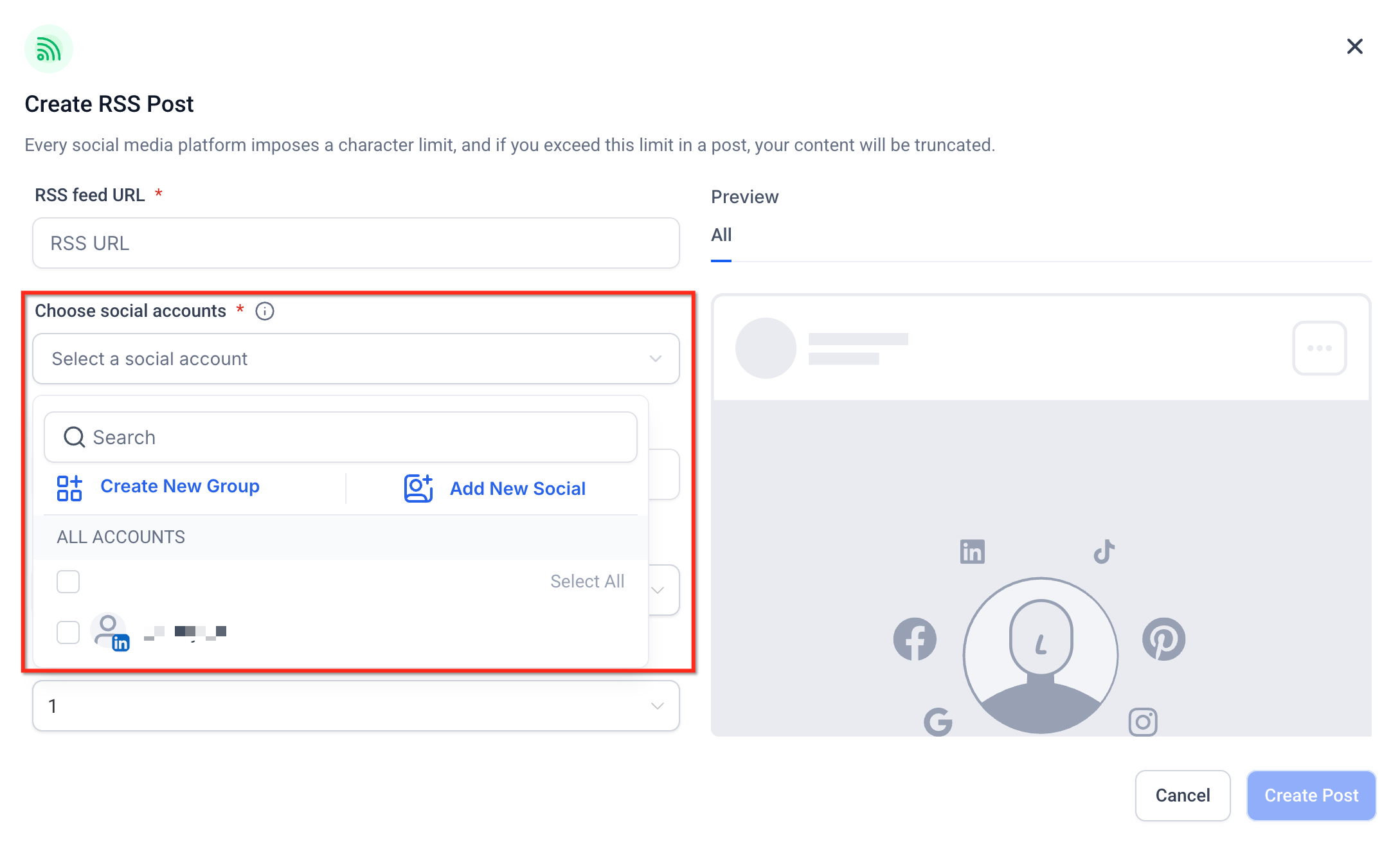
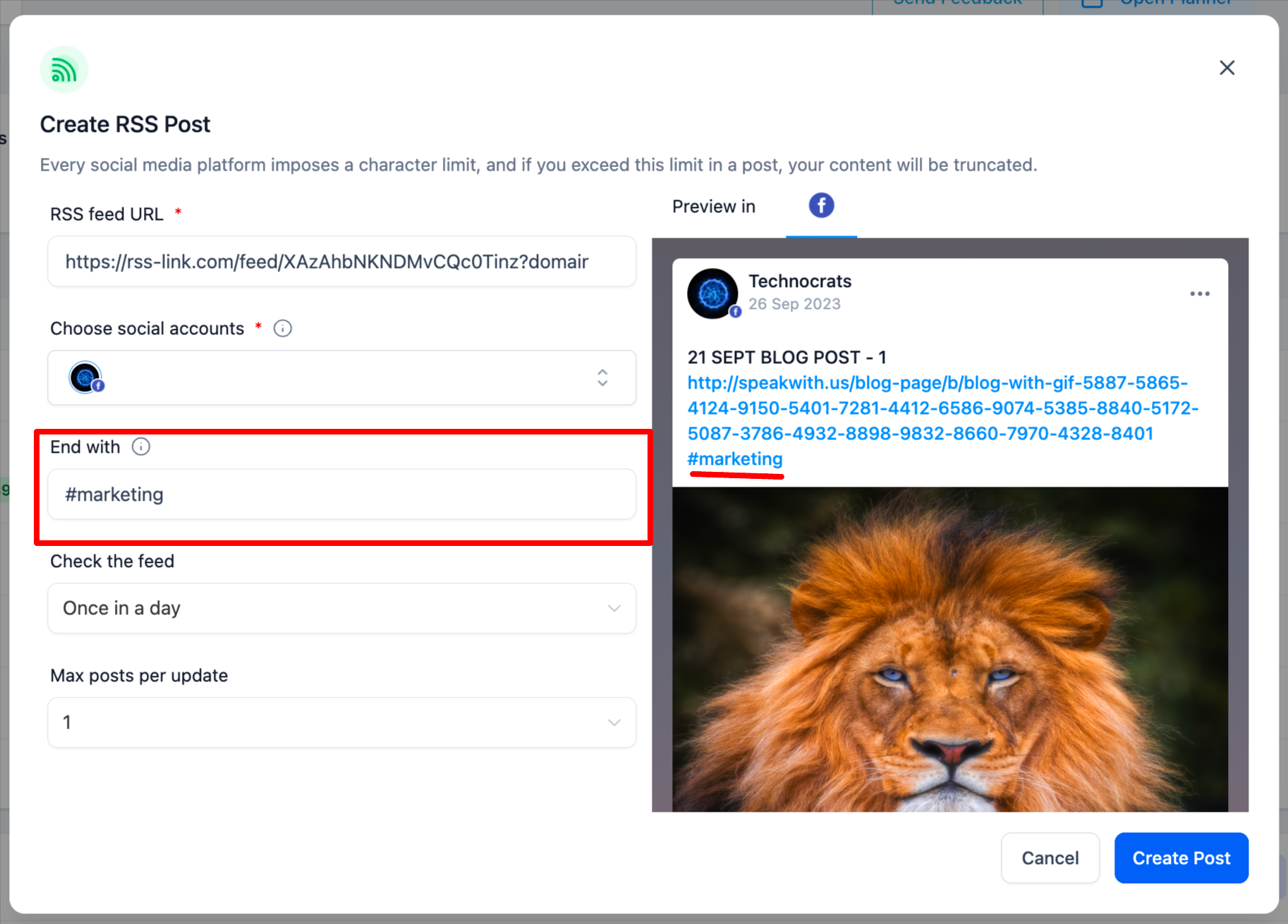
Step 4: Add Ending Text
Use the End with option to append additional text to your RSS posts.
You can include:
Custom text
Hashtags
Links
This allows you to add consistent information to posts generated from your RSS feed.
Step 5: Set the Feed Update Frequency
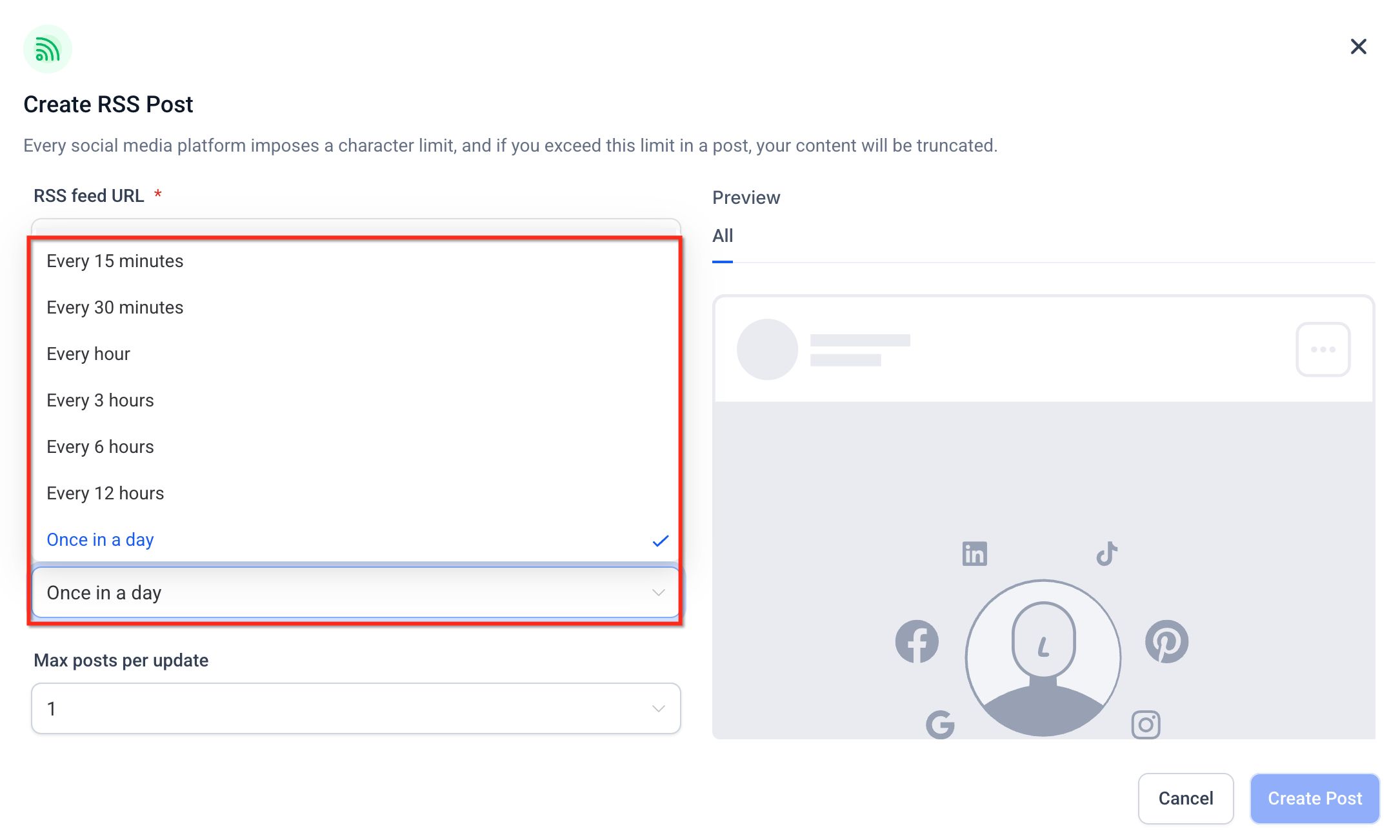
Configure how frequently Social Planner checks your RSS feed for new content.
The available update intervals range from every 5 minutes to once a day.
Select the frequency that best matches how often the source publishes new content.
Step 6: Select Maximum Posts
Use the Maximum Posts setting to specify how many unique RSS feed items Social Planner processes during each feed check.
You can select a minimum of 1 and a maximum of 5 items.
For example, if you select 3, Social Planner retrieves up to three of the most recent eligible items from the RSS feed during a check.
Each eligible item is published as a separate social media post.
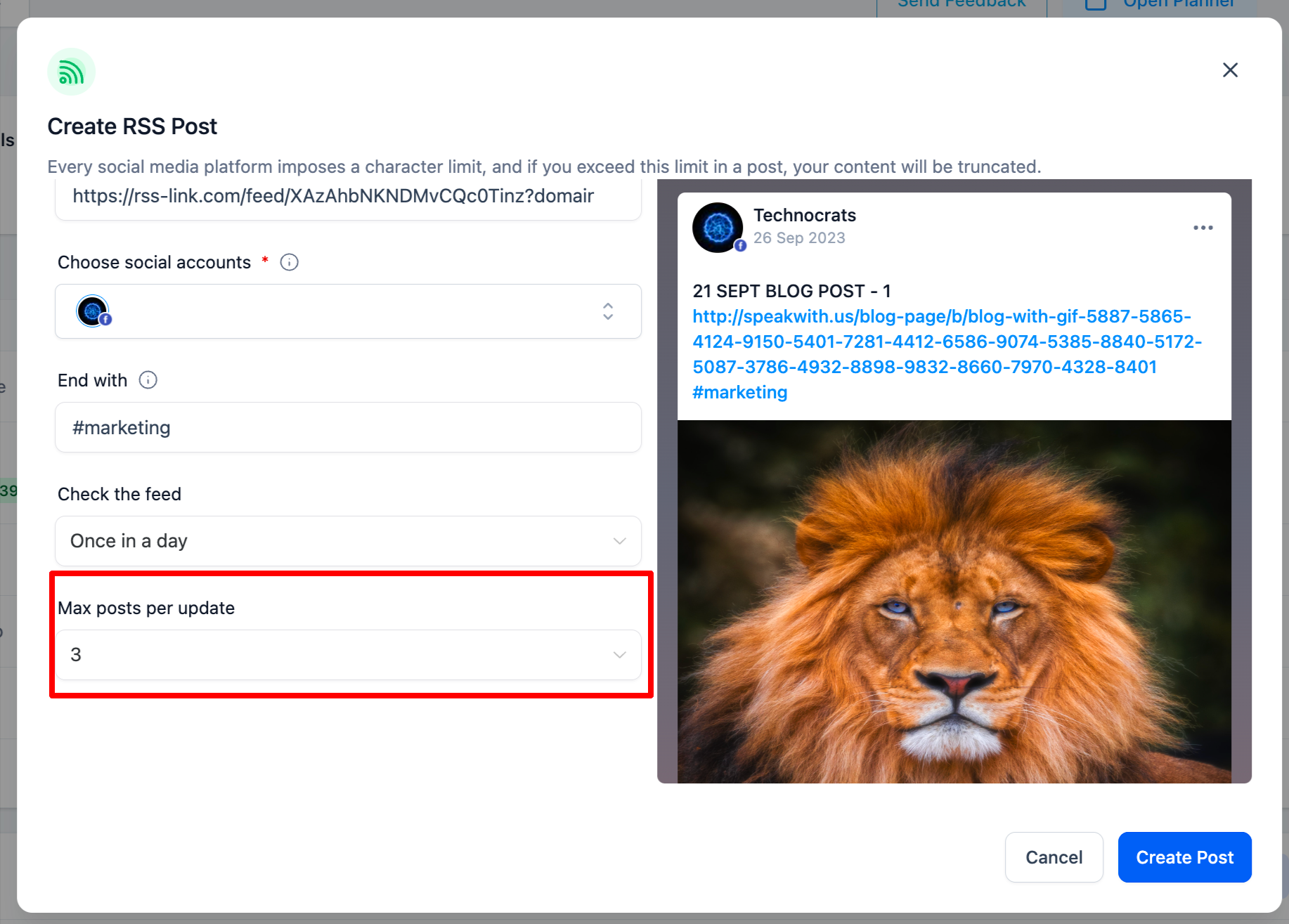
Important: The Maximum Posts setting does not cause the same feed item to be published multiple times. It controls how many unique items can be processed during each check.
Step 7: (Optional) Include RSS Item Descriptions
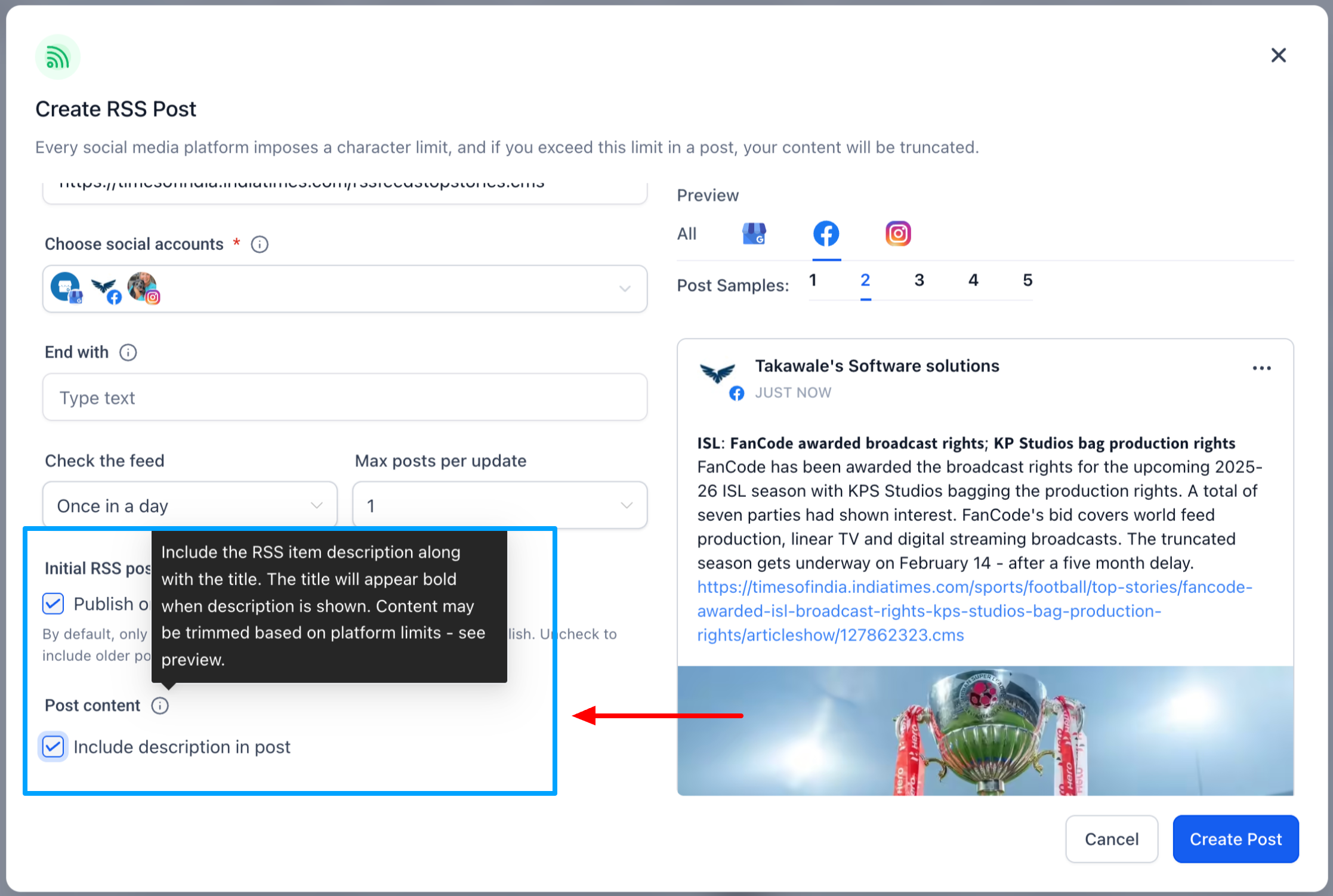
Use the Include Description option to control whether published posts contain only the RSS item title or both its title and description.
Enable Include Description: Publish the RSS item title and description.
Disable Include Description: Publish the RSS item title without its description.
This setting provides additional control over how much information appears in each social media post.
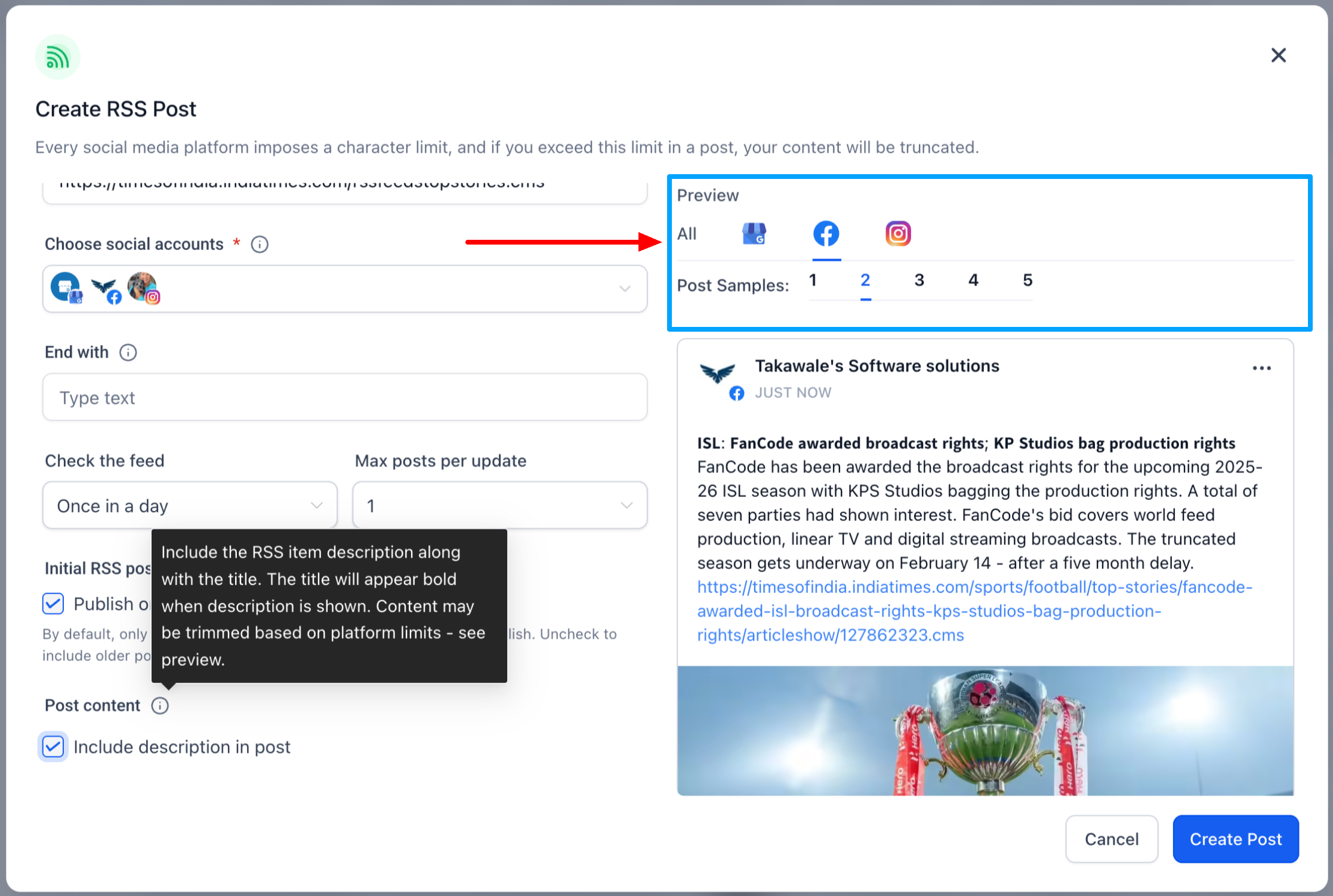
Preview RSS Items Before Saving
Use the multi-item preview to review up to 5 RSS items before saving your configuration.
The preview helps you check:
Post formatting
Content length
Included descriptions
Potential text truncation
How content appears across selected social networks
Platform-Specific Content Formatting
When you publish RSS content to multiple social networks, Social Planner generates post text based on each platform's character limits.
As a result, the same RSS item may display differently across social networks.
Use the multi-item preview to review formatting and identify where text may be truncated before saving your configuration.
How RSS Duplicate Protection Works
Social Planner tracks previously processed RSS feed items to help prevent duplicate publishing while continuing to share new content.
Unique Item Detection
Social Planner identifies RSS feed items using their unique RSS GUID.
If an item does not contain a GUID, Social Planner uses the item's link and title to identify it.
This allows Social Planner to distinguish between previously processed items and new content.
90-Day Tracking
Social Planner tracks processed RSS items for 90 days to help prevent duplicate publishing.
Previously processed items are skipped during subsequent feed checks within the tracking period.
New Content Only
During each feed check, Social Planner evaluates feed items to identify eligible new content.
If no eligible new items are available, Social Planner does not generate additional posts.
This helps maintain automated publishing without repeatedly sharing the same content.
Important Considerations
Keep the following points in mind when configuring RSS-based publishing.
Platform Support: RSS publishing is available on supported Social Planner networks, excluding X (formerly Twitter).
Maximum Posts: The limit of 1–5 posts applies to unique RSS items processed during each feed check.
Content Formatting: Social Planner adjusts generated post text according to each social network's character limits.
Post Previews: Review the available feed-item previews before saving to identify formatting or text truncation issues.
Images: Link previews depend on the destination social network. Include featured images and Open Graph metadata on source pages to improve preview reliability.
Feed Availability: The RSS or Atom feed URL must remain valid and accessible for automatic publishing to continue.
Duplicate Protection: Social Planner tracks processed feed items for 90 days to help prevent repeated publishing.
Frequently Asked Questions
Q: Can I change the RSS publishing frequency after setup?
Yes. Edit your existing RSS publishing configuration to change the Update Time or Maximum Posts setting.
Q: Will Social Planner publish older RSS items repeatedly?
Social Planner tracks processed RSS items for 90 days to help prevent duplicate publishing.
Previously processed items are skipped during that tracking period.
Q: What happens if my RSS feed has no new content?
No new posts are generated until Social Planner detects eligible feed items.
Q: How is RSS Scheduling different from Recurring Posts?
RSS Scheduling automatically publishes new content detected in an RSS or Atom feed.
Recurring Posts republish content you have already configured at selected intervals.
Q: Can I include descriptions from my RSS feed?
Yes. Enable Include Description to publish the RSS item title and description.
Disable this option to publish title-only posts.
Q: Can I publish RSS content to multiple social media accounts?
Yes. Select multiple supported social media accounts when configuring your RSS post.
Social Planner generates post text according to each selected network's character limits.
Q: Why does the same RSS item appear differently on different social networks?
Social media platforms have different character limits.
Social Planner generates post text for each platform, so the same content may be truncated differently depending on the destination network.
Q: Will images from RSS feeds appear automatically in published posts?
Image and link previews depend on the destination social network.
For more reliable previews, include featured images and appropriate Open Graph metadata on the original content page.
Q: Is X (formerly Twitter) supported for RSS publishing?
No. RSS publishing to X is not supported because of API restrictions.