
AI Video Generation in Workflows lets you create short, AI-generated videos using Google's Veo 3.1 models. You can generate videos from text prompts, customize them with reference images and contact information, and add optional audio. Generated videos are automatically saved to the Media Library, where their public URLs can be used in subsequent workflow actions.
TABLE OF CONTENTS
- Key Benefits of AI Video Generation
- AI Video Generation Models and Quality Settings
- Video Prompts, Enhancement, and Templates
- Reference Images for AI Video Generation
- Video Size, Duration, and Audio Settings
- Generated Video URLs and Workflow Actions
- How to Set Up AI Video Generation in Workflows
- Frequently Asked Questions
Key Benefits of AI Video Generation
AI Video Generation simplifies video creation by bringing it directly into your automations, helping you create personalized content without relying on external tools.
Automated Video Creation: Generate videos directly within workflows.
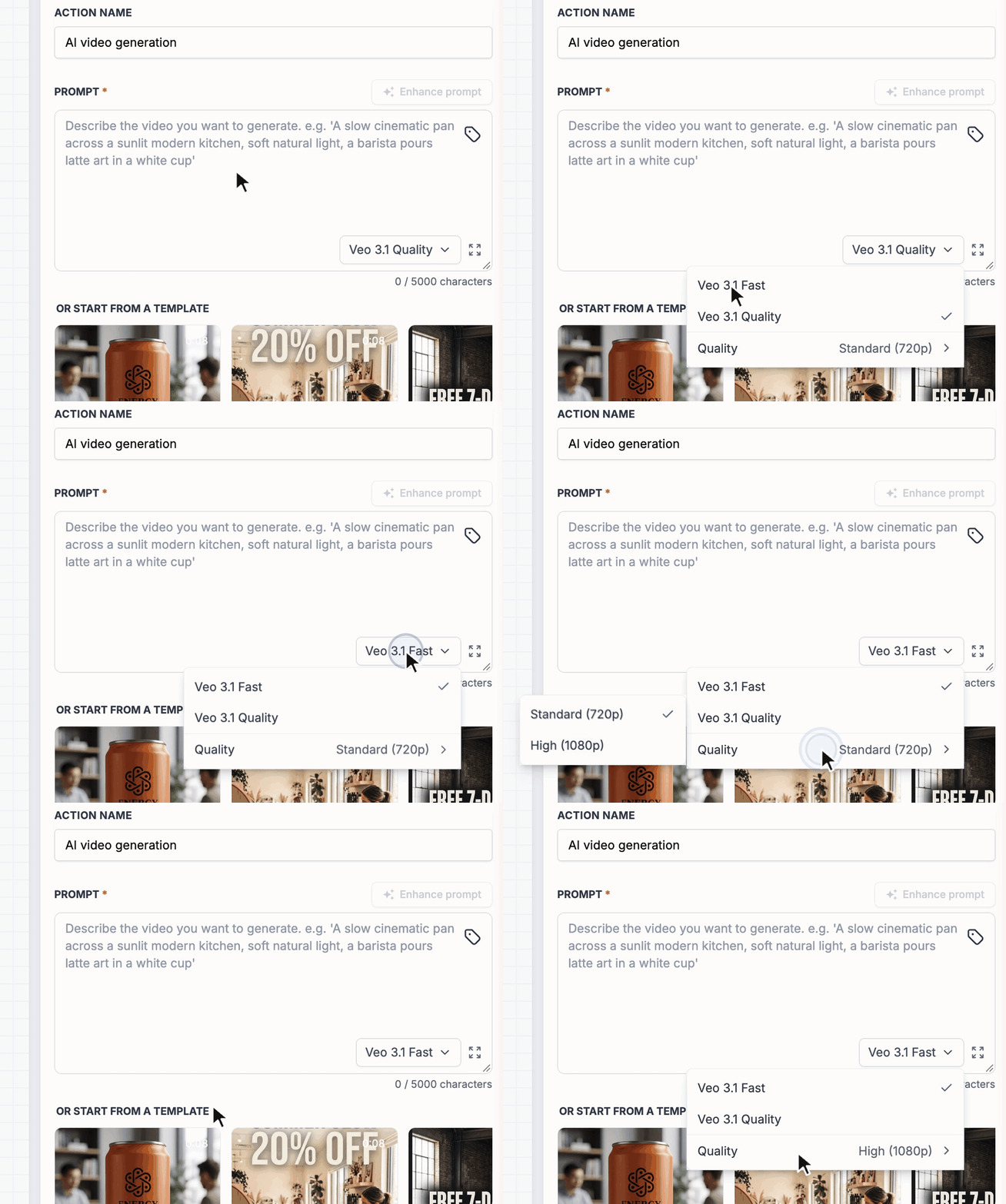
Flexible AI Models: Choose Veo 3.1 Quality for polished videos or Veo 3.1 Fast for quicker generation.
Personalized Content: Use custom values to create videos based on contact or workflow data.
Prompt Enhancement: Improve simple prompts using AI or start with ready-made templates.
Reference Images: Use up to three images to guide the video's appearance.
Optional Audio: Add AI-generated background music and ambient sounds.
Easy Sharing: Access generated videos through public URLs in the Media Library.
AI Video Generation Models and Quality Settings
AI Video Generation offers two Veo 3.1 models to help you balance generation speed and video quality.
| Model | Description |
|---|---|
| Veo 3.1 Quality | Produces polished, detailed videos. |
| Veo 3.1 Fast | Prioritizes faster video generation. |
The available quality settings are Standard (720p) and High (1080p). The default selection is Veo 3.1 Quality with Standard resolution.
Video Prompts, Enhancement, and Templates
The Prompt field controls what appears in your video. You can enter up to 5,000 characters, including custom values, to describe subjects, movement, lighting, and visual style.
Enhance prompt: Automatically expands a basic idea into a more detailed prompt.
Custom Values: Personalize videos using contact fields, webhook data, or previous workflow outputs.
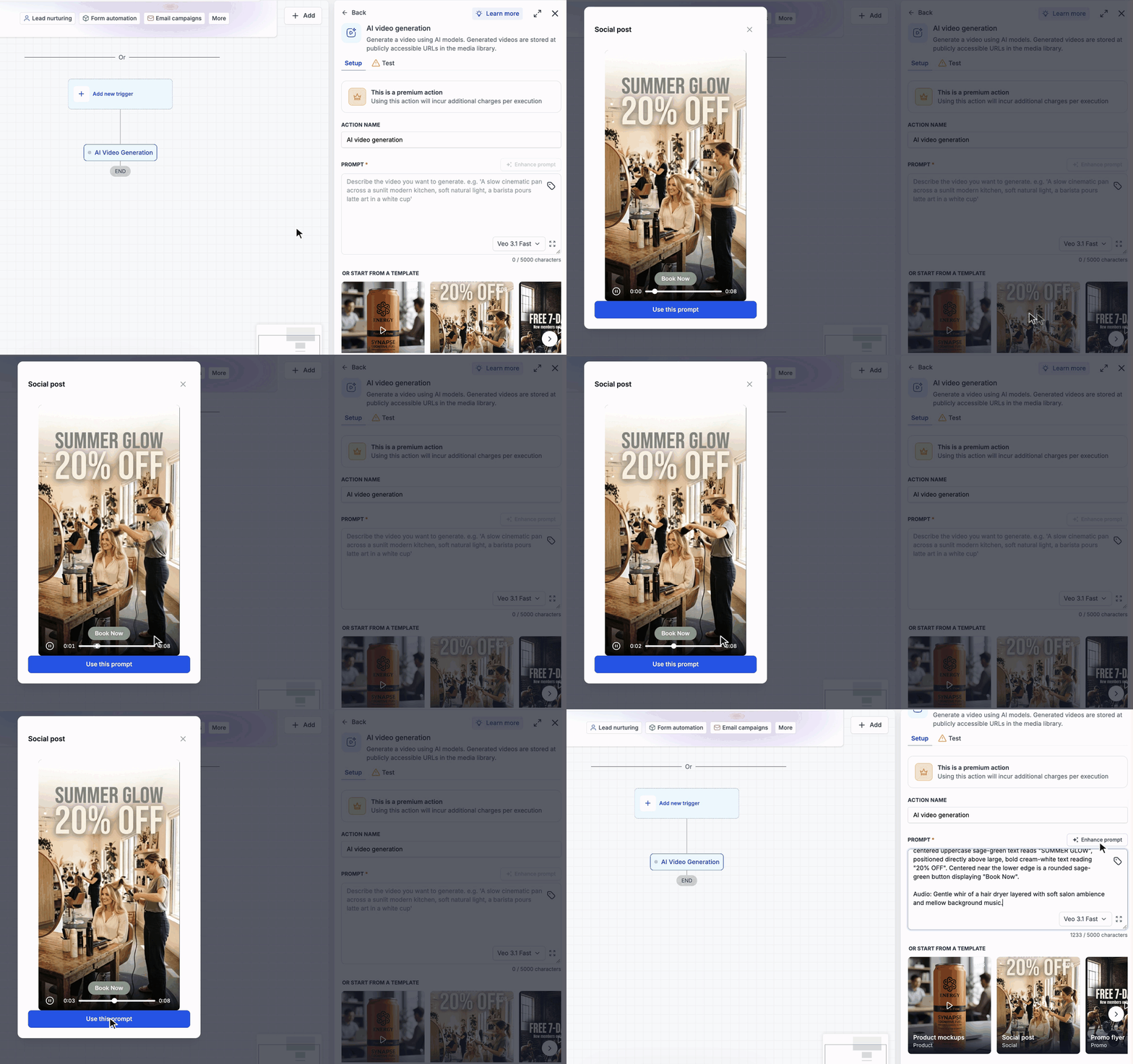
Prompt Templates: Choose from Product mockups, Social post, Promo flyer, and Lifestyle.
Each template includes a sample video preview and a Use this prompt option.
Example Prompt:
Create a cinematic video of a luxury coffee mug on a wooden table. Slowly zoom toward the mug with warm morning lighting and gentle steam rising from the coffee.
Reference Images for AI Video Generation
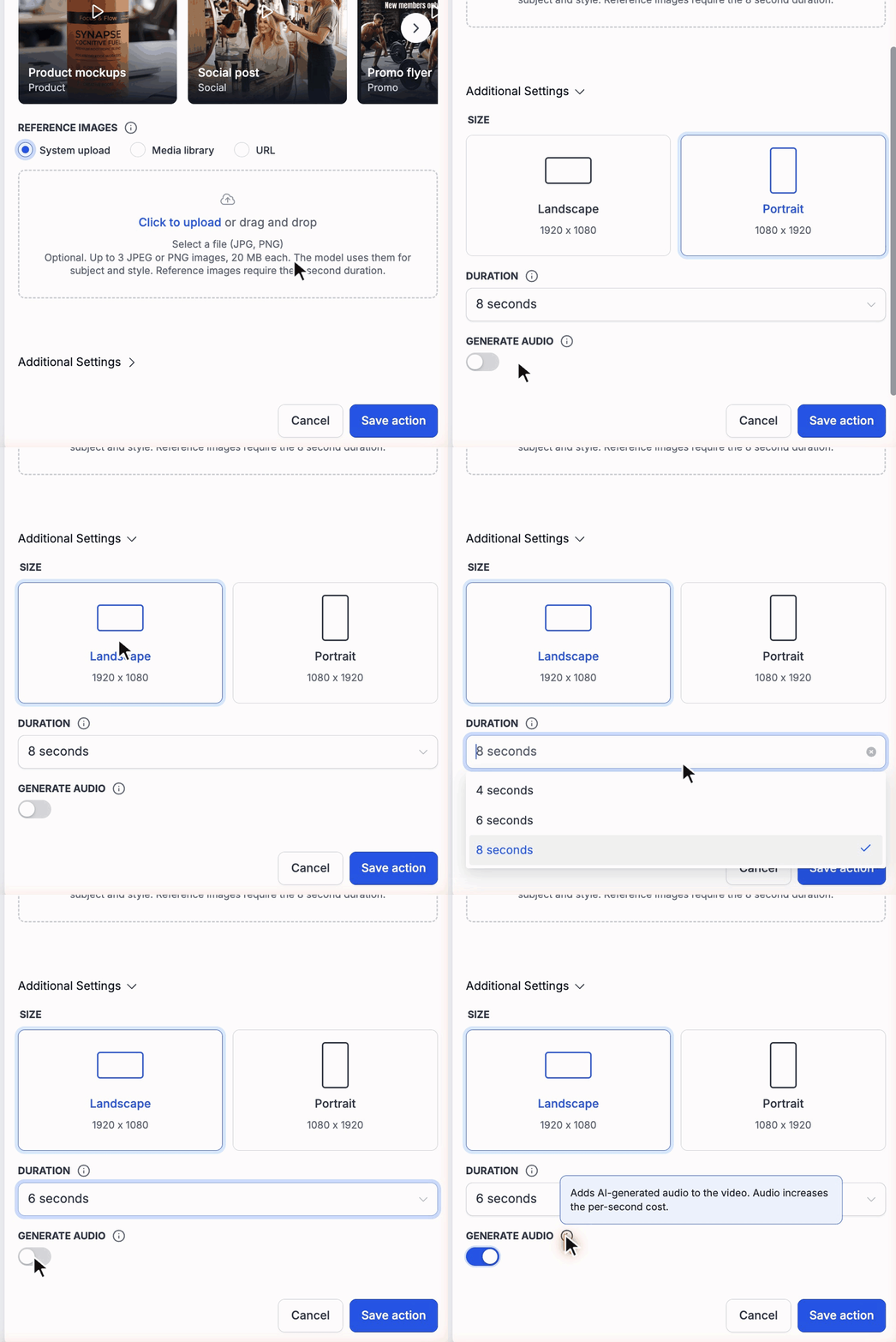
Reference images help guide the subject, appearance, and style of generated videos. You can add up to three JPEG or PNG images using the following sources:
System upload: Upload images from your computer.
Media library: Select previously uploaded images.
URL: Paste an image URL or insert a custom value.
Each reference image can be up to 20 MB.
Important: Adding reference images automatically locks the video duration to 8 seconds.Video Size, Duration, and Audio Settings
Additional Settings allow you to customize the format and sound of generated videos based on how you plan to use them.
| Setting | Available Options |
|---|---|
| Size | Landscape (1920 × 1080) or Portrait (1080 × 1920) |
| Duration | 4, 6, or 8 seconds |
| Generate Audio | On or Off |
The default settings are Landscape, 8 seconds, and Generate Audio disabled. Enabling Generate Audio adds AI-generated sounds, such as background music or ambience.
Generated Video URLs and Workflow Actions
Generated videos are automatically stored in the Media Library. Each execution provides output variables that can be used in subsequent workflow actions.
| Output Variable | Purpose |
|---|---|
| Video URL | Public link to the generated video |
| Video File Path | Storage path of the video |
| Video File Name | Name of the generated file |
To use the video in another action, open the custom value picker and select Previous steps → AI Video Generation → Video URL. You can include this URL in emails, SMS messages, notifications, and outbound webhooks.
Important: Generated video URLs are public. Anyone with the link can access the video, so avoid including sensitive information.How to Set Up AI Video Generation in Workflows
Setting up the action correctly ensures that your videos use the intended prompts, reference images, and output settings.
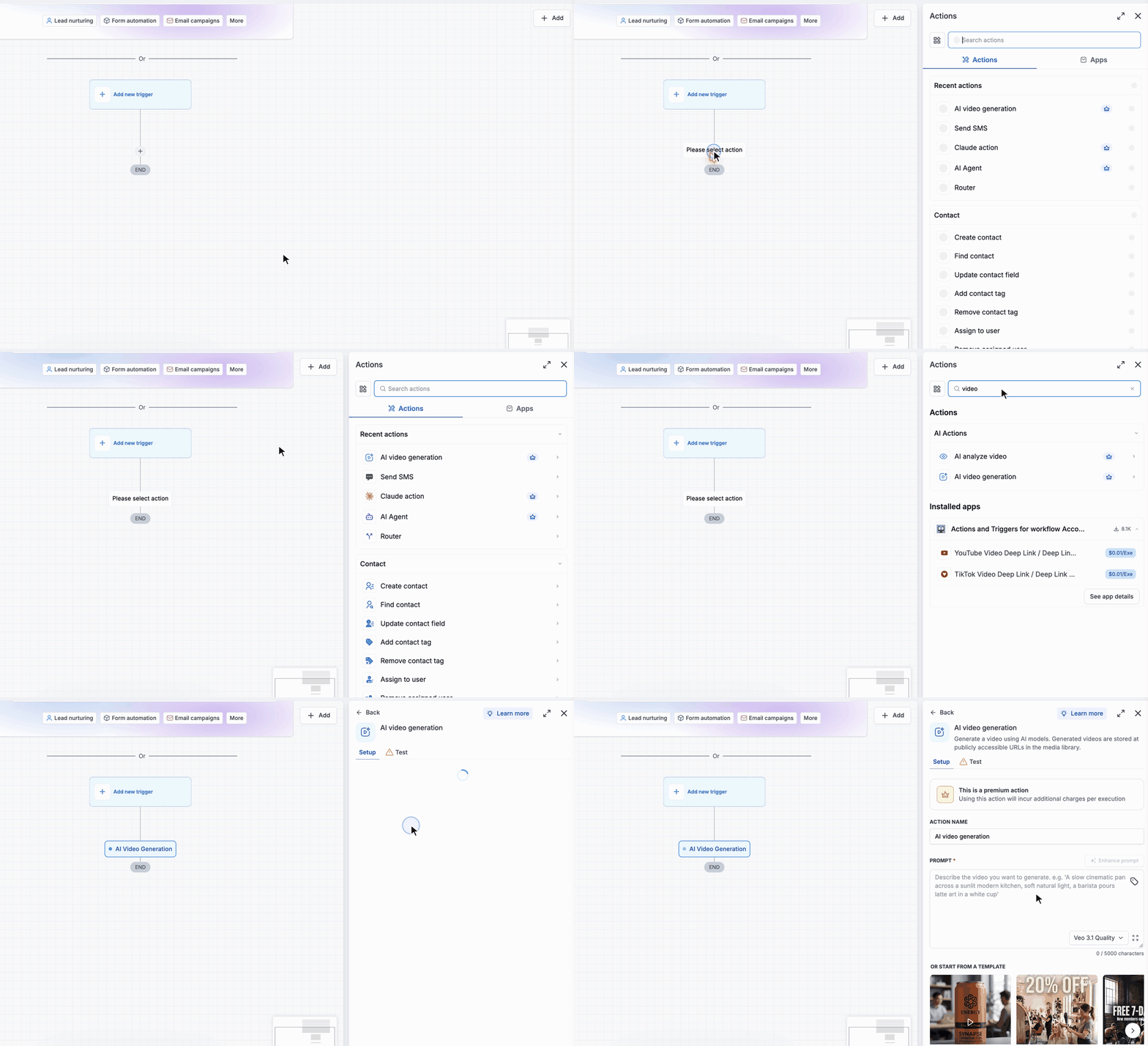
Navigate to Automation → Workflows and open or create a workflow.
Click the + icon and select AI Video Generation under AI Actions.
Choose Veo 3.1 Quality or Veo 3.1 Fast and select the desired resolution.
Enter a video prompt, enhance it, or choose a predefined template.
Optionally, add up to three reference images from your computer, Media Library, or URL.
Expand Additional Settings to configure Size, Duration, and Generate Audio.
Click Save action.
Optionally, open the Test tab, select a test contact, and test the action.
Add a subsequent workflow action and insert the generated Video URL using the custom value picker.
Frequently Asked Questions
Q: Can I create personalized videos for different contacts?
Yes. Use custom values in the prompt to personalize generated videos with contact information or workflow data.
Q: Can I generate videos without reference images?
Yes. Reference images are optional. You can generate videos using only a text prompt.
Q: Why can't I change the video duration?
Adding reference images automatically locks the duration to 8 seconds. Remove the reference images to select another available duration.
Q: Can I generate videos without audio?
Yes. Generate Audio is disabled by default and can be enabled in Additional Settings.
Q: Where are generated videos stored?
Generated videos are automatically stored in the Media Library and accessible through public URLs.