
Calendar View Settings let you customize how appointments, staff schedules, and events appear in your Unified Calendar. You can adjust timezones, grid intervals, event colors, and display preferences from one centralized panel. You can also export your current calendar view to PDF or CSV.
These settings only affect the calendar display. They do not change booking availability, scheduling rules, or customer-facing booking pages.
Calendar View Settings are organized into two tabs:
General: Manage timezone, grid intervals, event colors, working-hours shading, empty rows and columns, and buffer visibility.
Staff colors: Allows admins to customize staff member colors for all users.
TABLE OF CONTENTS
Key Benefits of Calendar View Settings
Calendar View Settings make it easier to manage appointments, identify staff schedules, and focus on important booking information without changing your scheduling configurations.
Centralized Preferences: Customize your calendar display from one settings panel.
Personalized Timezones: View appointments in your preferred timezone.
Flexible Calendar Grid: Choose 15-, 30-, or 60-minute intervals.
Better Schedule Visibility: Highlight non-working hours and appointment buffers.
Cleaner Calendar Layout: Hide empty staff or resource rows and columns.
Custom Event Colors: Quickly distinguish staff members, calendars, and services.
Convenient Exports: Export the current filtered calendar view to PDF or CSV.
Calendar Display Preferences
The General tab provides several options for controlling how scheduling information appears. Each user can save their own preferences without affecting other team members.
| Setting | Description |
|---|---|
| View appointments in | Display appointments in your selected timezone. |
| Default grid interval | Choose 15-, 30-, or 60-minute grid spacing. |
| Color events by | Display calendar/service or staff colors as the main event color. |
| Grey out hours outside working time | Shade hours outside staff working schedules. |
| Hide empty rows and columns | Hide staff or resources without scheduled events in Day view. |
| Show buffer time | Display configured appointment buffers in Day and Week views. |
Default Grid Interval
The grid interval determines how each hour is divided in Day and Week views.
15 minutes: Four rows per hour for detailed scheduling.
30 minutes: Two rows per hour.
60 minutes: One row per hour for a simpler overview.
Changing the grid interval does not affect appointment durations or booking rules.
Grey Out Hours Outside Working Time
This setting shades hours when staff members are not scheduled to work, helping you identify available working periods at a glance. The system combines the active schedules associated with a staff member's calendars and any applicable active custom schedule.
For example, if one schedule runs from 9 AM to 1 PM and another from 12 PM to 5 PM, the combined working period is 9 AM to 5 PM.
Supported views:
Day view: Works with one or multiple selected staff members.
Week view: Works when a single staff member is selected.
Filter requirement: Available when using the Users (staff) filter.
Schedules not assigned to a calendar are considered inactive for this calculation unless they are active as applicable custom schedules.
Note: Shading is visual only and does not modify appointment availability.
Hide Empty Rows and Columns
This setting removes staff or resource lanes without scheduled activity, keeping the calendar focused on relevant appointments.
Works in Day view only.
Hides staff members and rental listings without scheduled events.
Considers appointments, blocked time, and busy events from linked calendars.
Automatically displays hidden lanes when they contain events on another day.
If no selected staff members have scheduled activity, all their columns may be hidden.
Show Buffer Time
Buffer visibility displays reserved time before and after staff appointments in Day and Week views. Enabling or disabling this option only changes whether buffer blocks are visible. It does not modify the configured buffers or appointment availability.
Timezone Preferences
The View appointments in setting allows you to display appointments in your preferred timezone without affecting how customers book.
Available selections include:
Recommended timezones
Business timezone
All timezones
Selecting Business timezone automatically keeps your viewing timezone aligned with the business timezone if it changes. Your selected timezone applies to appointment times in supported screens and appointment-related emails.
Important: Timezone preferences are user-specific and do not affect availability, other team members, or customer bookings.
The setting previously appeared in Meetings Preferences and Services/Rentals Global Settings. Existing timezone preferences automatically carry over to Calendar View Settings.
Staff Colors and Event Color Display
Staff and event colors help you identify appointment ownership without opening individual bookings. Users can control how colors appear on appointment tiles, while admins manage staff color assignments.
Color Events By
Each appointment tile displays a primary background color and a wider color strip on the left.
| Preference | Main Tile Color | Left Color Strip |
|---|---|---|
| Calendar/Service colors | Calendar or service color | Staff color |
| Staff colors | Staff color | Calendar or service color |
The available label may display Calendar colors or Service colors depending on the calendar context.
Note: Rental bookings retain their status-based colors regardless of this preference.Staff Colors (Admins Only)
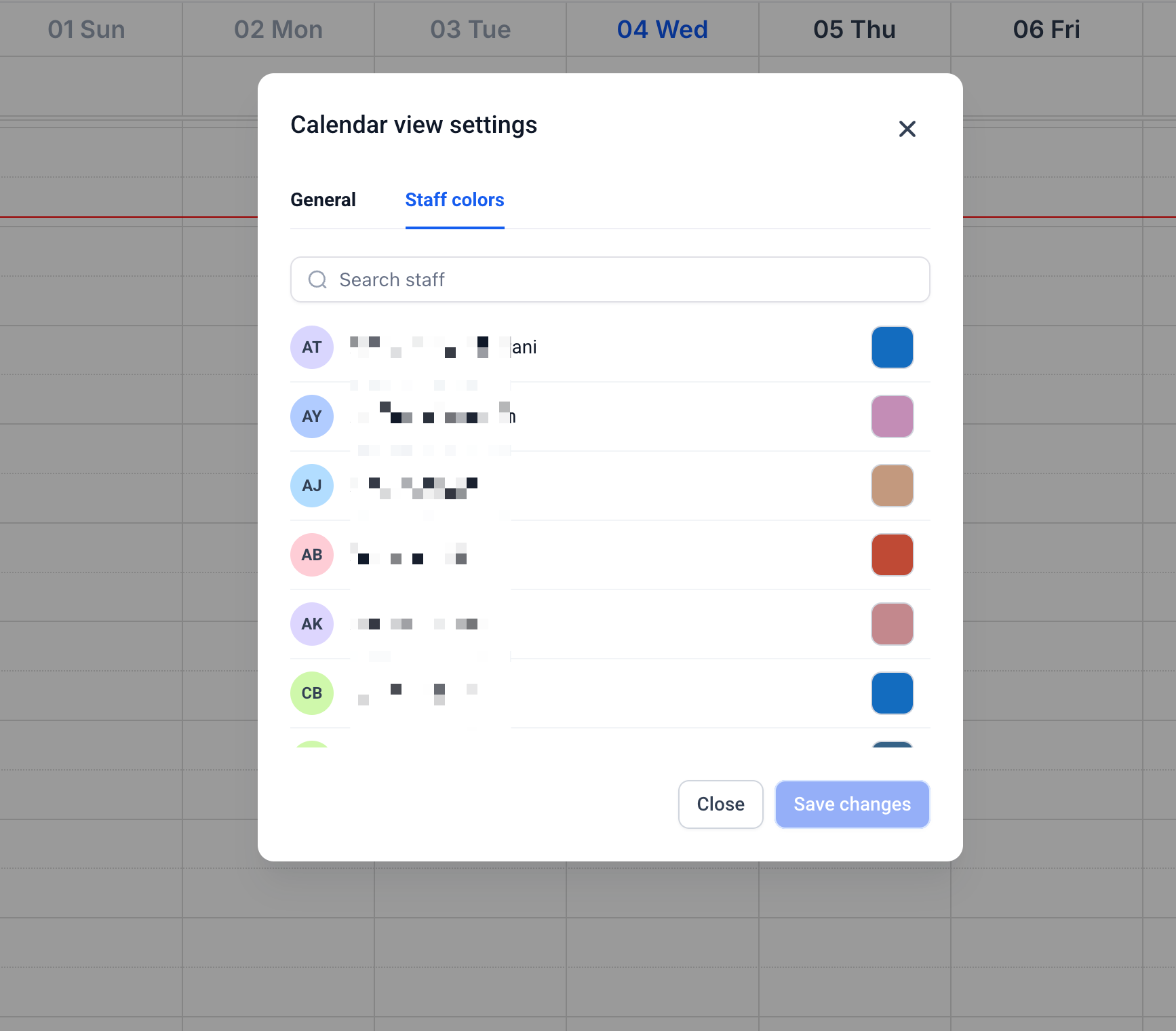
Admins can assign colors to individual staff members, making their appointments easier to recognize.
Open Calendar view settings.
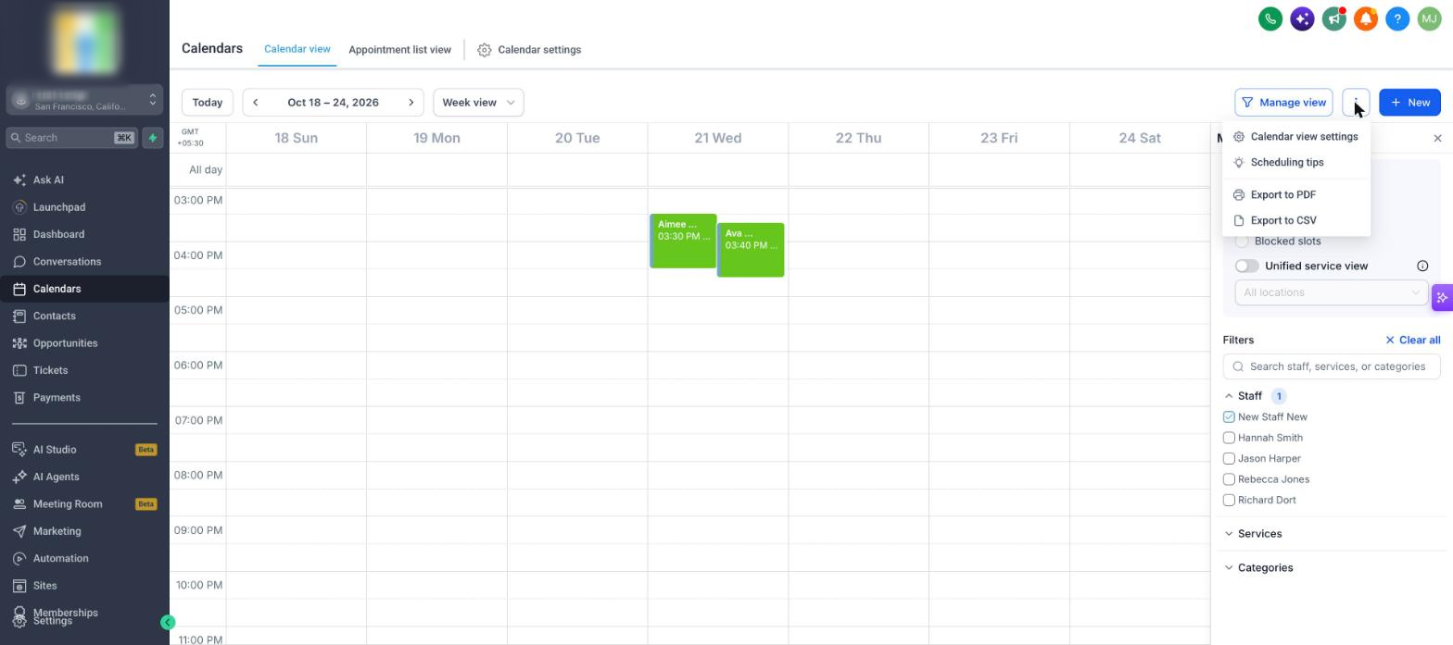
Select the Staff colors tab.
Search for a staff member or scroll through the list.
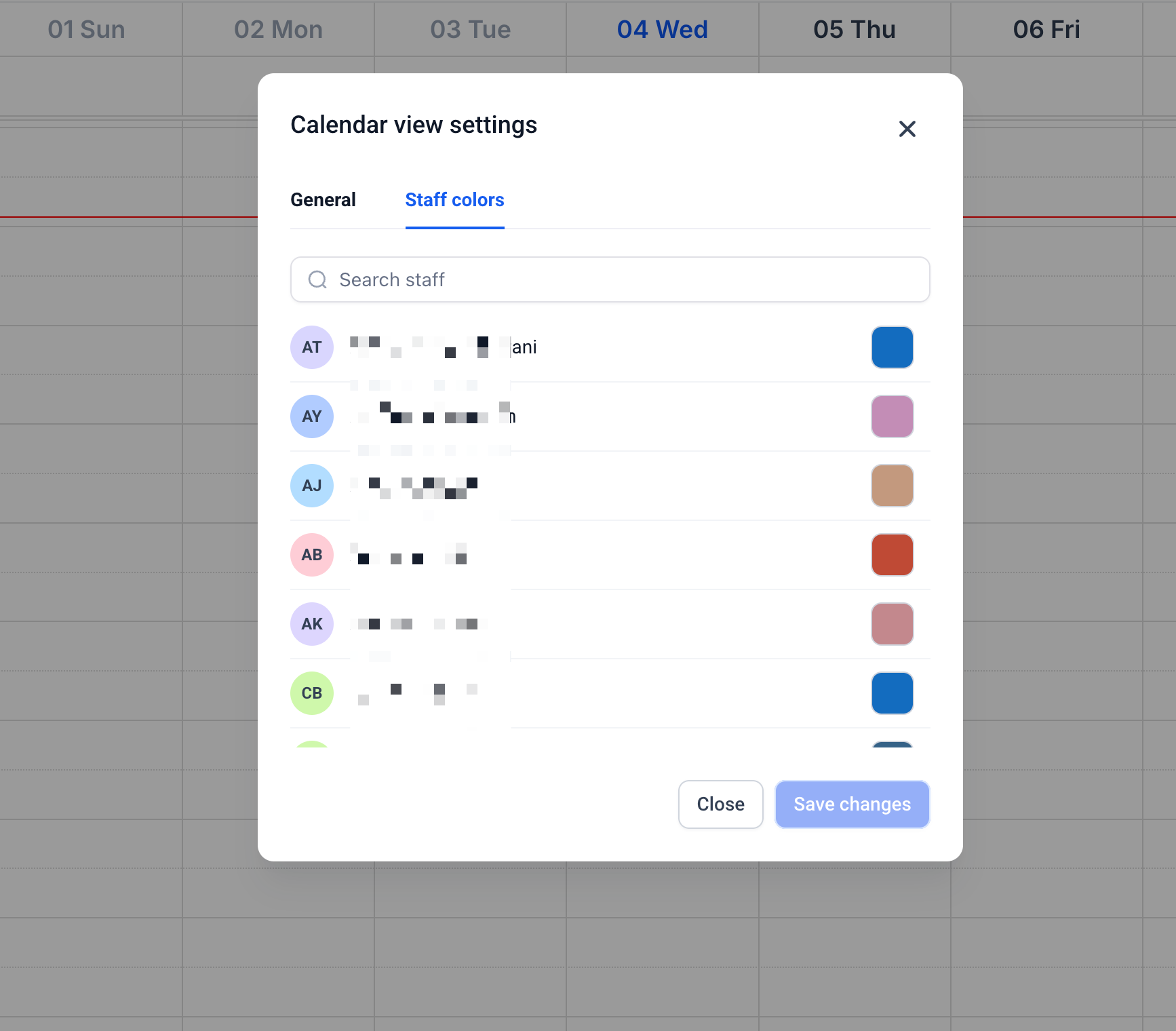
Click the color swatch and select a color using the picker, presets, or HEX value.
Click Save changes.
Staff colors configured by admins apply to all users.
Exporting Calendar Views to PDF or CSV
Calendar exports let you share schedules or work with appointment data outside the platform. Both formats reflect the currently applied filters and selected date range.
Export to PDF
PDF exports provide a visual representation of the current calendar view.
Navigate to Calendars → Calendar view.
Select the desired date range and filters.
Click More options (⋮) next to Manage view.
Select Export to PDF.
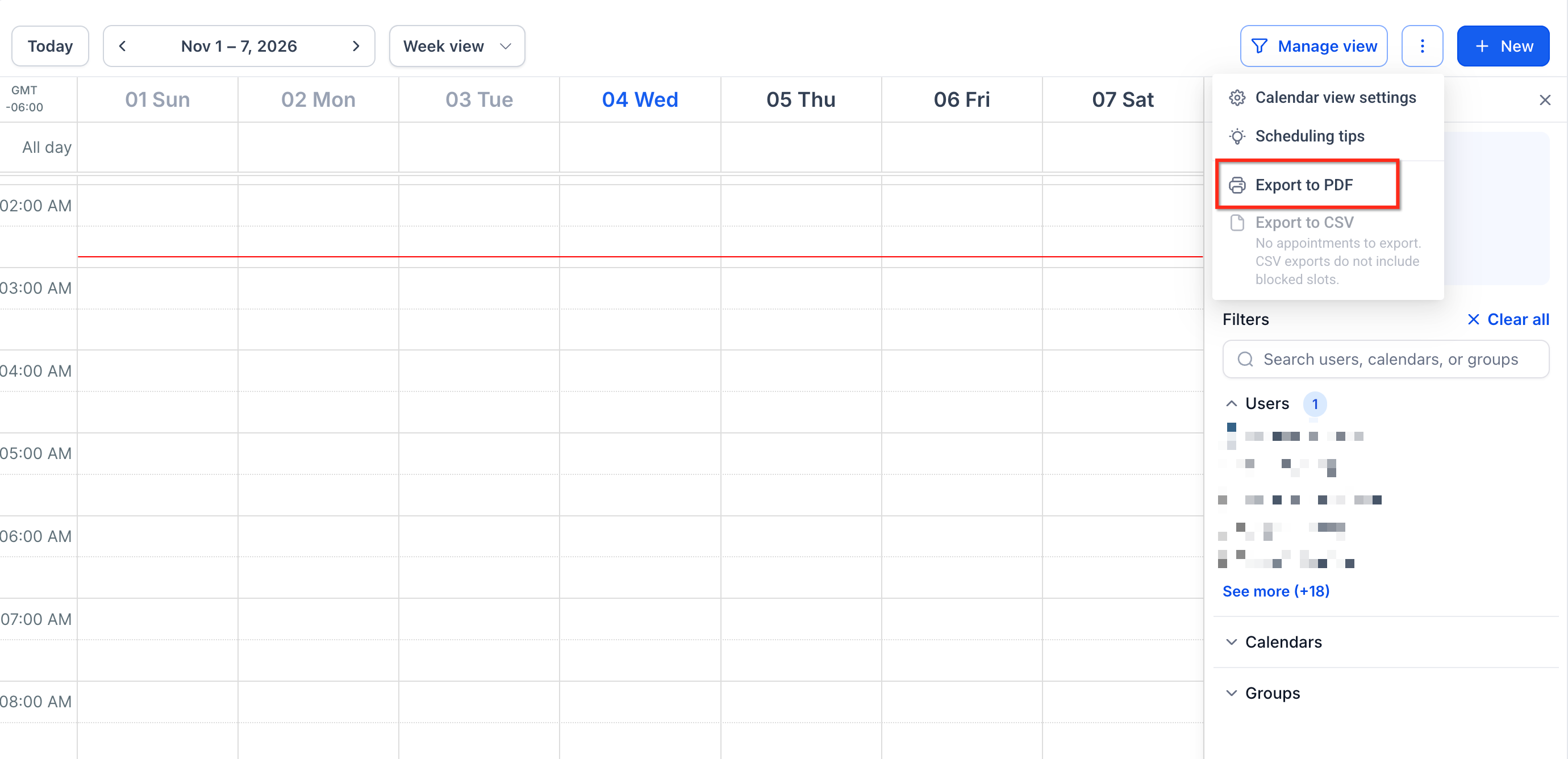
Note: Day view PDF exports support up to seven selected resources to maintain readability.
Export to CSV
CSV exports provide appointment information for spreadsheets and external analysis.
Open Calendars → Calendar view.
Apply the desired date range and filters.
Click More options (⋮).
Select Export to CSV.
Important:

• CSV exports include appointments but exclude blocked slots.
• Export to CSV is unavailable when the current view contains no appointments.
• Both formats reflect the current view's applied filters and date range.
How to Set Up Calendar View Settings
Saving your display preferences helps maintain a consistent calendar layout whenever you return to Calendar View. These settings are personal to each user, except for staff colors configured by admins.
Navigate to Calendars → Calendar view.
Click More options (⋮) next to Manage view.
Select Calendar view settings.
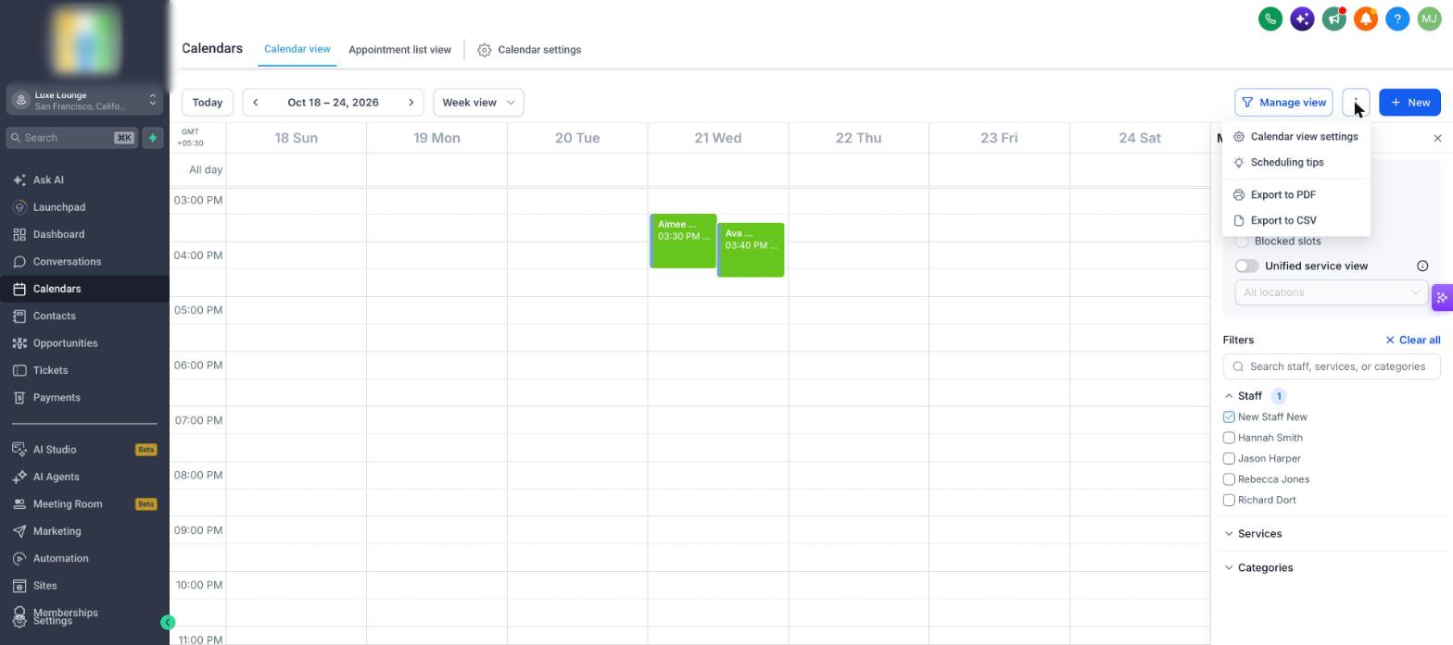
Under the General tab, choose your timezone and grid interval.
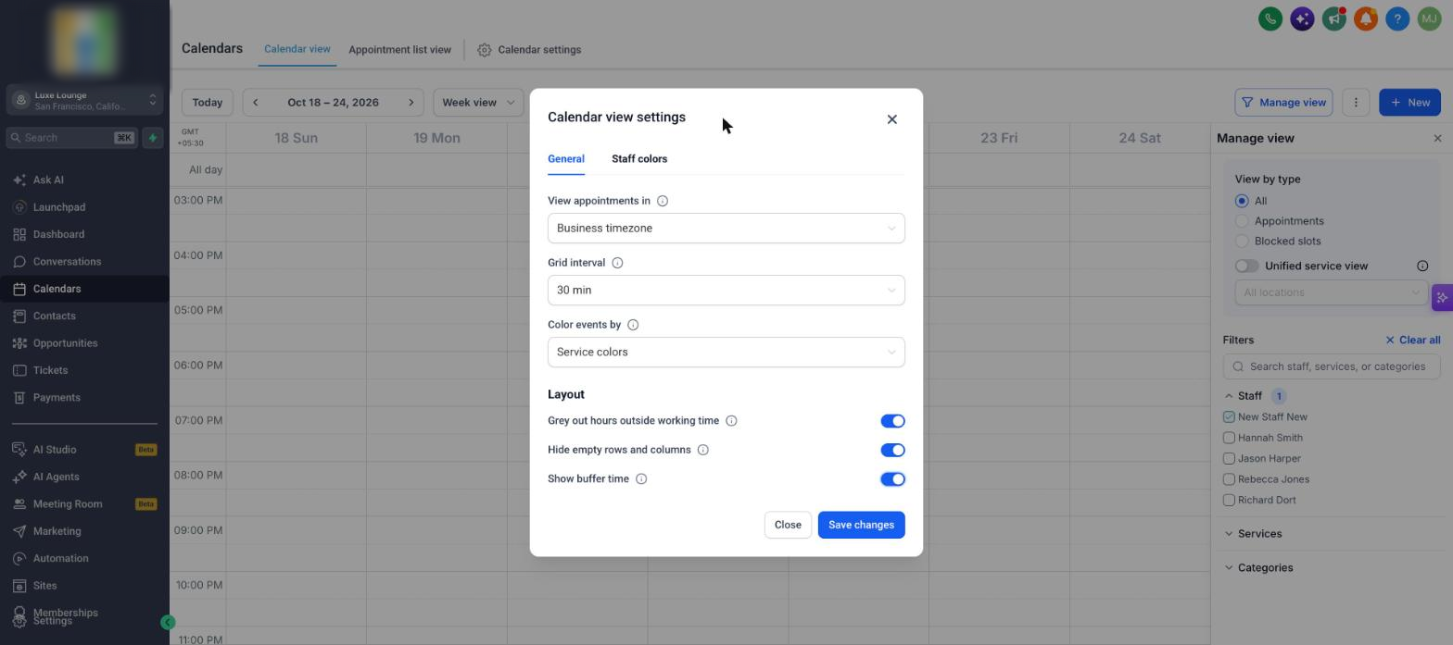
Select how event colors should appear.
Enable or disable working-hours shading, empty rows and columns, and buffer visibility.
Click Save changes.
Your preferences are saved for the next time you open Calendar View.
Note: Save changes is unavailable until a setting is modified. Clicking Close without saving discards unsaved changes. Admins can use the Staff colors tab to configure staff colors separately.Frequently Asked Questions
Q: Do Calendar View Settings change appointment availability?
A: No. They only change how calendar information appears. Booking rules, availability, and configured buffers remain unchanged.
Q: Why can't I see the Staff colors tab?
A: The Staff colors tab is available only to admins.
Q: Why aren't non-working hours shaded?
A: Confirm that shading is enabled and that you're using the Users filter. Day view supports multiple staff members, while Week view requires one selected staff member.
Q: Why are some staff columns missing?
A: Hide empty rows and columns may be enabled. This setting hides staff members without scheduled events in Day view.
Q: Does turning off Show buffer time remove appointment buffers?
A: No. It only hides the buffer blocks. Configured buffers continue to affect availability.
Q: Why is Export to CSV unavailable?
A: CSV export is unavailable when the current calendar view contains no appointments to export.
Q: Why are blocked slots missing from my CSV export?
A: CSV exports include appointments but do not include blocked slots.
Q: Do I need to reconfigure my timezone after the settings relocation?
A: No. Previously saved viewing timezone preferences automatically carry over.