
Add and manage watermarks in Social Planner to keep your social media images consistent with your brand. You can upload multiple watermarks, customize their appearance, and assign them to specific social accounts.
This guide explains how to create, customize, and manage watermarks.
TABLE OF CONTENTS
What Are Watermarks in Social Planner?
Watermarks are logos or images applied to social media content to maintain brand identity. Social Planner lets you create multiple watermarks and assign one watermark to each connected social account for supported image posts.
Key Benefits of Using Watermarks
Watermarks help maintain consistent branding across social media accounts without manually editing every image before publishing.
Consistent Branding: Automatically apply your brand logo to supported social media images.
Multiple Watermarks: Create different watermarks for different brands or social accounts.
Customizable Appearance: Adjust positioning, opacity, size, and padding.
Easy Management: Edit, replace, or delete watermarks as needed.
How to Upload and Manage Watermarks
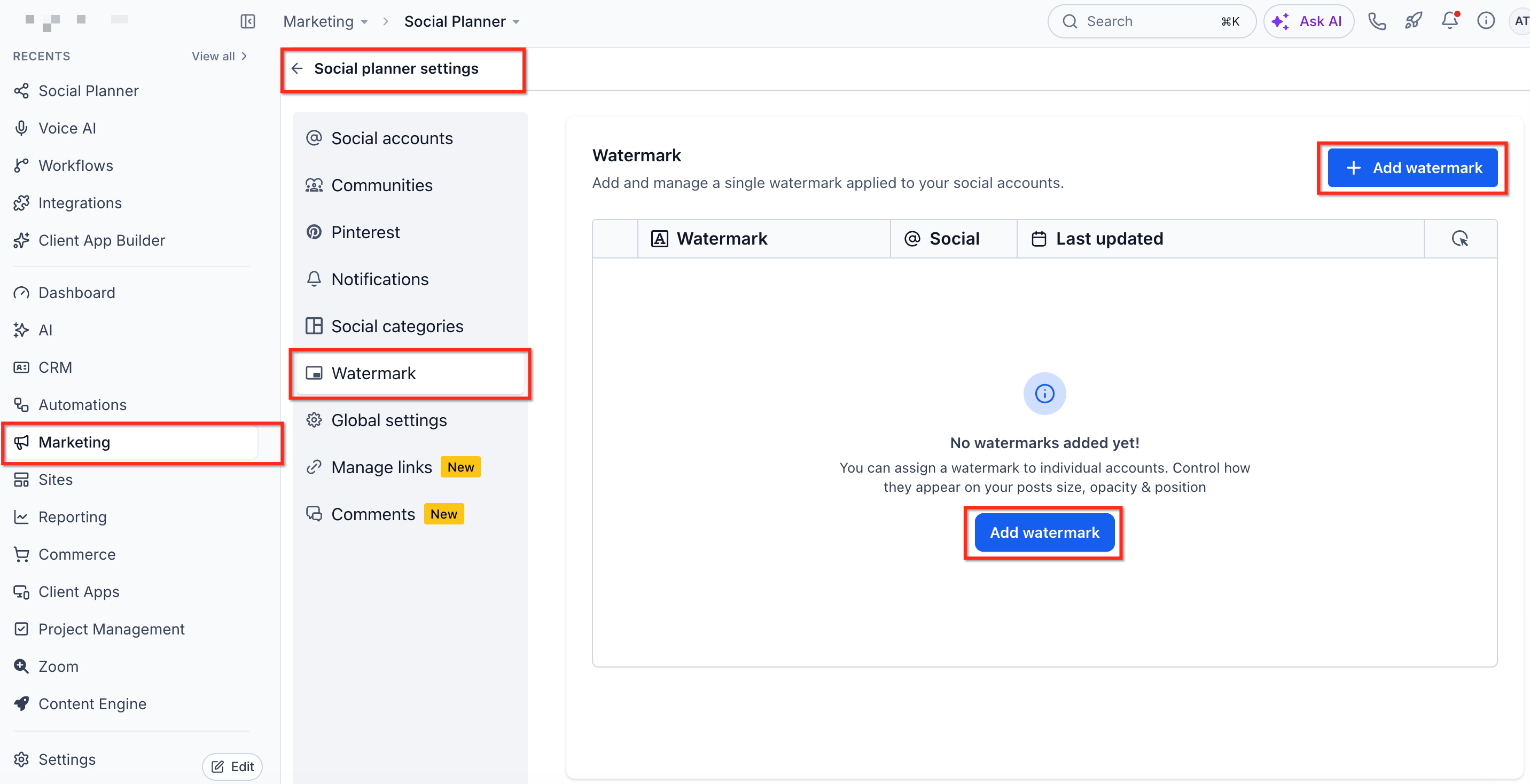
Navigate to Marketing → Social Planner → Settings → Watermark.
Click + Add watermark.
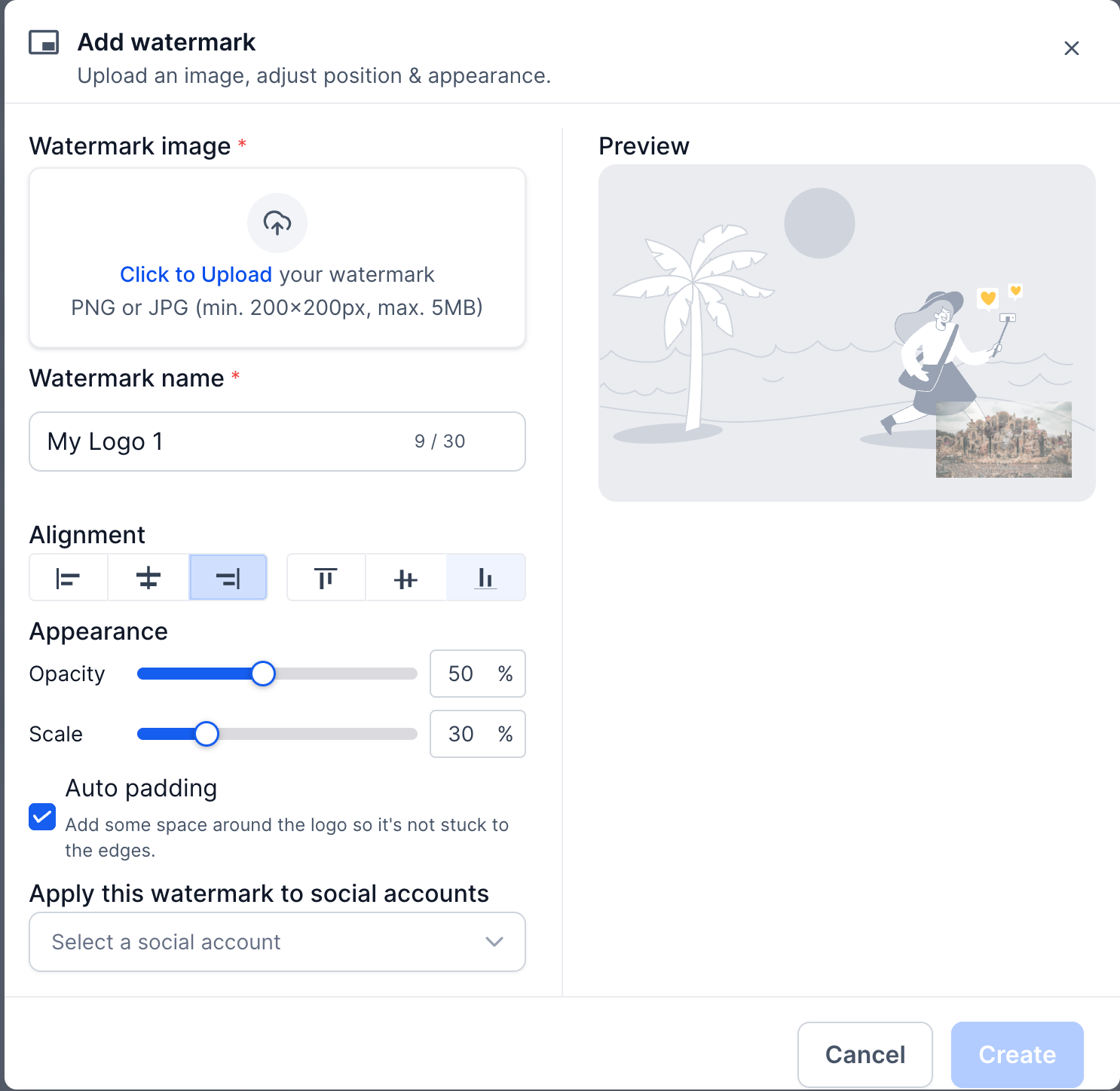
Under Watermark image, upload a PNG or JPG file (minimum 200 × 200 pixels, maximum 5 MB).
Enter a Watermark name (up to 30 characters).
Customize your watermark using the available settings:
Alignment: Choose the watermark's position.
Opacity: Adjust transparency.
Scale: Change the watermark size.
Auto padding: Add space around the watermark.
Review your changes in the Preview panel, select the accounts under Apply this watermark to social accounts, and click Create.
Manage Existing Watermarks
After creating watermarks, you can:
View all uploaded watermarks.
Edit an existing watermark's name or settings.
Replace a watermark image.
Delete watermarks you no longer need.
Update watermark assignments for connected social accounts.
Important Notes
Understanding watermark requirements and limitations helps ensure your branding is applied correctly when publishing.
File Requirements: PNG or JPG, minimum 200 × 200 pixels, maximum 5 MB.
Account Assignments: Each social account can have only one assigned watermark at a time.
Scheduled Posts: Changing watermark assignments does not automatically update images already saved in existing scheduled posts.
Automated Posts: Updated assignments apply to subsequent Category Queue and Recurring Posts.
Unsupported Posts: RSS and Review Posts do not support watermarking.
Media Support: Standard Social Planner watermark settings apply to supported image posts. Watermark behavior in other publishing workflows may differ.
Frequently Asked Questions
Q. Can I apply more than one watermark to the same social account?
No. Each social account can have one assigned watermark at a time.
Q. What happens if I delete a watermark that's assigned?
Affected social accounts reset to No watermark until you assign another.
Q. Do watermarks apply to videos?
No. Standard Social Planner watermark settings apply to supported image posts only.
Q. Will changing assignments update posts already scheduled?
Changes affect future publishes. Existing scheduled items keep their media unless you recreate or update them.
Q. Can RSS or Review Posts use watermarks?
No. These sources do not apply watermarks.
Q. Is there a recommended file type and size?
Use a PNG or JPG file with a minimum resolution of 200 × 200 pixels and a maximum file size of 5 MB.
Q. How does bulk CSV scheduling decide which watermark to use?
It uses the current watermark assignment for each social account at the time the post publishes.