
The Ask AI Home Screen Widget provides quick access to Ask AI from your mobile device's home screen. Use the Chat, Voice, or Camera shortcuts to begin conversations without manually opening the app and navigating to Ask AI. The widget is available on supported iOS and Android devices.
TABLE OF CONTENTS
- What is the Ask AI Home Screen Widget?
- Key Benefits of the Ask AI Home Screen Widget
- How to Set Up the Ask AI Home Screen Widget
- Add the Ask AI Widget on iOS
- Add the Ask AI Widget on Android
- Start a Conversation from the Widget
- Chat Bar: Start a New Ask AI Conversation
- Voice Button: Start a Hands-Free Conversation
- Camera Button: Capture a Photo and Ask AI
- Frequently Asked Questions
What is the Ask AI Home Screen Widget?
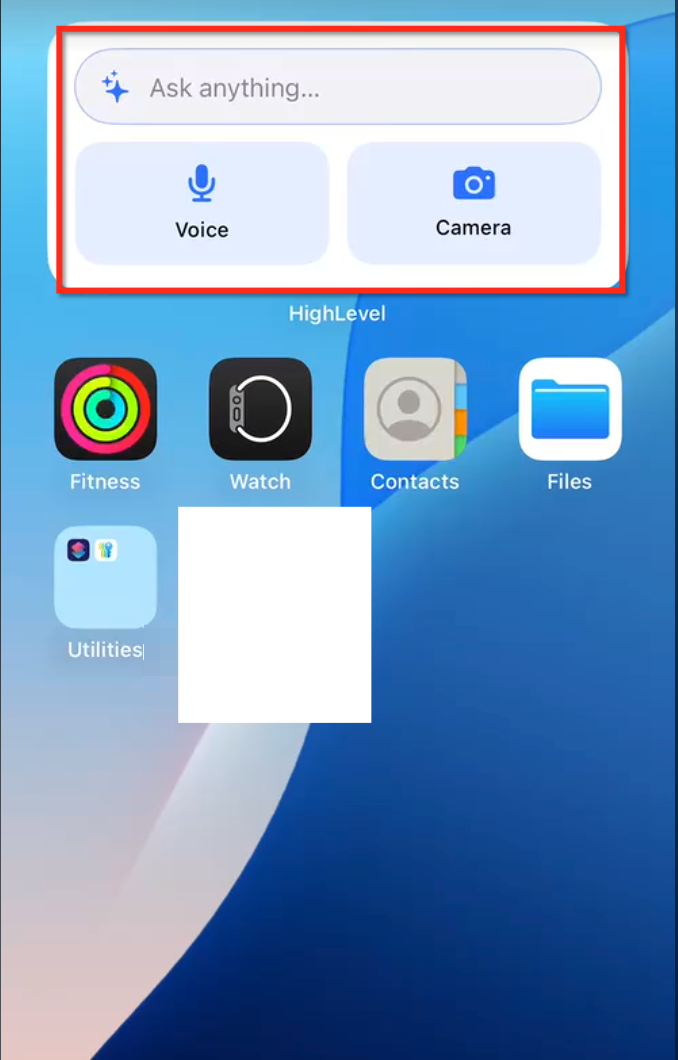
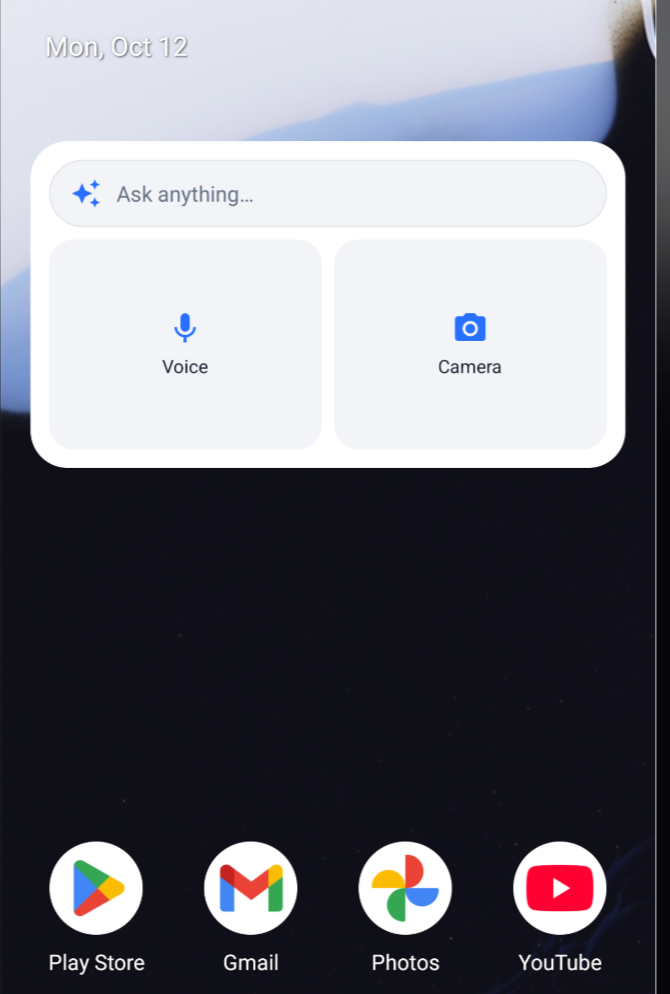
The Ask AI Home Screen Widget lets you open a new Ask AI conversation directly from your phone's home screen. It provides three shortcuts:
Chat Bar: Start a text conversation with the keyboard ready.
Voice Button: Open Ask AI in Voice Mode.
Camera Button: Take a photo and attach it to a new conversation.
The widget follows your app's language and color settings and supports light and dark modes.
Key Benefits of the Ask AI Home Screen Widget
Quick Access: Open Ask AI without navigating through the mobile app.
Hands-Free Interaction: Use Voice Mode when typing is inconvenient.
Photo-Based Assistance: Capture images and ask questions about their contents.
Multiple Input Options: Switch between text, speech, and camera shortcuts based on your needs.
Consistent Appearance: The widget automatically follows your app's appearance settings.
Session Continuity: If your session expires, sign in to continue the action you selected.
How to Set Up the Ask AI Home Screen Widget
Add the widget to your device's home screen to access Chat, Voice, and Camera shortcuts.
Before You Begin

Verify the following requirements:
1. Your device runs a supported iOS or Android version.
2. Your LeadConnector mobile app is updated to version 4.27.0 or later.
3. Ask AI is enabled for your account.
4. You can sign in to the mobile app.
Add the Ask AI Widget on iOS
Open Your Home Screen: Unlock your iPhone and navigate to the screen where you want the widget.
Enter Edit Mode: Touch and hold an empty area until the home screen enters editing mode.
Open the Widget Gallery: Tap the + icon or the available option for adding widgets.
Find LeadConnector: Search for LeadConnector in the widget gallery.
Select Ask AI: Choose the Ask AI widget.
Add the Widget: Tap Add Widget and position it on your home screen.
Finish Editing: Exit editing mode to keep the widget in place.
Test the Widget: Tap Chat, Voice, or Camera to verify that Ask AI opens correctly.
Add the Ask AI Widget on Android
The widget selection interface may differ depending on your device manufacturer and home screen launcher.
Open Your Home Screen: Unlock your Android phone.
Open Home Screen Options: Touch and hold an empty area.
Select Widgets: Tap Widgets in the available menu.
Find LeadConnector: Locate LeadConnector in the widget list.
Select Ask AI: Choose the Ask AI widget.
Add the Widget: Drag or place it onto your home screen.
Confirm Placement: Complete the placement using your device's controls.
Test the Widget: Select Chat, Voice, or Camera to open a new Ask AI conversation.
Start a Conversation from the Widget
After adding the widget, select your preferred shortcut:
Chat: Opens a new conversation with the keyboard ready for your message.
Voice: Launches a new conversation in Voice Mode.
Camera: Opens the camera and attaches your captured image to a new conversation.
Each shortcut creates a separate conversation. If your session has expired, sign in when prompted. The app resumes your selected action after successful authentication.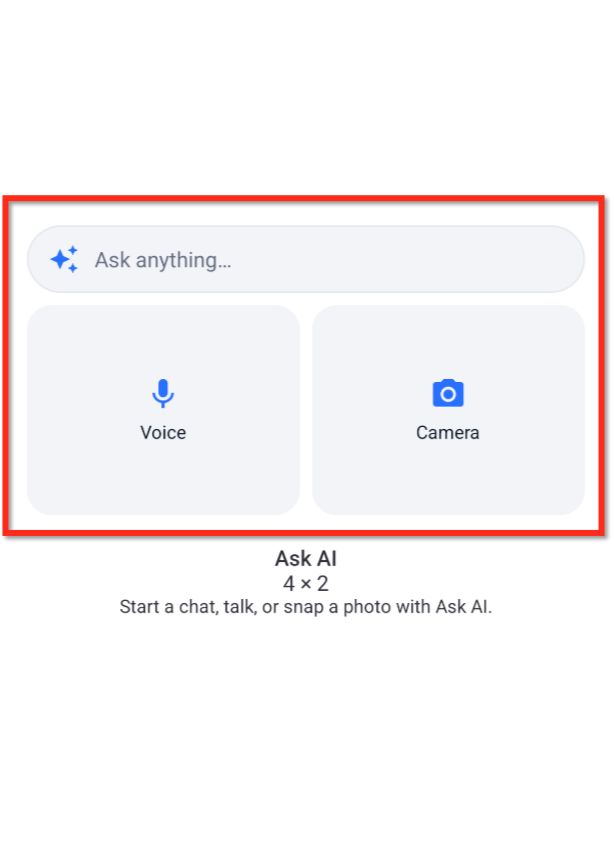
Chat Bar: Start a New Ask AI Conversation
The Chat Bar opens a new Ask AI conversation and activates the keyboard. Use it to enter questions, request assistance, draft content, or retrieve supported information. For example, you can ask Ask AI to prepare an email draft or summarize information.
Voice Button: Start a Hands-Free Conversation
The Voice Button launches Ask AI Voice Mode so you can speak your questions and instructions. This is useful when you want to interact with Ask AI without typing.
Note: Voice Mode requires microphone permission. Grant the requested permission to enable voice interactions.
Camera Button: Capture a Photo and Ask AI
The Camera Button opens your device's camera so you can photograph an item and use the image in a new Ask AI conversation. For example, take a picture of a document and request a summary, or photograph a product and ask for help writing its description.
Note: Your device may request camera permission. Allow access to use this shortcut.
Frequently Asked Questions
Q: Why can't I find the Ask AI widget on my phone?
Verify that your LeadConnector app is running version 4.27.0 or later, your device meets the operating system requirements, and Ask AI is enabled for your account.
Q: Do I need to sign in every time I open Ask AI from the widget?
No. An active session lets you access Ask AI directly. If you are signed out, authenticate to continue using your selected shortcut.
Q: What should I do if the Camera shortcut does not work?
Check your device settings and make sure the LeadConnector app has permission to access the camera.
Q: Can I reopen conversations started through the widget?
Yes. Ask AI supports conversation history and multiple conversation threads. Access Chat History to revisit an earlier conversation.
Q: Does the widget offer features that are unavailable in the regular Ask AI interface?
No. The widget provides convenient entry points to existing Ask AI features. Available functionality depends on your account's Ask AI access.