
Facebook now supports multiple accounts . The Facebook Multi-Account Integration allows you to connect and manage multiple Facebook accounts having access to different fb pages within a single CRM sub-account.
With this integration, businesses can manage Facebook Pages, Lead Ads, and Facebook/Instagram messaging across multiple connected accounts without needing to disconnect an existing account to connect another.
TABLE OF CONTENTS
- What is Facebook Multi-Account Integration?
- Prerequisites for Connecting Facebook Accounts
- How to Connect Multiple Facebook Accounts
- How to Switch Between Connected Facebook Accounts
- How to Manage Facebook Pages
- How to Manage Facebook/Instagram Messaging
- How to Manage Facebook Lead Forms
- How to Manage Ad Accounts
- How to Disconnect a Facebook Account
- Troubleshooting and Frequently Asked Questions
- 1. Can I connect more than one Facebook account to a single sub-account?
- 2. Will connecting a new Facebook account disconnect my existing account?
- 3. Why can't I see a Facebook Page when connecting an account?
- 4. Why are my Facebook leads not syncing?
- 5. Can I use Ad Analytics with multiple Facebook accounts?
- 6. Can different users connect their own Facebook accounts?
- 7. What happens if I disconnect a Facebook account?
- Related Support Guides
What is Facebook Multi-Account Integration?
Facebook Multi-Account Integration enables users to connect multiple Facebook accounts to the same CRM sub-account. Each connected Facebook account can have its own set of Pages, permissions, messaging configurations, and lead forms.
Who is this integration helpful for?
This integration is useful for businesses and agencies that:
Manage multiple Facebook accounts and Pages.
Have different team members responsible for different Facebook Pages.
Want to manage leads and conversations from multiple Facebook accounts in one CRM.
Need to connect additional Facebook accounts without removing existing connections.
What are the benefits?
Multiple Account Connections: Connect multiple Facebook accounts to a single sub-account.
Centralized Management: Manage Facebook Pages, Lead Ads, and messaging configurations from one interface.
Account-Level Control: Switch between connected accounts to manage their respective Pages and settings.
Flexible Access: Allow different users with appropriate Facebook permissions to connect and manage their accounts.
Prerequisites for Connecting Facebook Accounts
Before connecting a Facebook account, ensure the following:
Facebook Access: You must have access to the Facebook account you want to connect.
Page Permissions: You must have the required Facebook Page permissions to manage the Pages you want to connect.
Lead Access: To sync Facebook Lead Ads, ensure you have Lead Access permissions in Meta Business Manager.
Messaging Permissions: Grant the required Facebook and Instagram messaging permissions during authentication.
Ad Account Permissions: Ensure you have access to the relevant Facebook Ad Accounts if you intend to use advertising-related features.
Please Note: Only Pages and resources accessible to the authenticated Facebook user can be managed through that connection.
How to Connect Multiple Facebook Accounts
To connect your first Facebook account
Navigate to Sub-Account → Settings → Integrations.
Find the Facebook integration and click Connect.
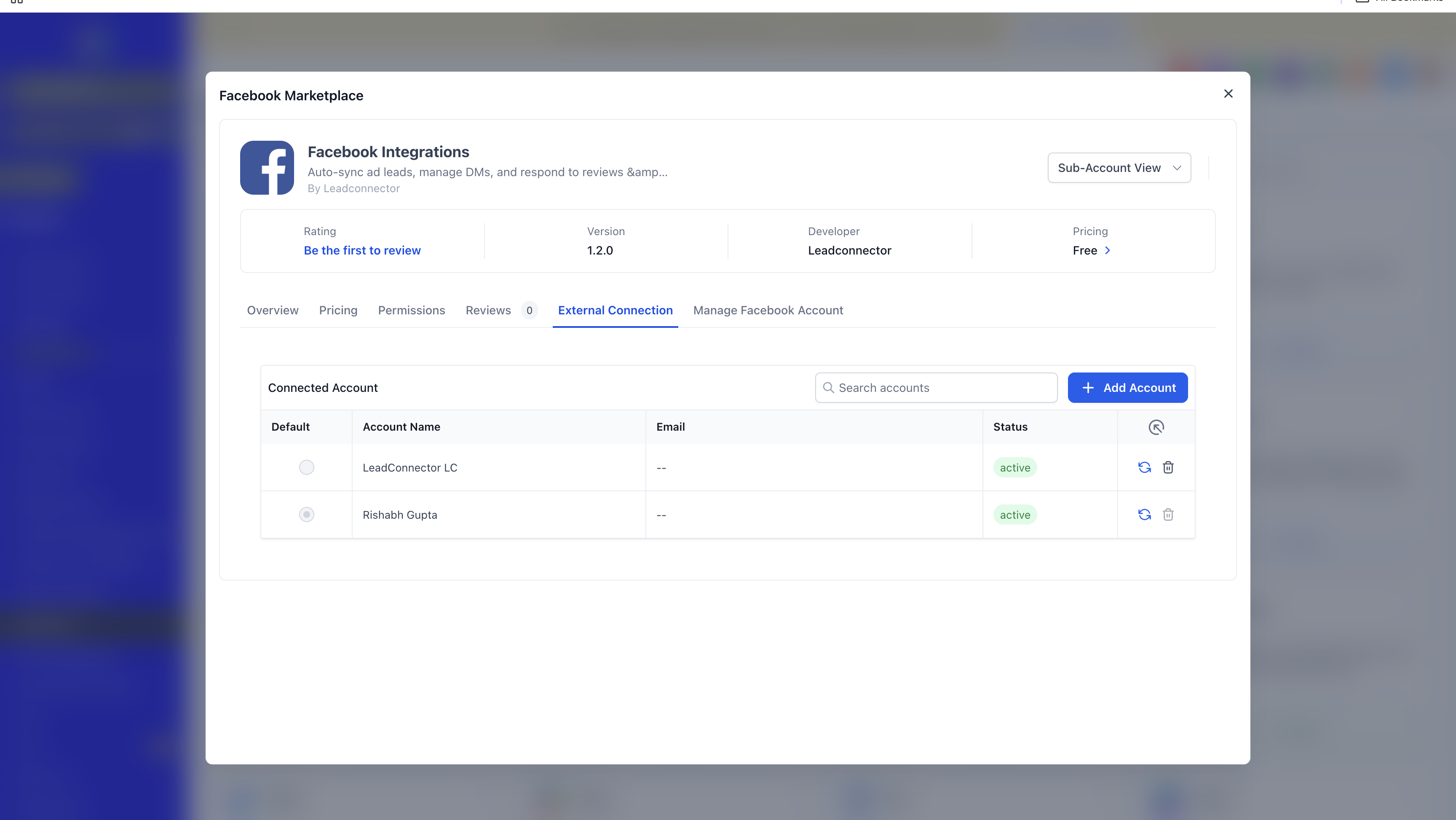
You will be redirected to Facebook to complete authentication.
Log in to the Facebook account you want to connect.
Review and grant the required permissions.
Select the Facebook Pages you want to connect.
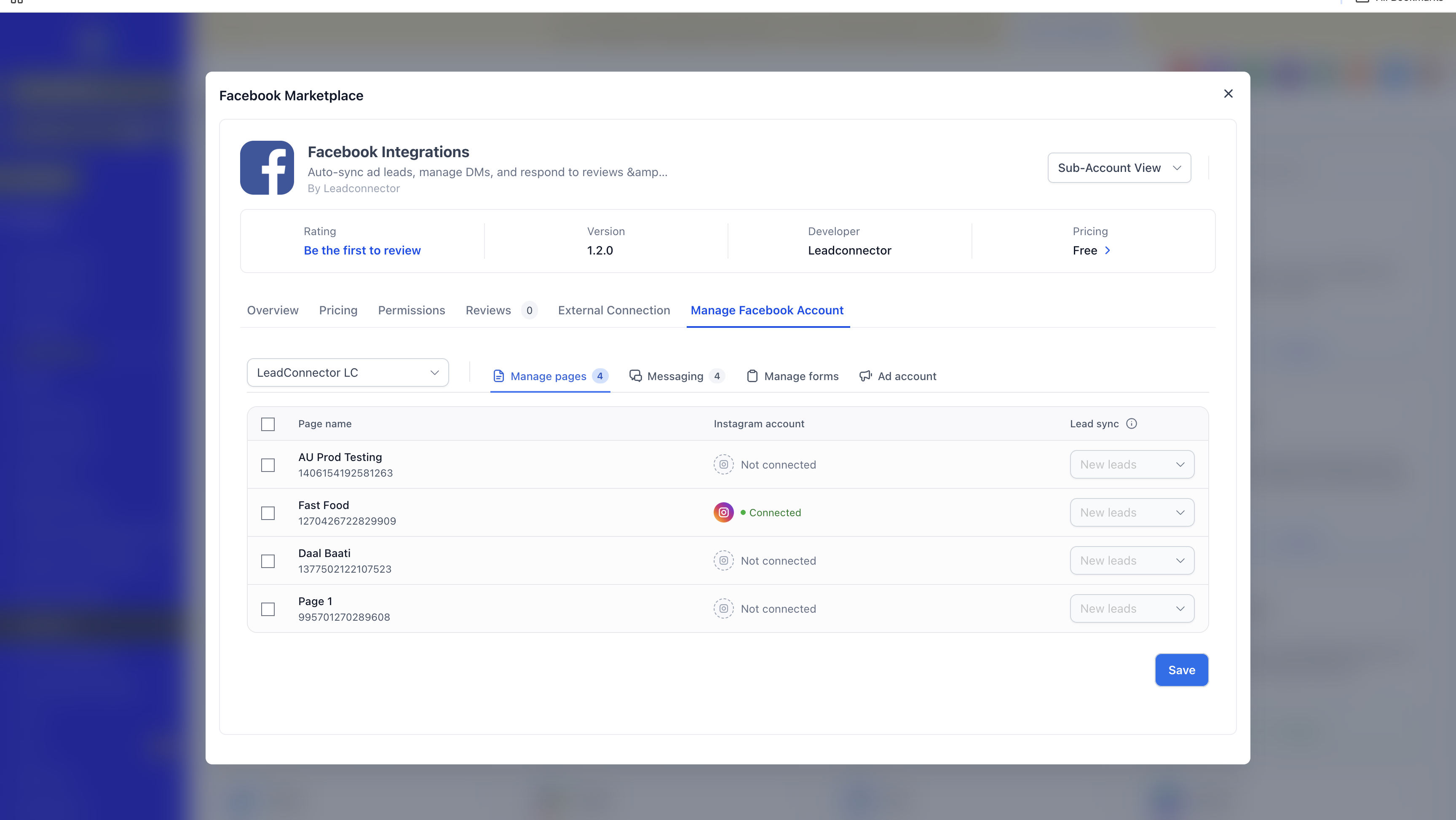
Complete the connection process.
Once connected, the Facebook account will appear in the integration's account management interface.
To connect an additional Facebook account
Navigate to Sub-Account → Settings → Integrations.
Open the Facebook integration.
Go to Manage Facebook Account.
Open the account selector to view existing connections.
Click Add Account.
Authenticate using the additional Facebook account.
Grant the required permissions and select the Pages you want to connect.
Complete the connection process.
The newly connected account will be available alongside your existing Facebook accounts.
Please Note: Adding another Facebook account does not require disconnecting your existing Facebook accounts.
How to Switch Between Connected Facebook Accounts
Once multiple Facebook accounts are connected, you can switch between them to manage their respective resources.
Navigate to Sub-Account → Settings → Integrations → Facebook.
Open Manage Facebook Account.
Click the account dropdown.
Select the Facebook account you want to manage.
The interface will display the relevant settings and resources for the selected account.
You can switch accounts whenever you need to manage a different Facebook connection.
How to Manage Facebook Pages
You can manage Facebook Pages associated with each connected account.
Navigate to Sub-Account → Settings → Integrations → Facebook.
Open Manage Facebook Account.
Select the relevant Facebook account from the dropdown.
Click Manage Pages.
Review the Pages available under the selected account.
Select or deselect the Pages you want to connect.
Save your changes.
Please Note: You must have the required Facebook permissions to manage a Page. Pages that are not accessible to your Facebook account may not appear in the list.
How to Manage Facebook/Instagram Messaging
Facebook Multi-Account Integration allows you to manage messaging configurations for Pages associated with different Facebook accounts. Social planner connected account would also be visible on messaging tab to enable disable messaging.
To enable or disable messaging
Navigate to Sub-Account → Settings → Integrations → Facebook.
Open Manage Facebook Account.
Select the relevant Facebook account.
Click Messaging.
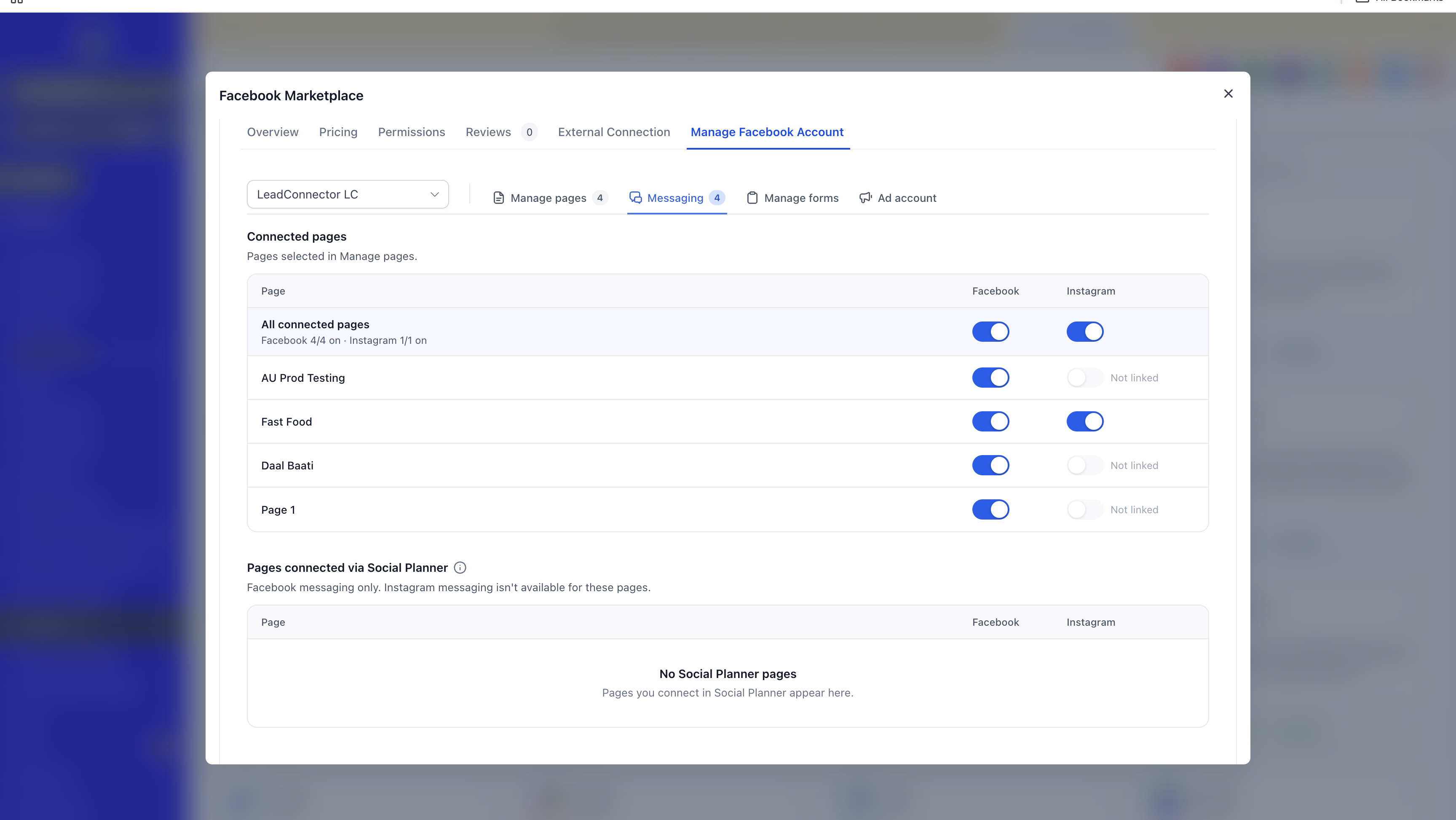
Review the available Facebook Pages and their messaging configurations.
Enable or disable messaging for the relevant Pages.
Save your changes.
When messaging is enabled and the required permissions are available, supported Facebook and Instagram conversations can be managed through CRM Conversations.
How to Manage Facebook Lead Forms
Facebook Lead Ads allows you to automatically capture leads generated through Facebook forms and sync them with your CRM.
To manage forms for a connected account
Navigate to Sub-Account → Settings → Integrations → Facebook.
Open Manage Facebook Account.
Select the relevant Facebook account.
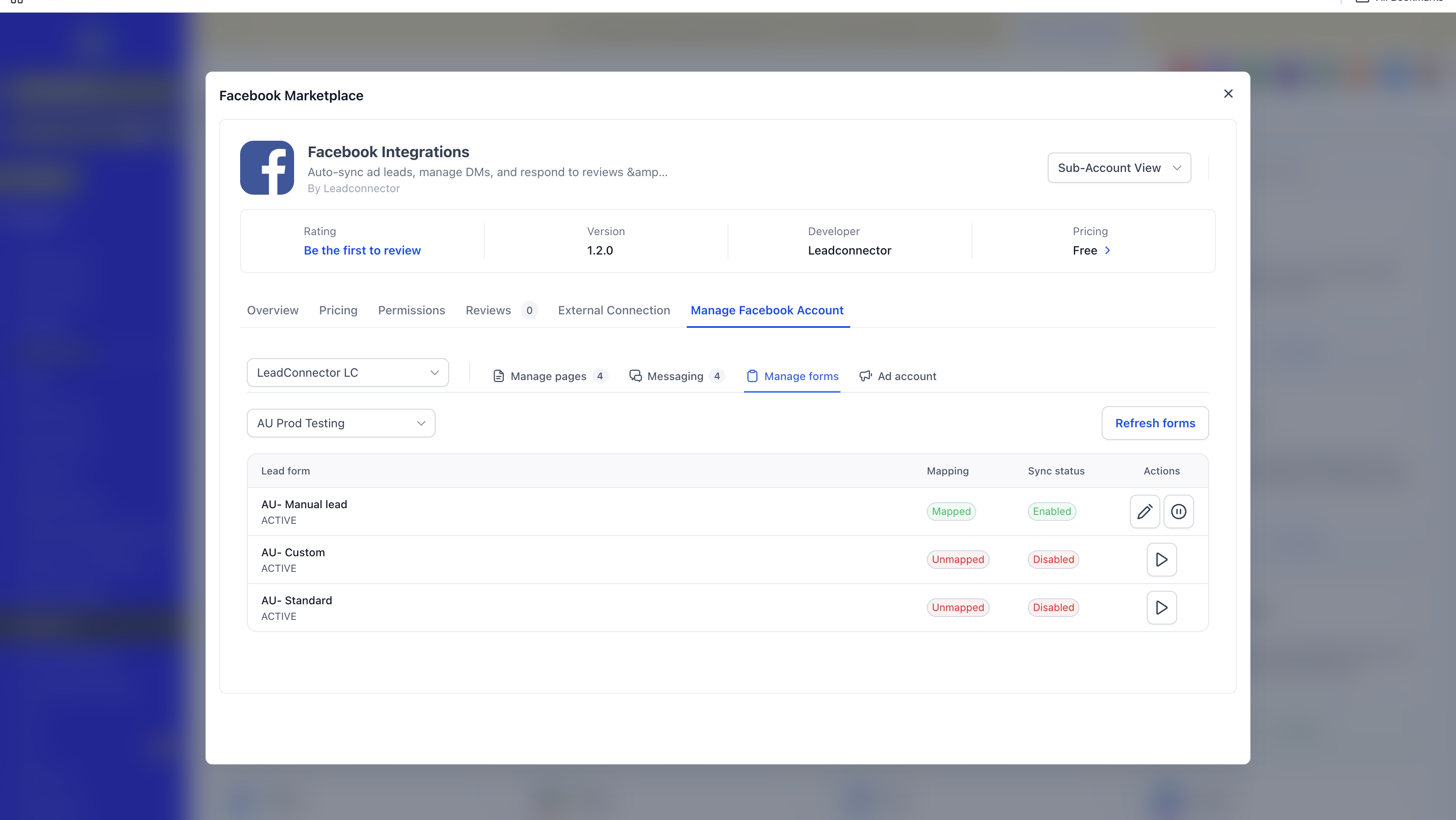
Click Manage Forms.
Review the available forms associated with the connected Pages.
Configure the required form field mappings.
Save your changes.
To update form field mapping
Open the Facebook form field mapping interface.
Find the form you want to update.
Map Facebook form fields to the corresponding CRM fields.
Save the updated mapping.
Ensure the relevant Facebook Page is connected and the authenticated user has Lead Access permissions.
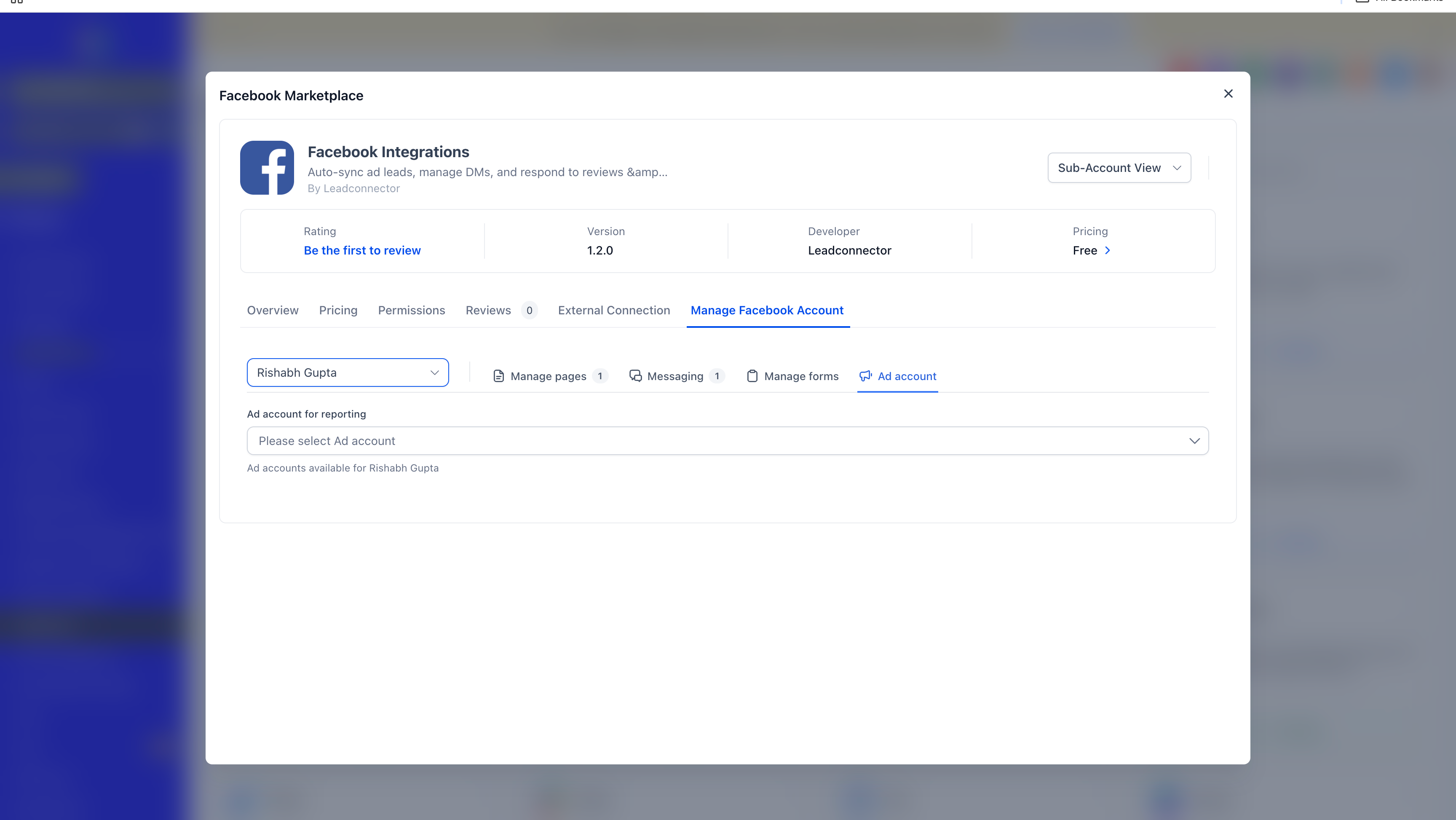
How to Manage Ad Accounts
You can access advertising-related account settings through the Facebook integration.
Important: Ad Analytics limitation
Ad Analytics currently does not support multiple Facebook accounts within a single sub-account.
You can configure Ad Analytics using your default Facebook account.
To manage the Ad Analytics configuration, switch to the default Facebook account shown in the integration.
Other connected Facebook accounts can continue to be used for their supported integration features.
How to Disconnect a Facebook Account
If you no longer want to use a connected Facebook account, you can disconnect it from the integration.
Navigate to Sub-Account → Settings → Integrations → Facebook.
Open the Facebook account management interface.
Select Manage facebook account
Select the account you want to connect
Important: Disconnecting an account may interrupt lead syncing, messaging, and other features that rely on that Facebook connection. Review the associated Pages and configurations before disconnecting.
Troubleshooting and Frequently Asked Questions
1. Can I connect more than one Facebook account to a single sub-account?
Yes. The Facebook Multi-Account Integration allows you to connect multiple Facebook accounts to the same CRM sub-account.
2. Will connecting a new Facebook account disconnect my existing account?
No. You can add additional Facebook accounts without disconnecting your existing connections.
3. Why can't I see a Facebook Page when connecting an account?
Ensure that the Facebook user has the required permissions for the Page and that the appropriate permissions were granted during authentication.
4. Why are my Facebook leads not syncing?
Check that the relevant Page is connected, Lead Access permissions are available, and the form field mapping is configured correctly.
You can also use the Facebook integration's troubleshooting and manual lead sync options.
5. Can I use Ad Analytics with multiple Facebook accounts?
No. Ad Analytics currently supports only one Facebook account per sub-account. Configure it using your default Facebook account.
6. Can different users connect their own Facebook accounts?
Users with the appropriate access can authenticate and connect Facebook accounts. The resources available through each connection depend on that user's Facebook permissions.
7. What happens if I disconnect a Facebook account?
Features that depend on the disconnected account may stop working until a valid connection is restored.