
Ask AI Computer is available on mobile, bringing your private cloud computer to your phone. Start tasks, watch the browser work, and take control when needed. You can also approve actions, sign in securely, manage files, and continue work across devices. This guide covers the mobile features and controls available in Ask AI Computer.
TABLE OF CONTENTS
- What Is Ask AI Computer on Mobile?
- Key Benefits of Ask AI Computer on Mobile
- Prerequisites and Limitations
- How to Set Up Ask AI Computer on Mobile
- Watch and Take Control of the Computer
- Manage Approvals and Private Sign-Ins
- Manage Secure Store and Computer Settings
- Work with Files and Review Activity
- Continue Tasks Across Devices
- Frequently Asked Questions
- Need Help?
- Related Articles
What Is Ask AI Computer on Mobile?
Ask AI Computer gives Ask AI access to a private cloud computer with a Chrome browser, terminal, and file manager. It can browse websites, complete forms, run code, and create files on your behalf.
The mobile experience connects to the same cloud computer available on web. You can monitor tasks, interact with the desktop, and manage work directly from your phone.
Computer runs remotely rather than using the browser installed on your phone. The mobile app provides the controls for watching, directing, and reviewing its activity.
Key Benefits of Ask AI Computer on Mobile
Ask AI Computer lets you handle browser-based tasks without staying at your desk. Mobile access makes it easier to monitor progress, respond to requests, and retrieve completed work.
- Work Anywhere: Start and monitor Computer tasks from your phone.
- Take Control: Interact with the live browser and hand control back to Ask AI.
- Secure Access: Approve actions and sign in without sharing passwords in chat.
- File Management: Attach files, download results, and review Computer activity.
- Cross-Device Continuity: Continue Computer conversations started on web.
Prerequisites and Limitations
Before starting a Computer task on mobile, confirm that Ask AI Computer is available to your user and that you can open Ask AI in the mobile app. The mobile experience uses the existing Computer functionality without requiring a separate cloud computer setup.
- Feature Access: Ask AI Computer must be available to your user in the mobile app.
- Storage: Computer provides a 15 GB storage allocation per user, with a 25 MB limit for an individual file.
- Network Access: Computer accesses the public internet, not private networks.
- App Activity: Keep Ask AI open while Computer works. Leaving the mobile app pauses the task.
- Cloud Computer: Tasks run on the remote Computer rather than directly on your phone.
Note: If the Computer option does not appear in Ask AI, confirm that the feature is available to your user before attempting the following steps.
How to Set Up Ask AI Computer on Mobile
Start Computer from a new Ask AI chat. You can also return to existing Computer conversations through History to review progress or continue previous work.
- Open the mobile app.
- Open the App Drawer and select Ask AI.
- Start a new chat.
- Tap Computer above the Ask anything... message field.
- If Computer is asleep, tap Turn on.
- Enter your task and send the message.
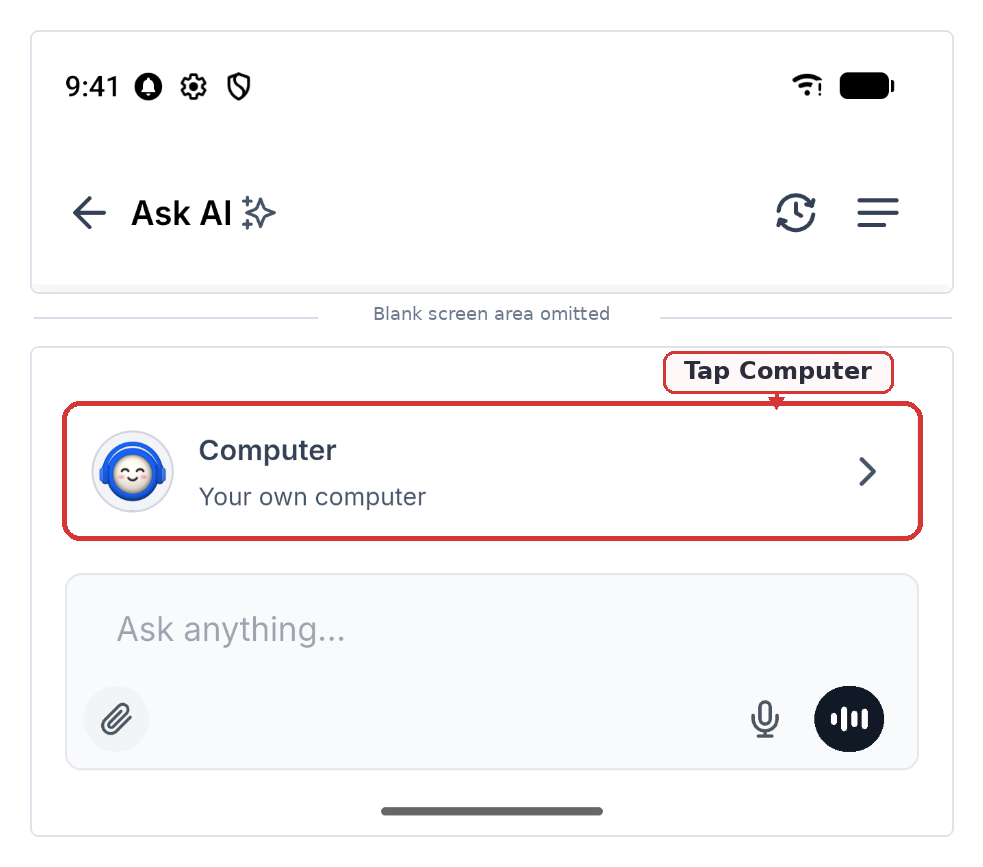
Computer begins working and displays its progress in the conversation. To reopen a task, select Ask AI > History > Computer.
Watch and Take Control of the Computer
Computer displays a live desktop preview so you can follow task progress and intervene when manual input is required.
The status display can show:
- Working: Computer is actively performing a task.
- Idle: Computer is not actively working.
- Done: Computer has completed its current task.
- Needs you: Computer requires your input.
- You're in control: You have taken manual control of the desktop.
Watch and Control the Browser
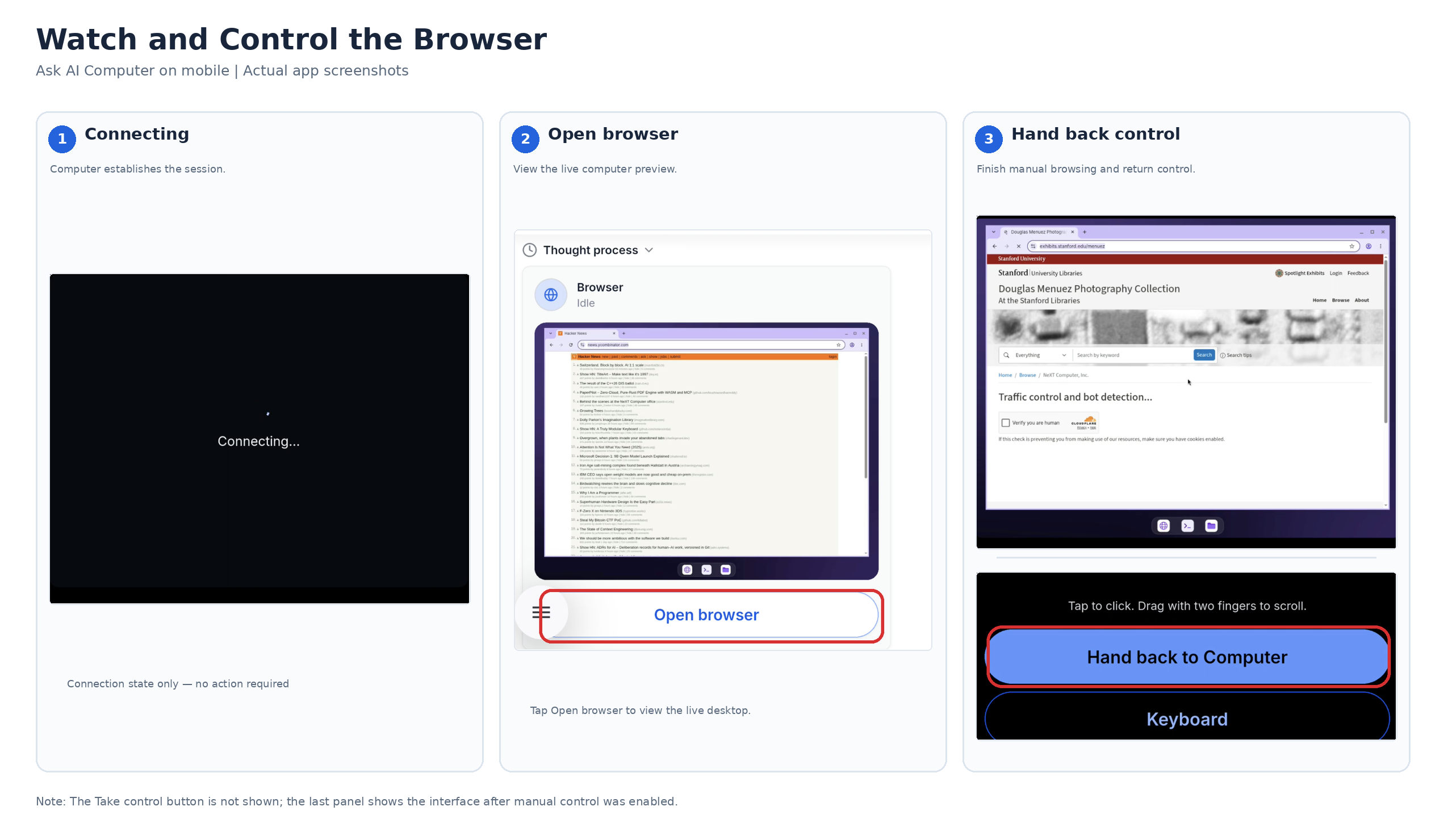
The live browser lets you watch Computer's progress and interact with the desktop when a task requires manual input. Return control to Ask AI when you finish so the task can continue.
- Open your Computer conversation.
- Tap Open browser to view the live desktop.
- Tap Take control of the browser when you need to interact with the desktop.
- Tap to click, drag with two fingers to scroll, or type using your phone's keyboard.
- Tap Hand back when finished.
Ask AI can continue working from where you left off after control is returned.
Keep Chatting While Computer Works
You can switch between Ask AI conversations while Computer runs. A live status indicator follows you between chats so you can monitor the task without remaining in the same conversation.
Tap the status indicator to return to the Computer conversation.
Manage Approvals and Private Sign-Ins
Computer requests permission before performing certain actions. When a website requires login credentials, the private sign-in form keeps passwords out of the Ask AI chat.
Approve Computer Actions
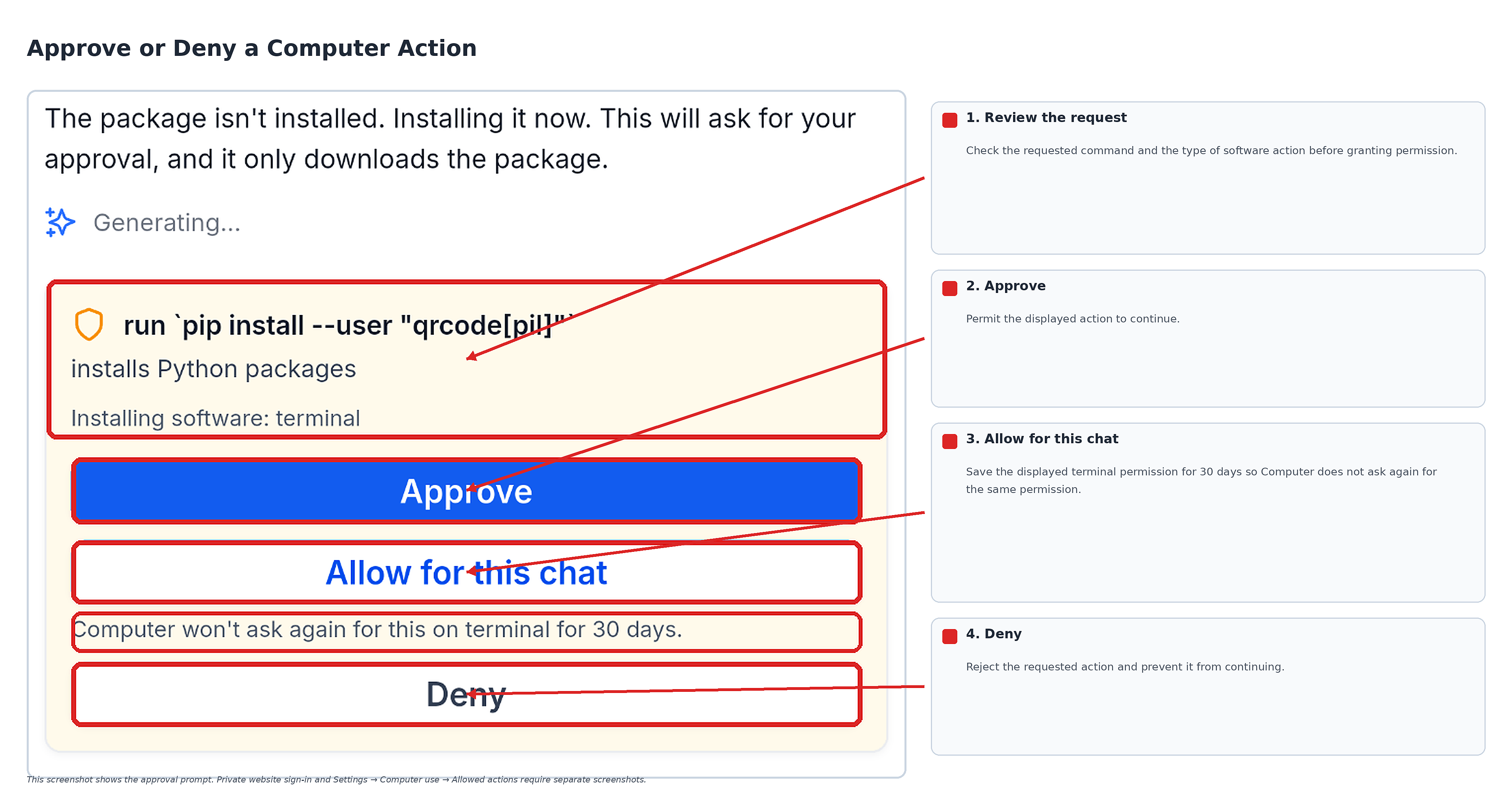
Review the requested action before allowing Computer to continue. Approval controls help you decide whether a specific operation should proceed.
When Computer pauses for approval, choose from the available options:
- Approve: Permit the requested action.
- Allow for this chat: Save the displayed permission for 30 days on the applicable site.
- Deny: Reject the requested action.
You can review or revoke previously saved permissions under Settings > Computer use > Allowed actions.
Sign In Securely
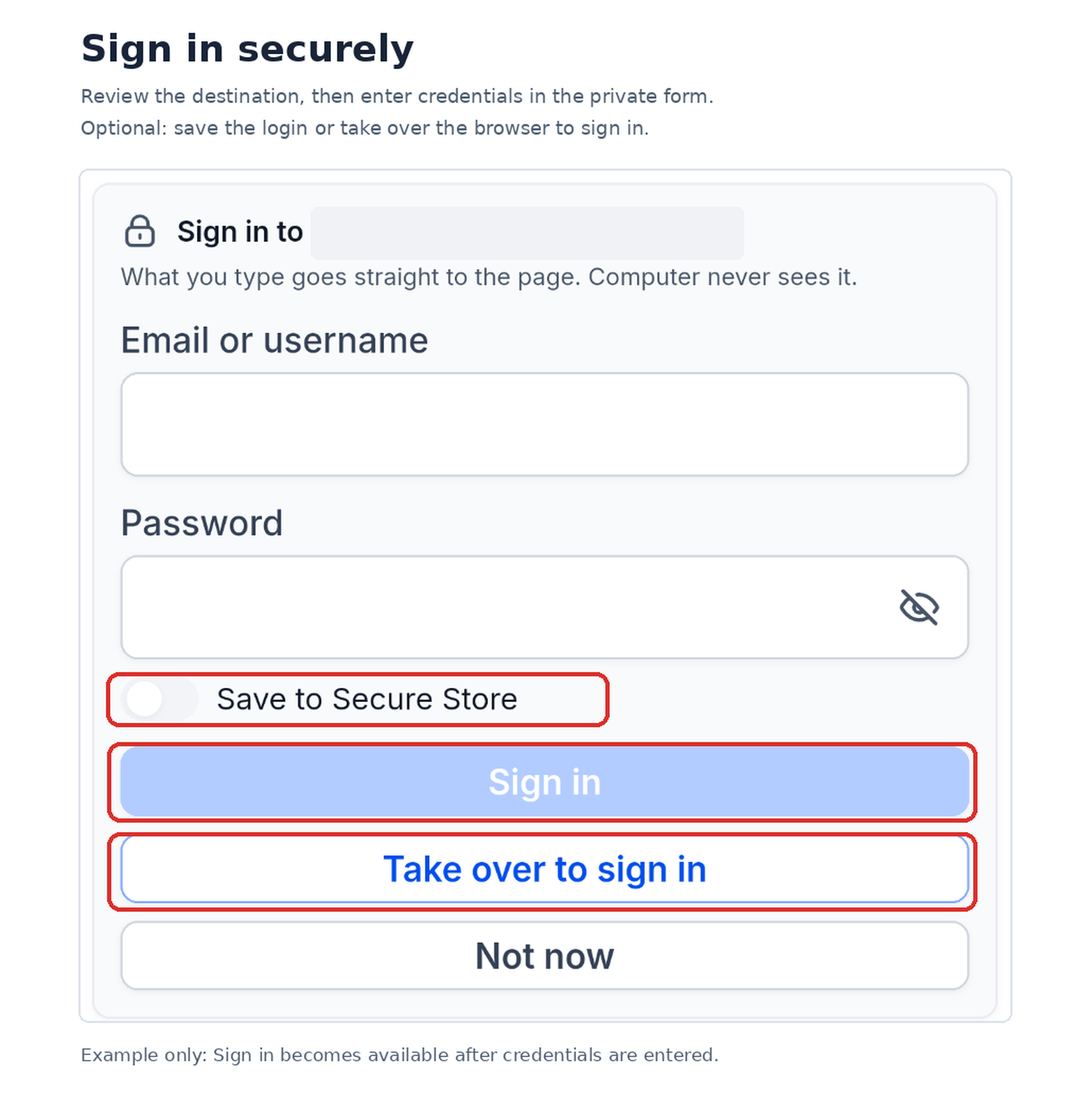
When Computer reaches a website that requires credentials, use the private sign-in form to enter them directly for that website.
- Review the website address displayed in the private sign-in form.
- Enter your Email or username and Password.
- Optionally enable Save to Secure Store.
- Tap Sign in.
You can also select Take over to sign in to enter credentials manually in the browser, or Not now to postpone signing in.
Credentials entered through the private form go directly to the website. Ask AI does not see the password in the chat.
Manage Secure Store and Computer Settings
Use Settings > Computer use in the mobile app to review saved logins, permissions, browser data, and storage. These controls help you manage how Computer interacts with websites and uses saved information.
Manage Saved Logins
Saved logins let Computer access supported websites without putting credentials into the Ask AI conversation. Choose how Computer should use stored credentials.
Under Let Ask AI use saved logins, select the setting that matches your preference:
- Never: Do not use saved logins.
- Ask: Request approval before using a saved login.
- Allow on matching sites: Use saved logins on matching websites.
Saved passwords are not filled on look-alike websites.
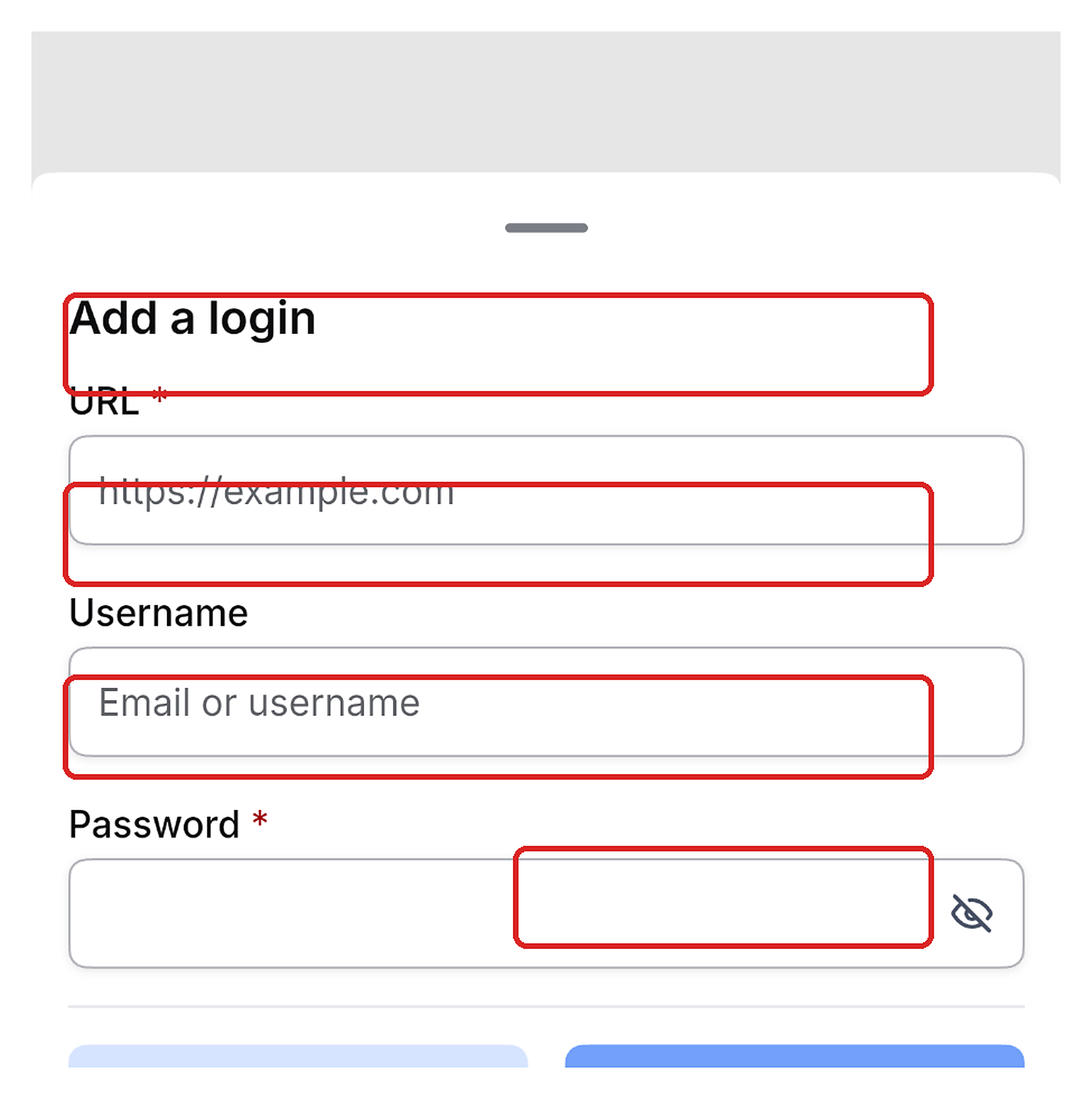
To add a saved login:
- Open Settings > Computer use.
- Under Saved logins, tap Manage saved logins.
- Select the option to add a login.
- Enter the website URL.
- Enter an optional Username and the required Password.
- Tap Save.
You can also edit or delete existing saved logins using the available controls.
Manage Permissions, Storage, and Browser Data
Computer settings provide controls for reviewing saved permissions, browser data, and storage usage. Use these settings when you need to review an earlier approval or clear browser information.
The Computer use settings screen includes:
- Clear browsing data: Remove browser cookies, cache, and history.
- Allowed actions > Review: Revoke an individual saved permission or all saved permissions.
- Storage: Review current usage against the available 15 GB storage allocation.
Tip: Review saved permissions regularly, especially after completing tasks that involve external websites or sensitive actions.
Work with Files and Review Activity
Computer can use files you attach, generate output files, and record the actions taken during a task. You can access these items from the mobile conversation and its available file and activity controls.
Files and Results
Attach input files when your request requires them, and retrieve completed work from the conversation. The Files sheet helps you locate recent items and review storage usage.
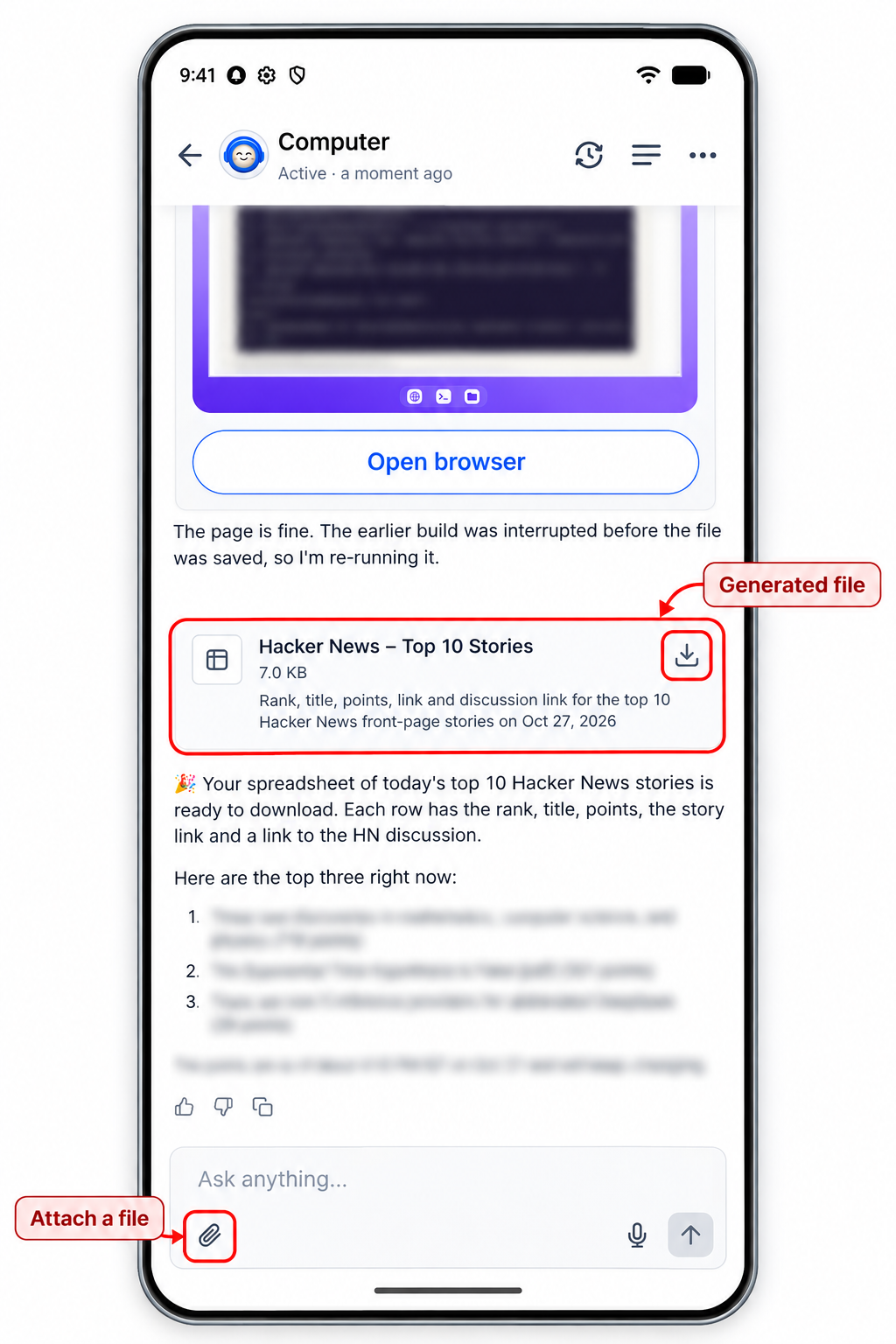
- Open the Computer conversation.
- Tap the paperclip icon to attach a supported file.
- Include the file in your request to Ask AI.
- After Computer generates a result, locate the file card in the conversation.
- Tap the file card to open or download the result.
Generated spreadsheets, documents, and PDFs can appear as file cards in the chat. The Files sheet lists recent files and displays a storage meter.
Computer Activity
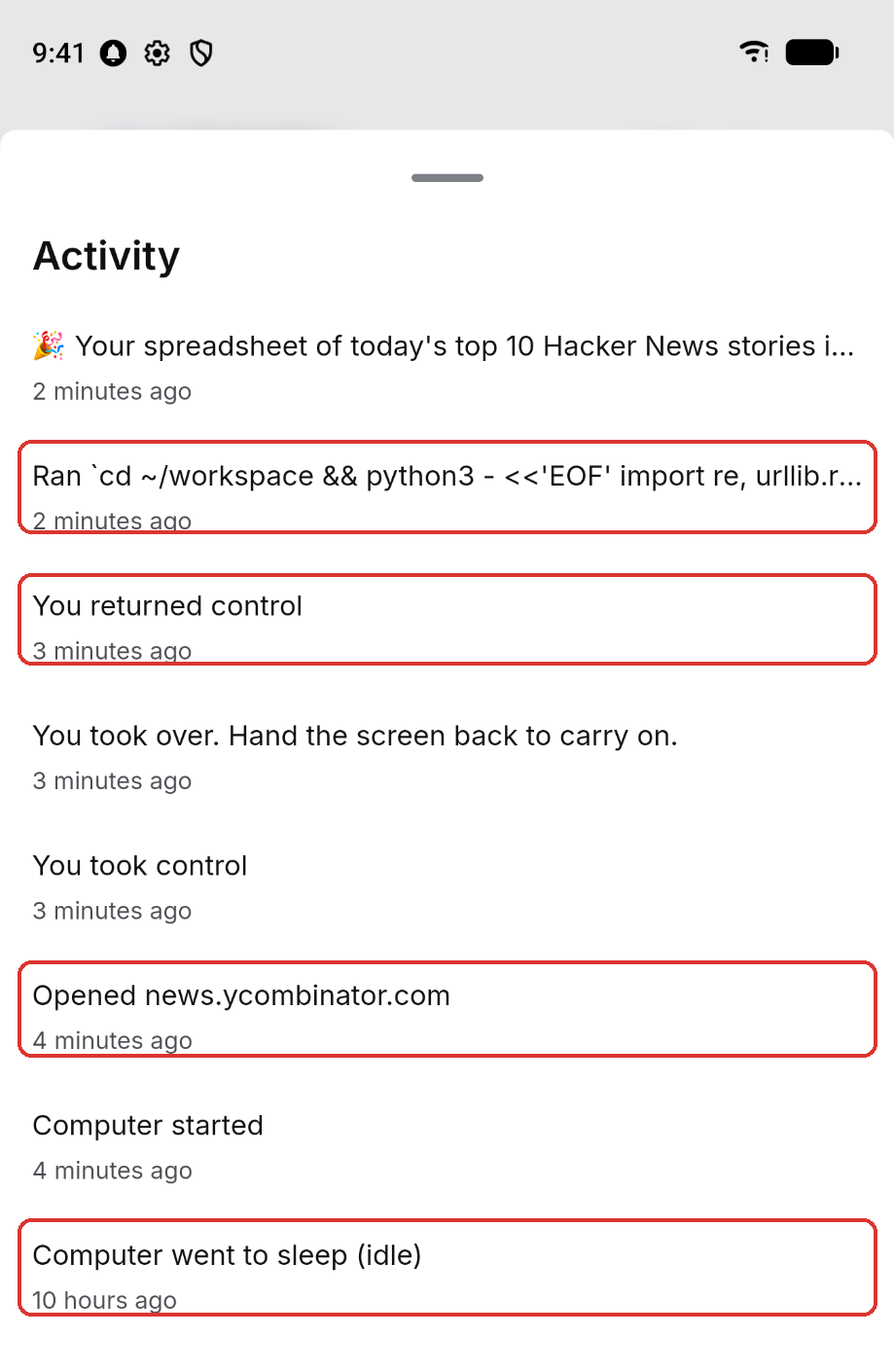
The Activity sheet records Computer actions in chronological order. It helps you review what happened during a task and identify steps that may need attention.
The activity history can include visited websites, terminal commands, and changes in browser control.
Continue Tasks Across Devices
Computer conversations are accessible from both web and mobile. You can review earlier messages, return to an active desktop, and resume supported tasks without starting the conversation again.
- In the mobile app, open Ask AI > History > Computer.
- Select an existing Computer conversation to review work started on web.
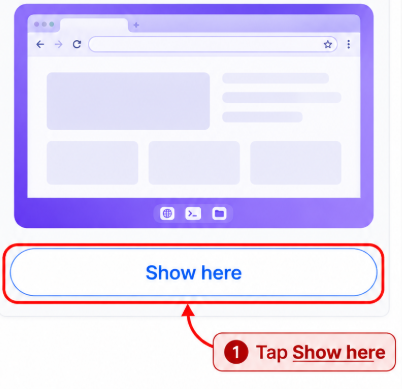
- If the desktop is already open on another device, tap Show here to bring the live view to your phone.
Computer also supports task recovery:
- Turn on: Wake a sleeping Computer while preserving existing files and saved sign-ins.
- Automatic Reconnection: Computer reconnects when the connection drops.
- Resume: Continue an interrupted task when the Resume option appears.
Frequently Asked Questions
Q: Can Computer use the browser installed on my phone?
No. Computer runs Chrome on its private cloud desktop. You view and control that desktop from your phone.
Q: What if a website requires a one-time verification code?
Open the browser, take control, enter the code directly on the website, and hand control back to Ask AI.
Q: Can Computer install software or run commands?
Yes. Computer can run commands and install supported tools. Software installations may require your approval.
Q: What happens when Computer is inactive?
Computer sleeps after 15 minutes of inactivity. Tap Turn on when you need to wake it.
Q: Can I use another Ask AI chat while Computer is working?
Yes. You can switch between Ask AI chats while the mobile app remains open. The live status indicator lets you return to the Computer conversation.
Q: Will leaving the mobile app affect an active Computer task?
Yes. Leaving the mobile app pauses the task. Keep Ask AI open while Computer works.
Q: Does Ask AI see passwords entered through the private sign-in form?
No. Credentials entered through the private form go directly to the website instead of appearing in your Ask AI chat.
Need Help?
If Computer does not appear in Ask AI, confirm that the feature is available to your user. Check that you are using the current mobile app and have an active internet connection.
If a task stops or Computer appears inactive, return to the Computer conversation. Use Turn on or Resume when the corresponding control is available.
If a website requires manual input, open the browser and take control. Hand control back to Ask AI after completing the required step.
If you cannot access a saved login, review Settings > Computer use and check the saved-login preferences. Confirm that the website address matches the intended destination.
If an issue continues, contact support with your mobile device type, app version, a description of the problem, and relevant screenshots. Do not share passwords, verification codes, or other sensitive credentials in support messages.