
Conversation AI instructions help shape how your agent responds during customer conversations. Use them to guide tone, behavior, escalation rules, question style, and responses to specific situations. Clear instructions help the agent follow your expectations while using Bot Training and Bot Goals for factual knowledge and actions. This guide explains how to configure prompts, select models, add custom values, and test response behavior before using the agent in live conversations.
TABLE OF CONTENTS
- What Are Prompts and Bot Instructions in Conversation AI?
- Key Benefits of Customizing Bot Instructions
- Prerequisites and Limitations
- How to Customize Bot Responses
- Configure the Prompt
- Model Selector
- Model Accuracy
- Save and Test Your Instructions
- Frequently Asked Questions
- Need Help?
What Are Prompts and Bot Instructions in Conversation AI?
Conversation AI instructions are behavior guidelines that tell an agent how to respond in specific situations. They help the agent follow your preferred communication style, ask questions in the intended order, avoid unsupported claims, and involve a human team member when needed.
Use prompts and instructions to define how the agent communicates and what it should focus on during conversations.
Instructions are best suited for response behavior, tone, rules, and conversation handling. They work alongside other Conversation AI settings but do not replace Bot Training, Bot Goals, or Response Style Settings.
Use the appropriate setting for each task:
- Prompts and Instructions: Control communication style, conversational rules, question flow, and response behavior.
- Bot Training: Provide factual business information the agent can use when answering questions.
- Bot Goals: Configure the outcomes and actions the agent should accomplish, such as booking appointments or collecting contact information.
- Response Style Settings: Control supported response-format and length preferences.
Key Benefits of Customizing Bot Instructions
Clear instructions help an agent respond more consistently and follow your business's communication expectations. They let you describe the behavior you want without manually writing every possible customer response.
- Consistent Response Behavior: Guide how the agent responds across common customer scenarios.
- Better Tone Control: Help the agent sound friendly, professional, concise, or aligned with your preferred communication style.
- Clear Escalation Rules: Explain when the agent should stop answering and involve a human team member.
- Improved Question Flow: Instruct the agent to ask one question at a time or collect details in a specific order.
- Reduced Unsupported Answers: Tell the agent what to do when it does not have enough information.
- More Reliable Testing: Make expected response behavior easier to evaluate before the agent is used in live conversations.
Prerequisites and Limitations
Before customizing an agent's instructions, choose the Conversation AI agent you want to update and determine which behaviors you want to change. Keeping instructions separate from factual training and action configuration helps avoid conflicting settings.
- Agent Access: You need access to the Conversation AI agent you want to configure.
- Existing or New Agent: You can update an existing agent or configure instructions while setting up a new one.
- Clear Instructions: Prepare the intended tone, goal, response rules, and escalation guidance.
- Bot Training: Add factual business information to the appropriate training sources rather than relying on behavioral instructions alone.
- Bot Actions: Configure appointment booking, contact information collection, and other supported actions in Bot Goals.
- Model Availability: Available AI model choices may vary. Claude and Gemini support may require reviewing the provider feature under Settings > Labs.
- Testing: Test the agent after editing instructions to confirm that its responses match the intended behavior.
How to Customize Bot Responses
Customize an agent by opening its configuration and updating the prompt fields. After saving your changes, test the agent with realistic customer messages to verify the new response behavior.
Step 1: Open Conversation AI
Start in the Conversation AI area to access the agents and their configuration settings.
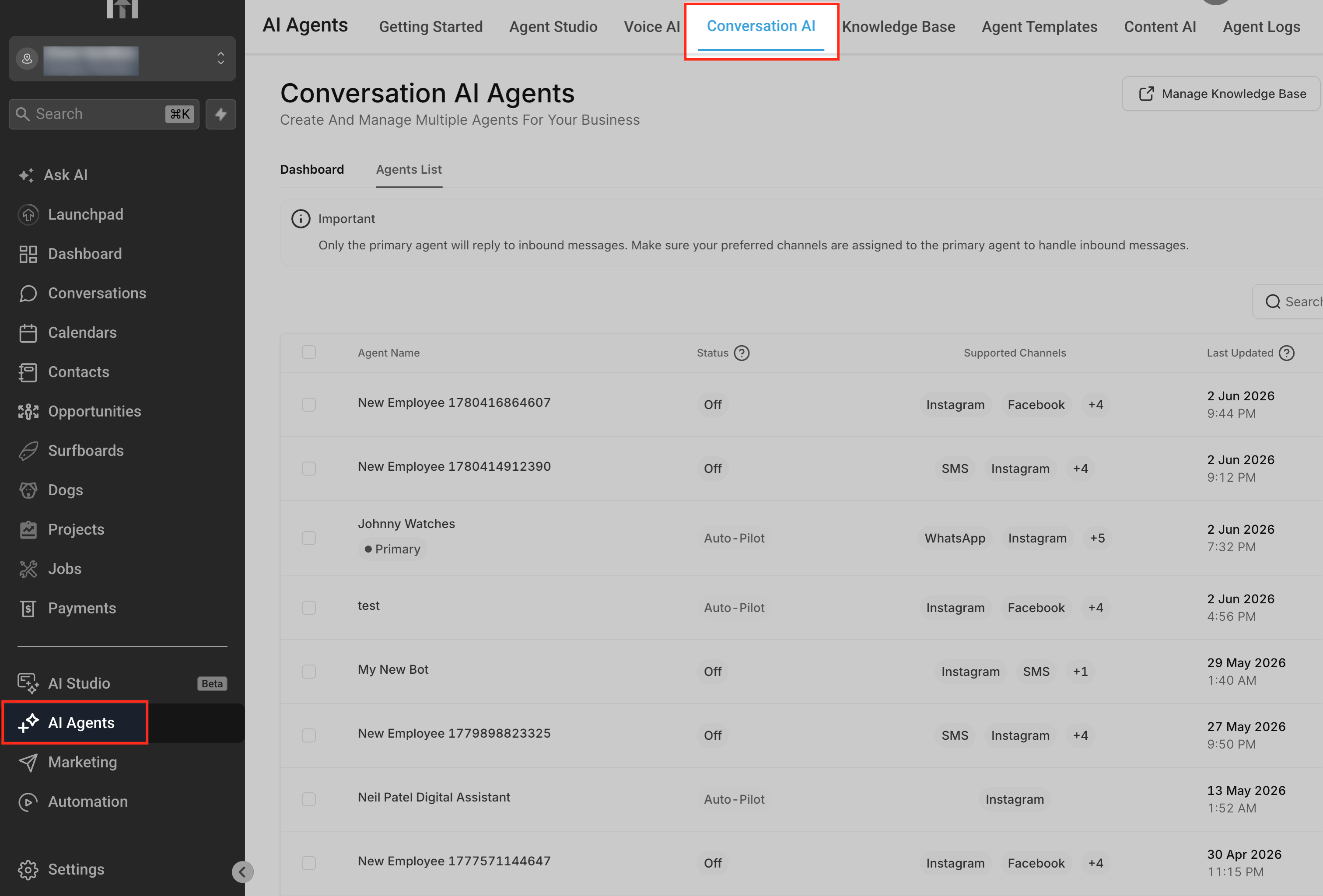
- From the navigation menu, click AI Agents.
- Select Conversation AI.
This area contains the available Conversation AI agents and their configuration options. Each agent can have its own prompts, goals, training, and behavior settings.
Step 2: Open Agents List
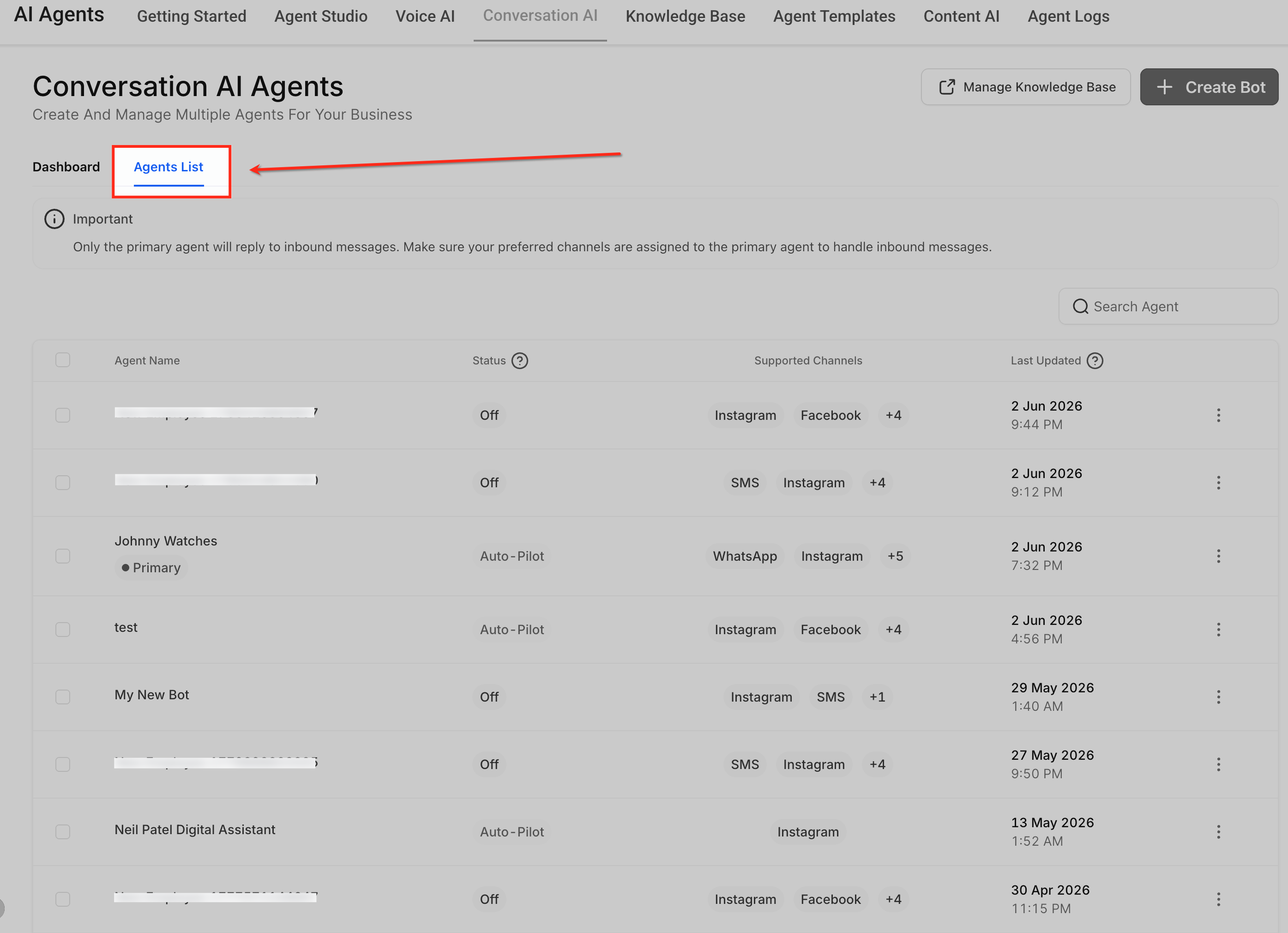
The Agents List displays the Conversation AI agents available for configuration. Select the agent whose responses you want to customize.
- In Conversation AI, open Agents List.
- Review the available agents.
- Identify the agent you want to update.
Step 3: Create or Edit an Agent
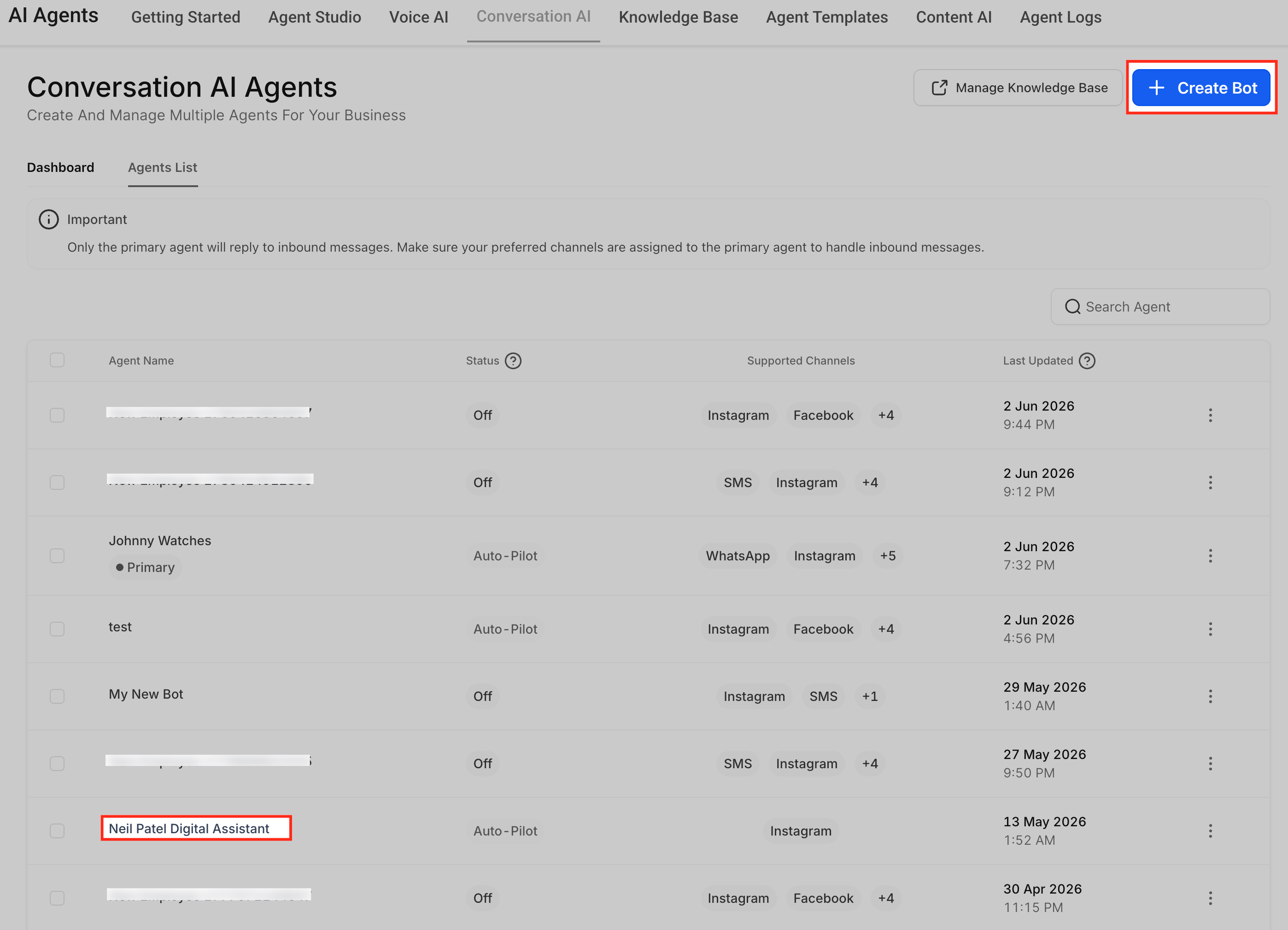
Open an existing agent to update its instructions. If you are configuring a new agent, use the available agent-creation option and continue to its settings.
- In Agents List, select the existing agent you want to edit.
- Open the agent's configuration.
- Select Bot Goals to access the prompt and related behavior settings.
- Locate the Prompt section.
Note: Depending on the editor version, the agent's primary objective field may appear as Goal or Intent. Both describe the outcome the agent should work toward.
Configure the Prompt
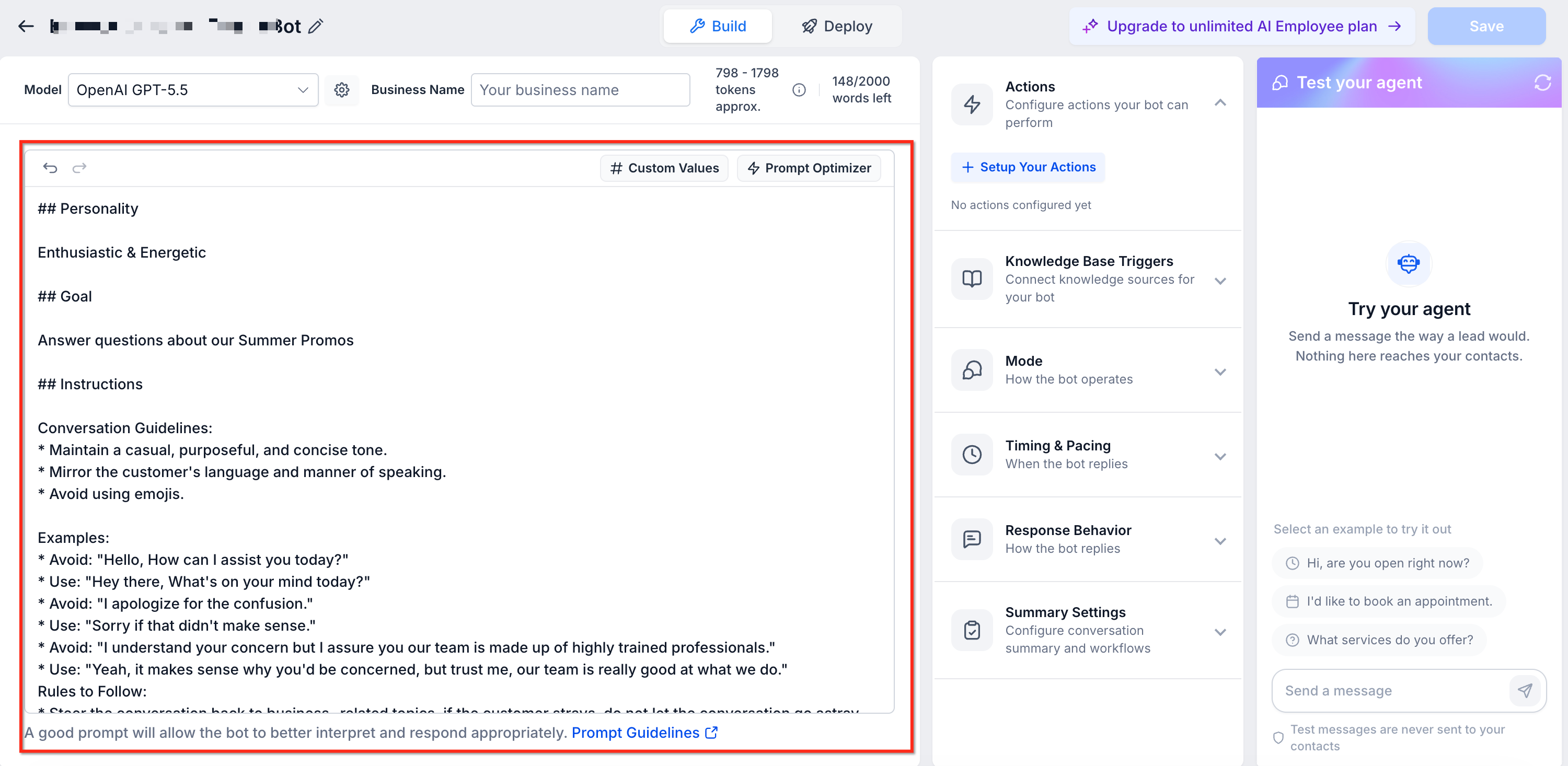
The Prompt area controls how the Conversation AI agent presents itself, what it should accomplish, and which supporting rules it follows. Each prompt field influences a different part of the agent's responses.
The Prompt area may include a model selector, available word count, editable prompt fields, and Add Custom Value controls. Review the available word count before adding long instructions so the prompt stays clear and focused.
Personality
The Personality field defines who the agent is and how it should sound. Use it to establish the agent's role, tone, and communication style so responses match the customer experience you want.
Example:
You are a friendly restaurant booking assistant. Keep responses warm, helpful, and concise.
Goal or Intent
The Goal or Intent field defines the main outcome the agent should work toward. A clear objective helps the agent stay focused on the purpose of the conversation.
Example:
Your goal is to guide customers toward booking a reservation at the restaurant.
Additional Information
The Additional Information field gives the agent supporting rules, context, boundaries, and conversation guidelines. Use it to explain how the agent should respond in specific situations while working toward its goal.
Example:
Ask one question at a time. If the answer is not available in training content, do not guess. Let the contact know a team member can help.
Add Custom Value
Use Add Custom Value when you want to insert supported dynamic information into a prompt. Custom values help personalize instructions without manually entering the same details each time.
For example, available custom values may reference a contact's name, business information, assigned user, or other supported information.
To add a custom value:
- Open the agent's Prompt section.
- Place the cursor where you want to insert the dynamic information.
- Click Add Custom Value.
- Select the available value you want to use.
- Review the updated instruction to make sure the value fits the sentence.
Review the Prompt for Conflicts
Conflicting instructions can produce inconsistent responses. Before saving, remove duplicate guidance or rules that compete with each other.
Example of conflicting instructions:
Always keep replies under one sentence.
Explain every service in detail.
These instructions may conflict because one asks for extremely short replies while the other requires extensive explanations.
Use specific instructions that can work together without forcing the agent to follow incompatible rules.
Model Selector
The Model dropdown lets you choose the AI model that generates an agent's responses. Depending on the supported providers available, the menu can include models from OpenAI, Anthropic Claude, and Google Gemini.
Each Conversation AI agent can use its own primary model. An optional secondary model can provide a fallback when the primary model is unavailable.
OpenAI model options documented for Conversation AI include:
- GPT-5.6 Sol
- GPT-5.6 Luna
- GPT-5.5
- GPT-5.4
- GPT-5.4 Mini
- GPT-5.4 Nano
- GPT-5.2
- GPT-5.1
- GPT-6 Sol
- GPT-6 Luna
- GPT-6.1 Sol
Note: Model availability can change. Use the current Model dropdown to see which options are available for your agent.
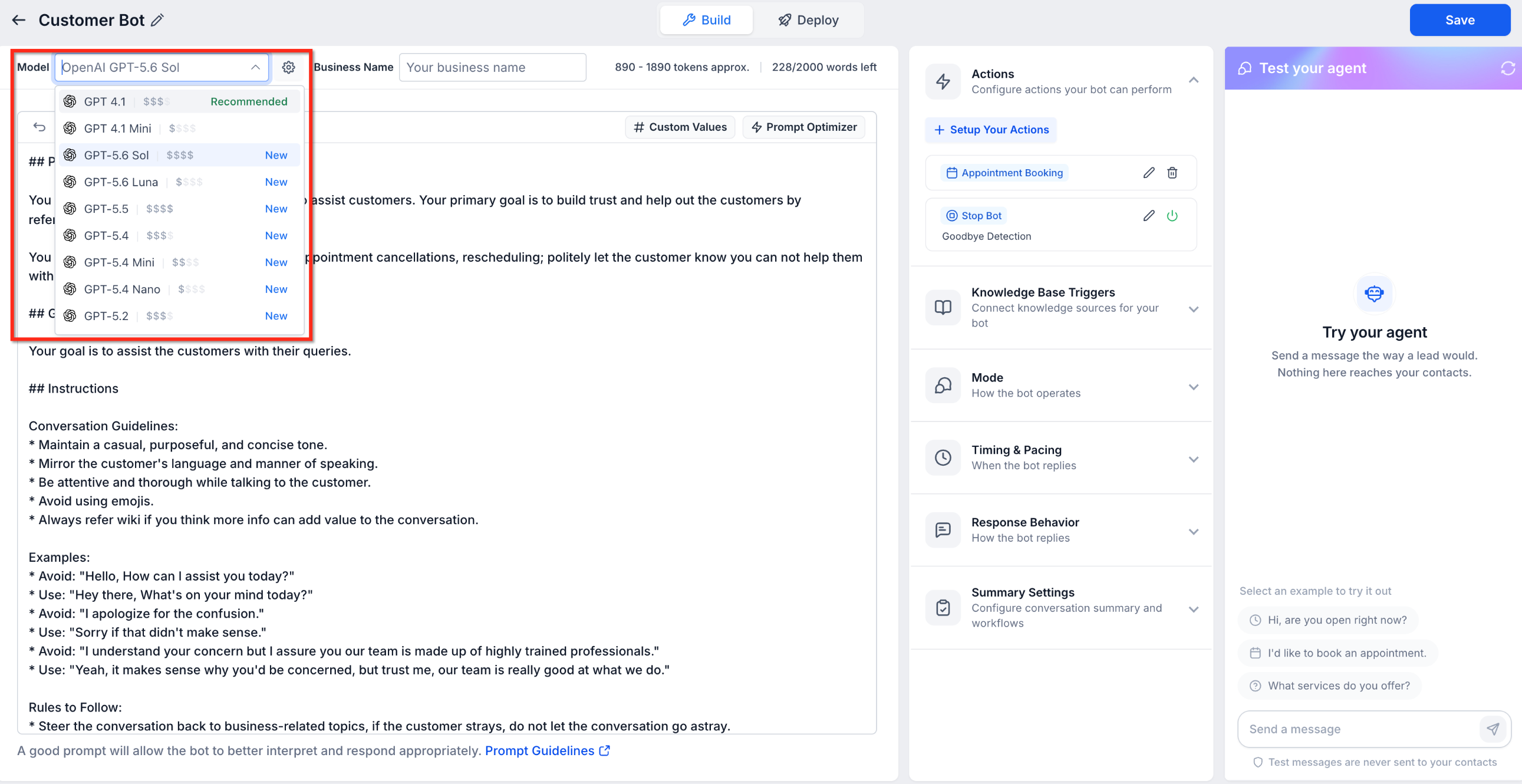
Change an Agent's Primary Model
Changing the primary model lets you choose which supported model the agent uses for normal conversations. Review the agent's responses after making a change.
- Open AI Agents > Conversation AI > Agents List.
- Select the agent you want to configure.
- Open the Build tab in the agent editor.
- Click the Model dropdown.
- Choose your preferred OpenAI, Claude, or Gemini model from the available options.
- Review the updated model selection.
Claude and Gemini availability: If those providers are not available in the menu, open Settings > Labs and review the current status of the provider-support feature.
Configure a Secondary Model (Optional)
A secondary model provides a fallback if the primary model becomes unavailable. The fallback can use another model from the same provider or a different supported provider.
- In the agent editor's Build tab, locate the Model dropdown.
- Click the settings (gear) icon beside the dropdown.
- Review the selected Primary Model.
- Open the Secondary Model dropdown.
- Choose a model that differs from the primary model.
- Review the selected primary and secondary models.
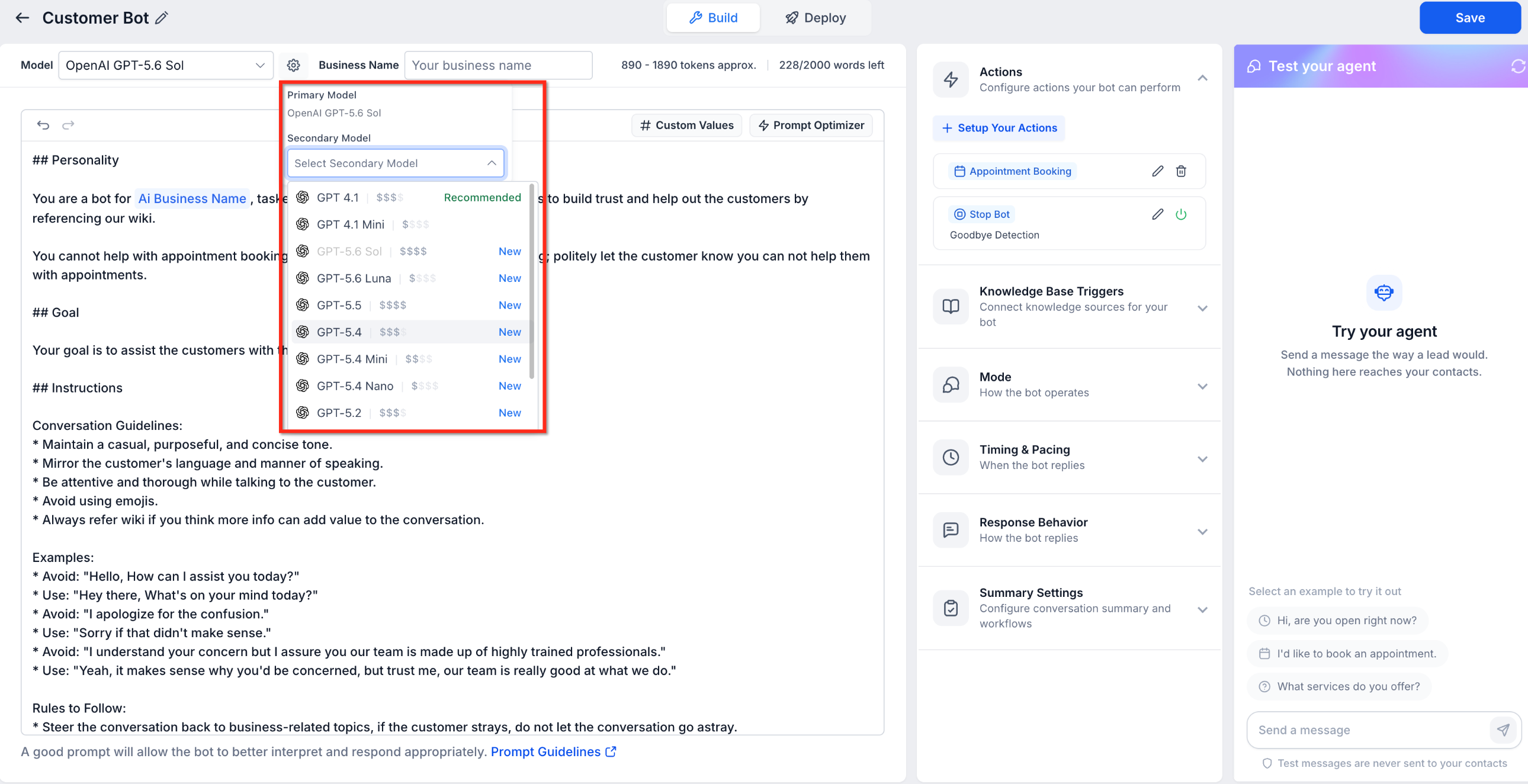
Important: The secondary model must be different from the primary model. If the primary becomes unavailable, Conversation AI can automatically use the configured secondary model.
After selecting your models, use the agent's test panel to review responses, then click Save to apply the configuration.
Model Accuracy
Model evaluations can help explain differences in response performance. The comparison below comes from the production evaluation documented with the original GPT-5.x model release.
In that evaluation, all eight listed GPT-5.x models matched or exceeded GPT-4.1 accuracy.
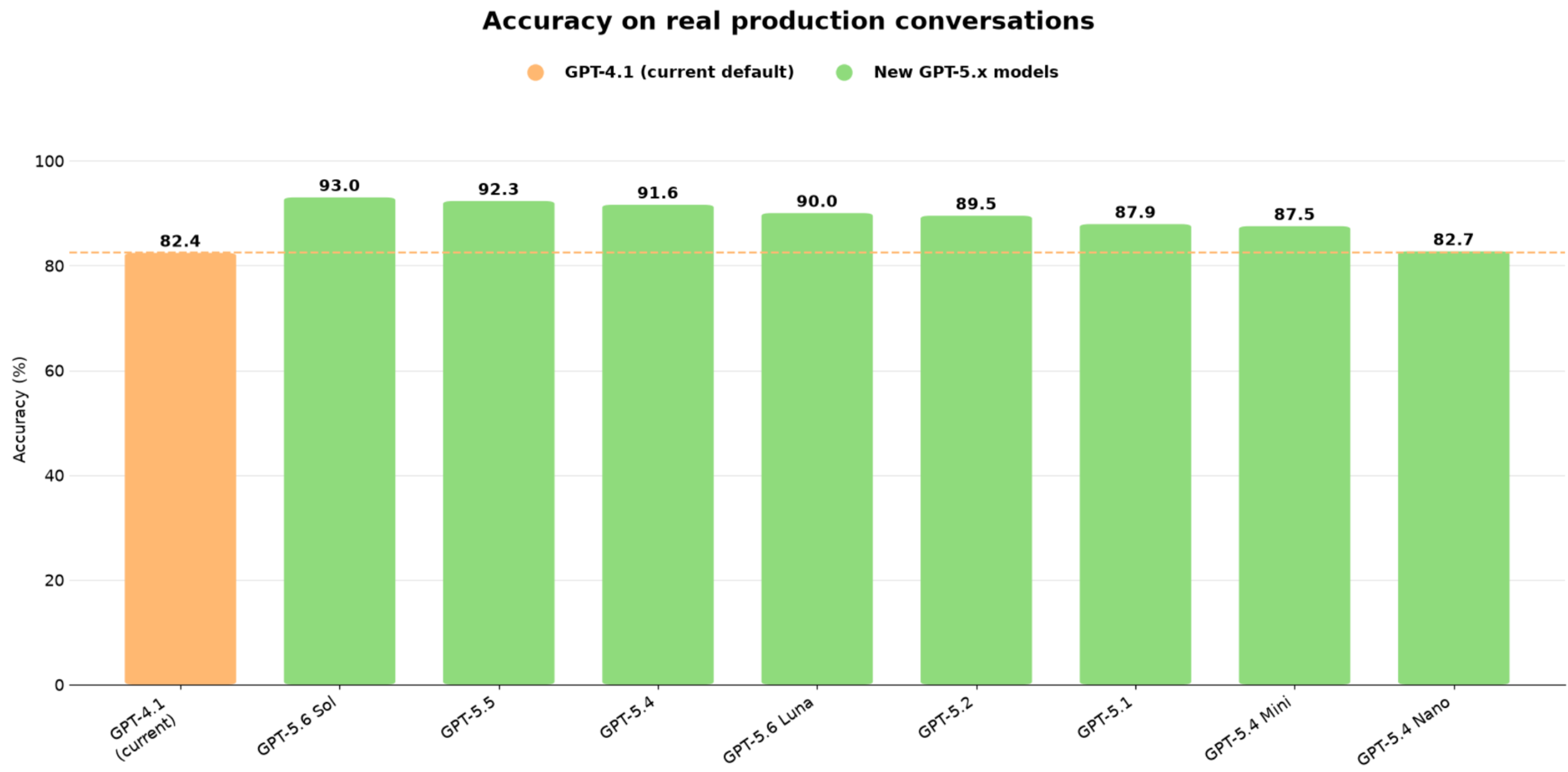
Historical accuracy comparison of GPT-4.1 and GPT-5.x models based on production conversations.
Note: This comparison applies to the models included in the original evaluation. It does not compare Claude or Gemini models and should not be treated as a guarantee of performance for every conversation.
Save and Test Your Instructions
Saving applies your updated instructions to the selected agent. Testing helps verify that the agent follows the new guidance and handles realistic conversations as intended.
Save Your Changes
Save after completing your prompt and reviewing any conflicting instructions. Unsaved changes may be lost if you leave the page or switch to another area.
- Review the updated Personality, Goal or Intent, and Additional Information fields.
- Check any inserted custom values.
- Remove duplicated or conflicting instructions.
- Click Save to apply the changes.
Test the Response Behavior
Use the agent's test panel to send sample customer messages and confirm that the agent follows the instructions you configured.
- Open the test panel in the Conversation AI agent editor.
- Enter a realistic customer question or message.
- Review the agent's response.
- Check whether the response follows the intended tone, instructions, and question order.
- Test any relevant escalation or handoff scenarios.
- Adjust the prompt if the responses do not match your expectations.
- Save the changes and test again.
Tip: Test instructions after every meaningful update. Use several realistic scenarios rather than relying on a single example.
Frequently Asked Questions
Q: Are instructions the same as Bot Training?
No. Instructions guide how the agent behaves during conversations. Bot Training provides factual information the agent uses to answer customer questions.
Q: Should I put FAQs in Additional Information?
No. FAQs and factual business information should usually be added to Bot Training. Use Additional Information for behavior rules, boundaries, and response guidance.
Q: Where should I control response length?
Use Response Style Settings when available to manage reply length. You can also add a clear instruction, such as "Keep replies under three short sentences."
Q: Why is the agent ignoring my instructions?
The instruction may be too vague, conflict with another rule, or attempt to control something that should be configured in Bot Goals, Bot Training, or Response Style Settings.
Q: Can instructions control appointment booking?
Instructions can guide how the agent talks about booking. Configure the actual Appointment Booking action in Bot Goals.
Q: Should I use Bot Goals or instructions to collect contact information?
Use Bot Goals or the relevant action to define which information should be collected. Use instructions to explain when and how the agent should ask for that information.
Q: What should I tell the agent to do when it does not know an answer?
Add an instruction such as, "If the answer is not available in training content, do not guess. Let the contact know a team member can help."
Q: Should I test instructions after every update?
Yes. Test with realistic customer messages after updating instructions to confirm that the agent behaves as expected.
Need Help?
If the agent does not follow an instruction, review the prompt for vague wording, duplicate rules, or conflicting requirements. Check whether the behavior should be configured through Bot Goals, Bot Training, or Response Style Settings instead.
If you cannot find a prompt field or model option, confirm that you have opened the correct Conversation AI agent. Review the available editor tabs and the current model selections.
After making changes, save the configuration and test it using realistic customer messages. If the issue continues, contact support with the agent name, a description of the behavior, and relevant screenshots.
Do not include sensitive customer information, passwords, access tokens, or other credentials in support requests.