
Conversation AI supports Anthropic Claude and Google Gemini alongside existing OpenAI models. You can select a primary model for each agent and configure an optional secondary model as a fallback. Changing models preserves your existing prompts, actions, knowledge bases, channels, and agent settings. This guide explains how to check provider availability, configure primary and secondary models, and test your agent before saving.
TABLE OF CONTENTS
- What Is Claude and Gemini Model Support in Conversation AI?
- Key Benefits of Claude and Gemini Model Support
- Prerequisites and Limitations
- How to Set Up Claude and Gemini Models
- Supported Claude and Gemini Models
- Frequently Asked Questions
- Need Help?
- Related Articles
What Is Claude and Gemini Model Support in Conversation AI?
Claude and Gemini Model Support allows you to choose AI models from Anthropic, Google, and OpenAI directly in the Conversation AI agent editor.Each agent has its own model configuration. You can choose a primary model for its responses and optionally assign a different secondary model to serve as a fallback when the primary model becomes unavailable.
The secondary model can come from the same provider or a different provider. When you change models, the agent retains its existing prompts, actions, knowledge bases, communication channels, and other settings.
This gives you the flexibility to select different models for different agents without rebuilding their configurations.
Key Benefits of Claude and Gemini Model Support
Using models from multiple providers gives you more flexibility when configuring Conversation AI agents. You can select a model for each agent's responsibilities while preserving the settings and workflows already in place.
- More Model Choices: Select from supported Anthropic Claude, Google Gemini, and OpenAI models.
- Agent-Specific Configuration: Choose a primary model based on each agent's intended tasks and response requirements.
- Automatic Fallback: Configure a secondary model that takes over if the primary model becomes unavailable.
- Cross-Provider Flexibility: Use models from different providers for your primary and secondary selections.
- Existing Settings Preserved: Keep your prompts, actions, knowledge bases, communication channels, and agent settings when switching models.
- Built-In Testing: Test the agent after changing models to review its responses and configured actions.
- Independent Agent Setup: Configure different AI providers for different Conversation AI agents.
Prerequisites and Limitations
Before selecting Claude or Gemini, confirm that the provider-support feature is available and that you can access the Conversation AI agent editor. Review the primary and secondary model settings before saving.
- Provider Support: Check Settings > Labs for the Claude and Gemini provider-support feature.
- Conversation AI Agent: Create or select an existing Conversation AI agent to configure its models.
- Primary Model: Each agent uses one selected primary model.
- Secondary Model: Adding a fallback is optional. The secondary model must be different from the primary model.
- Provider Selection: The secondary model can use the same provider as the primary model or a different supported provider.
- Fallback Behavior: The secondary model takes over when the primary model becomes unavailable.
- Existing Configuration: Changing models does not replace existing prompts, actions, knowledge bases, or channel settings.
- Testing: Test the agent after selecting a model because responses may vary between models.
Note: The available model list can change over time. Review the current options in the agent's Model menu when configuring your agent.
How to Set Up Claude and Gemini Models
Configure Claude and Gemini support by checking the feature in Labs, selecting a primary model, and optionally adding a secondary fallback. Test the configuration before saving so you can evaluate the agent's responses.
Step 1: Enable Claude and Gemini Support
The provider-support feature makes additional AI models available in Conversation AI. Check its current status in Labs before configuring your agent.
- From the navigation menu, select Settings.
- Open Labs.
- Locate Conversations AI | Claude & Gemini Model Support. The feature is also documented as Conversations AI Provider Support.
- Review the feature's current status.
- If an activation control is available, enable the feature.
- Continue to Conversation AI to check the available models.
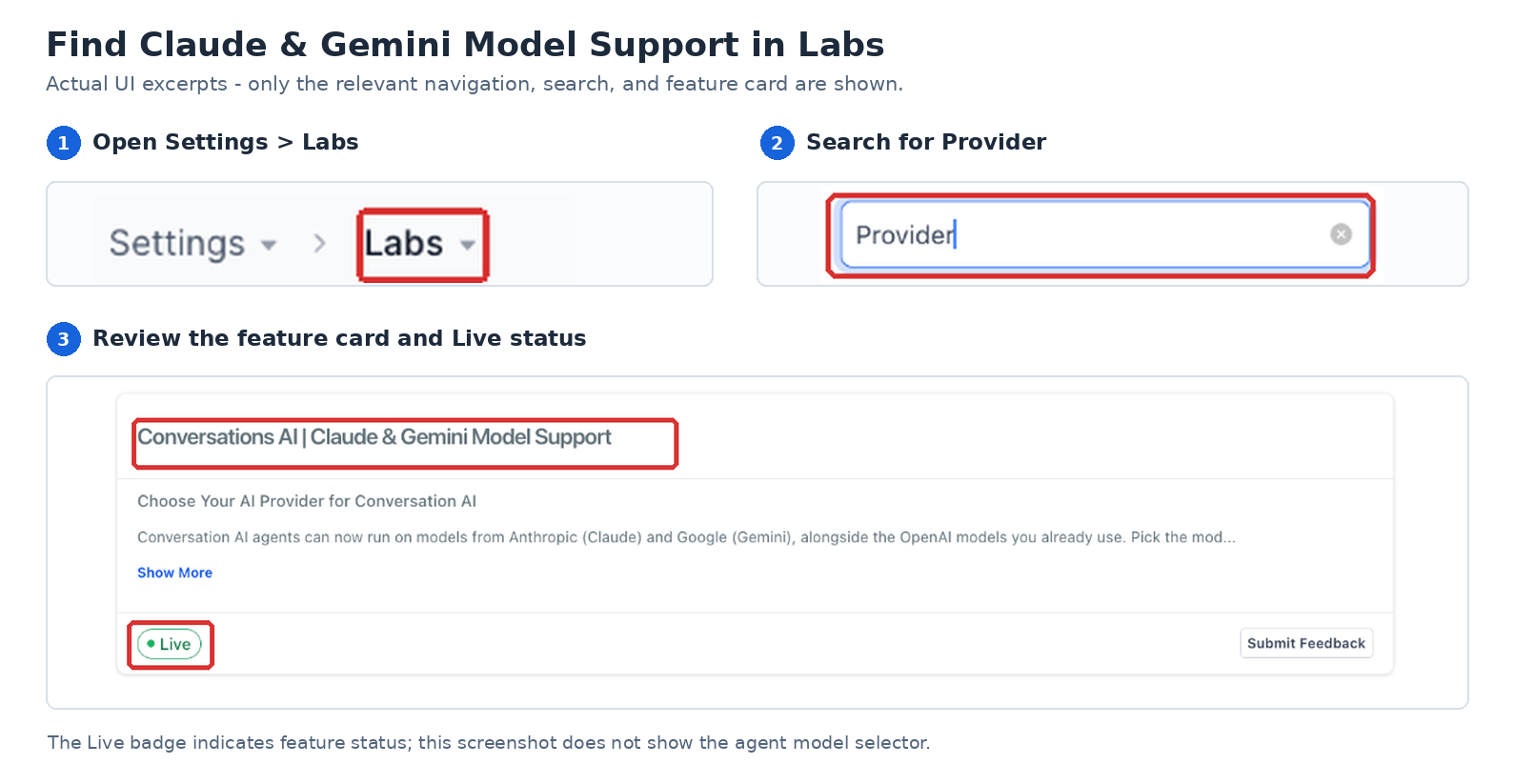
Note: The feature's current status may differ from the screenshot. If no activation control is displayed, check whether the additional models already appear in the agent's Model menu.
Step 2: Select a Primary Model
The primary model generates the agent's responses during normal operation. Select a supported Claude, Gemini, or OpenAI model based on the agent's intended use.
- From the navigation menu, select AI Agents.
- Open Conversation AI.
- Open Agents List.
- Select the agent you want to configure.
- Open the Build tab.
- Click the Model dropdown.
- Review the available models grouped by provider.
- Select your preferred Claude, Gemini, or OpenAI model.
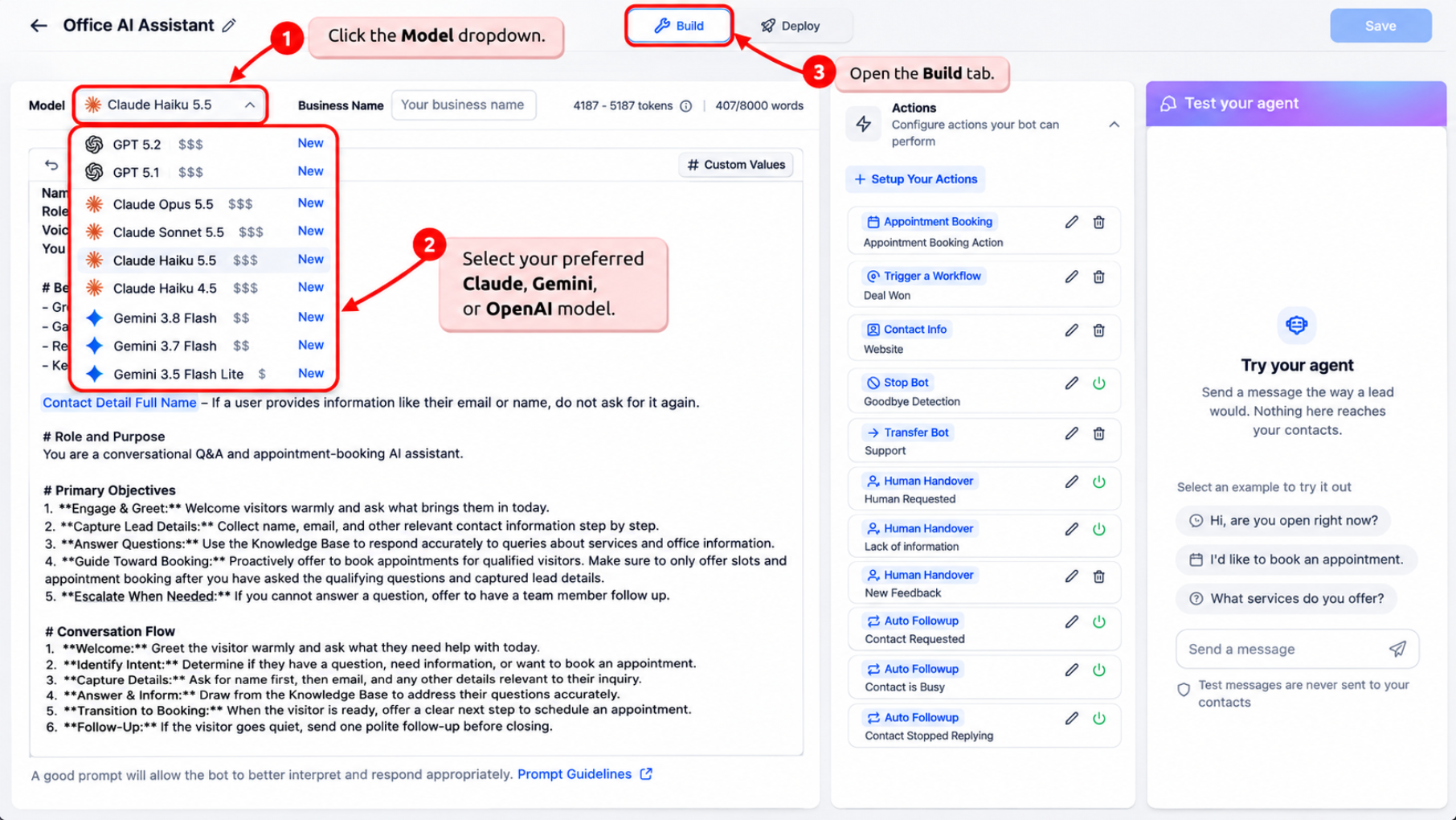
Important: Selecting another model changes the model used to generate responses. Your existing agent prompts, knowledge bases, actions, channels, and other settings remain in place.
Step 3: Configure a Secondary Model (Optional)
A secondary model provides a fallback when your primary model becomes unavailable. You can use another model from the same provider or select one from a different supported provider.
- In the agent's Build tab, locate the Model dropdown.
- Click the settings (gear) icon beside the dropdown.
- Review the selected Primary Model.
- Open the Secondary Model dropdown.
- Select a different model from the available options.
- Review the primary and secondary selections.
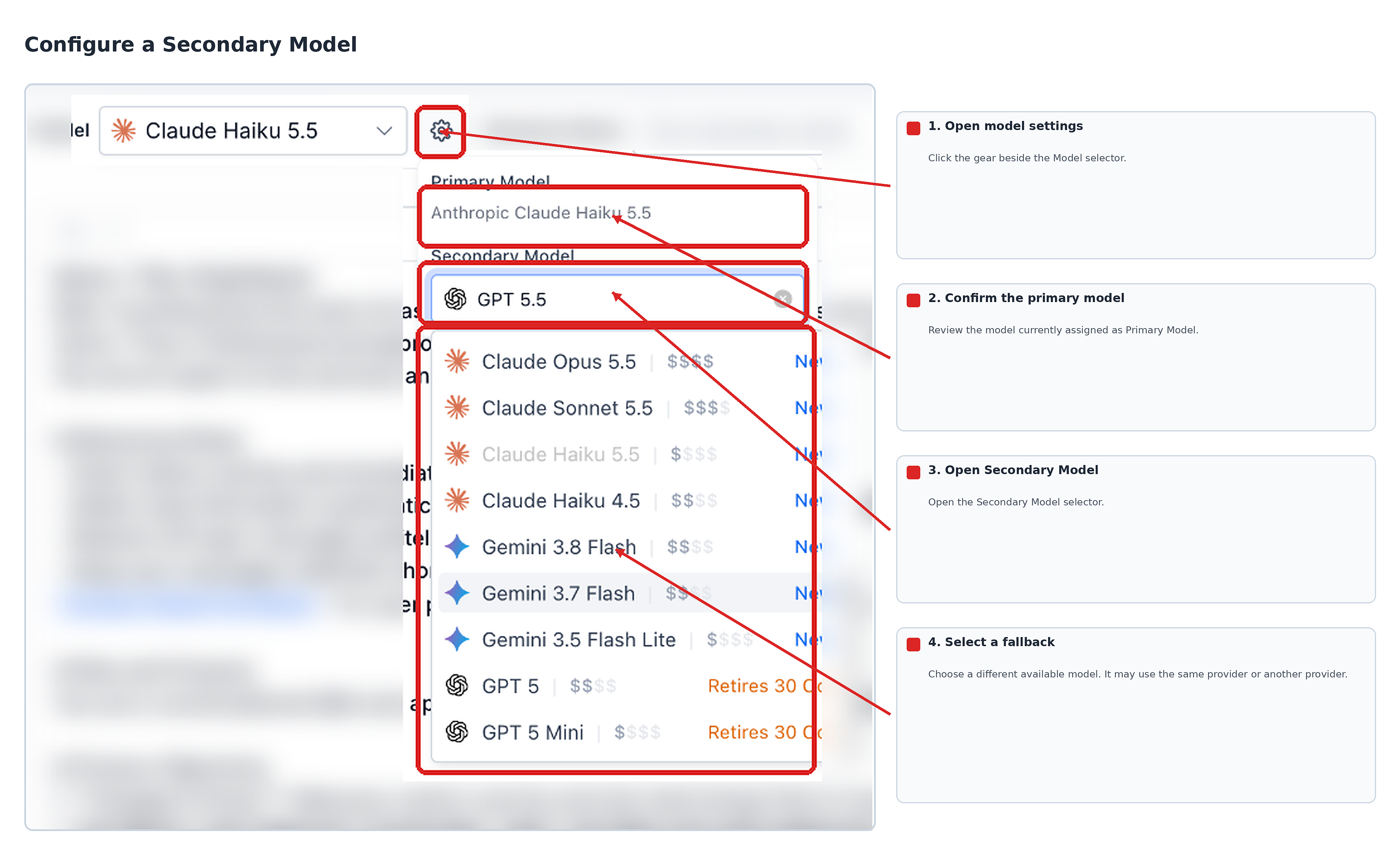
Important: The primary and secondary selections cannot be the same model.
How Fallback Works: If the primary model becomes unavailable, Conversation AI automatically switches to the configured secondary model.
Step 4: Test and Save Your Agent
Test the updated model configuration before saving your changes. Different models can generate different responses, so testing helps confirm that the agent continues to follow your instructions and perform its configured actions.
- Locate the Test your agent panel in the agent editor.
- Enter a sample customer question or select a suggested test message.
- Review the agent's response.
- Check that the response follows your configured instructions and knowledge sources.
- Test any relevant actions, such as appointment requests or business questions.
- Repeat the test with additional scenarios as needed.
- Click Save to apply the model configuration.
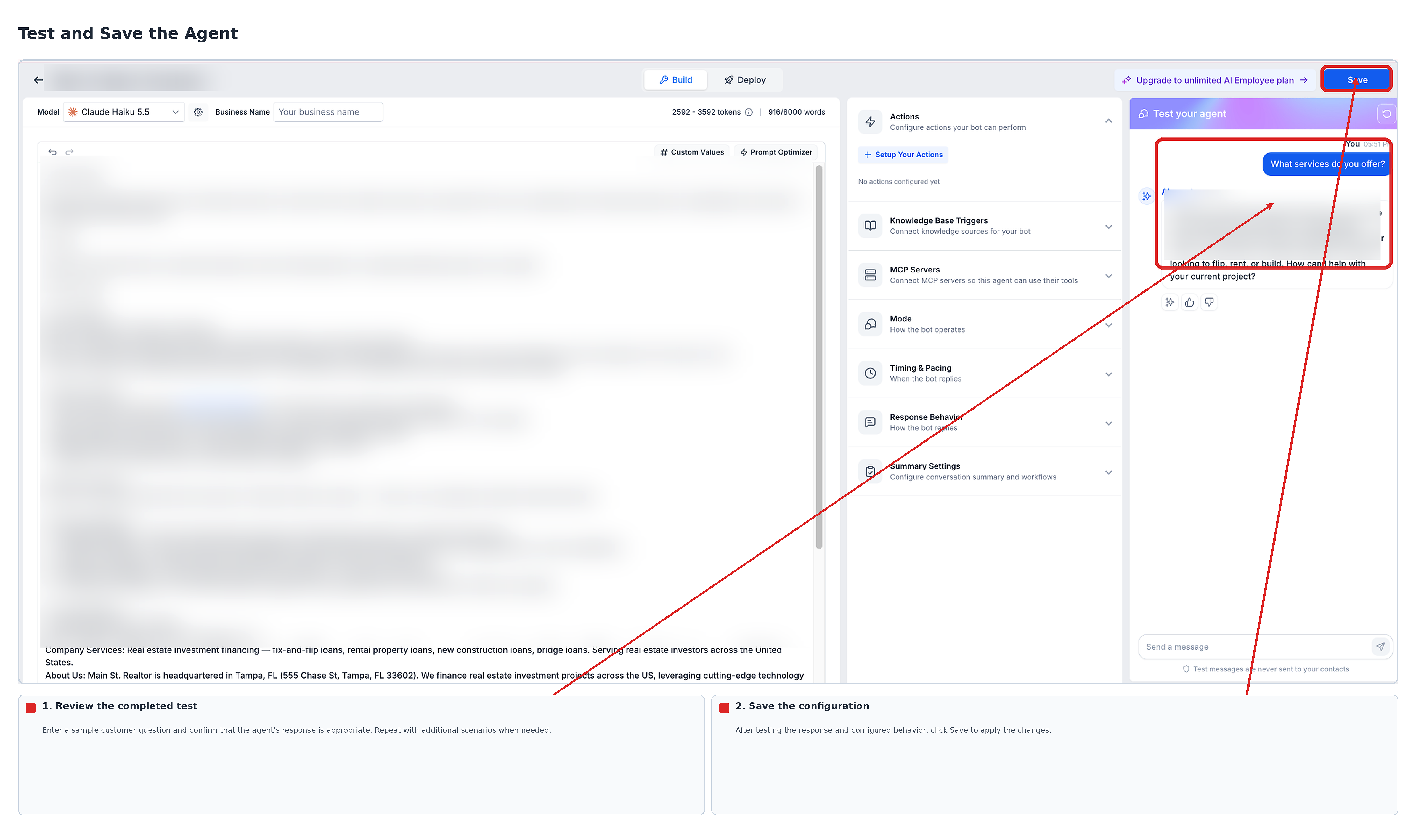
Note: The testing panel simulates conversations without sending messages to real contacts.
Important: Saving the model configuration does not automatically activate an inactive agent. Review the agent's Deploy settings separately when you are ready to manage its live communication channels.
Supported Claude and Gemini Models
Conversation AI adds seven models from Anthropic and Google alongside the existing supported OpenAI models. The models below were included in the provider-support release.
Anthropic Claude
Claude models are available as additional choices for configuring individual Conversation AI agents.
- Claude Opus 5.5
- Claude Sonnet 5.5
- Claude Haiku 5.5
- Claude Haiku 4.5
Google Gemini
Gemini models provide additional options within the same Conversation AI model selector.
- Gemini 3.8 Flash
- Gemini 3.7 Flash
- Gemini 3.5 Flash Lite
Note: Existing supported OpenAI models remain available in the Model menu. Model availability can change, so refer to the current menu for the options available to your agent.
Frequently Asked Questions
Q: Can different Conversation AI agents use different AI providers?
Yes. Each agent has its own model configuration. You can select different supported providers and models for different agents.
Q: Can the secondary model use a different provider from the primary model?
Yes. You can select a secondary model from the same provider or another supported provider. It must be a different model from the primary selection.
Q: When does Conversation AI use the secondary model?
The secondary model automatically takes over when the primary model becomes unavailable.
Q: Will switching models remove existing agent settings?
No. Changing models preserves the agent's prompts, actions, knowledge bases, communication channels, and other configured settings.
Q: Can I change the primary model using Build with AI?
Yes. In Build with AI, you can request a model change using natural-language instructions, such as "Switch the model to Claude." The supported model selection is updated for the agent.
Q: Can I select the same model as both primary and secondary?
No. The secondary model must differ from the primary model.
Q: Does testing an agent send messages to actual contacts?
No. The Test your agent panel simulates conversations without sending messages to real contacts.
Q: Does saving a model automatically activate the agent?
No. Saving retains the selected model configuration. Agent activation and communication channel settings are managed separately through the Deploy tab.
Need Help?
If Claude or Gemini models do not appear in the Model dropdown, open Settings > Labs and review the provider-support feature's availability. Confirm that you are editing the intended Conversation AI agent.
If you cannot select a secondary model, verify that it differs from your primary selection. After changing models, use Test your agent to check responses and relevant configured actions.
If the issue continues, contact support with the agent name, selected primary and secondary models, and a description of the problem. Include relevant screenshots when helpful, but avoid sharing sensitive customer information.